Webcam Filters and Effects
Webcam filters and background blur for your video calls.
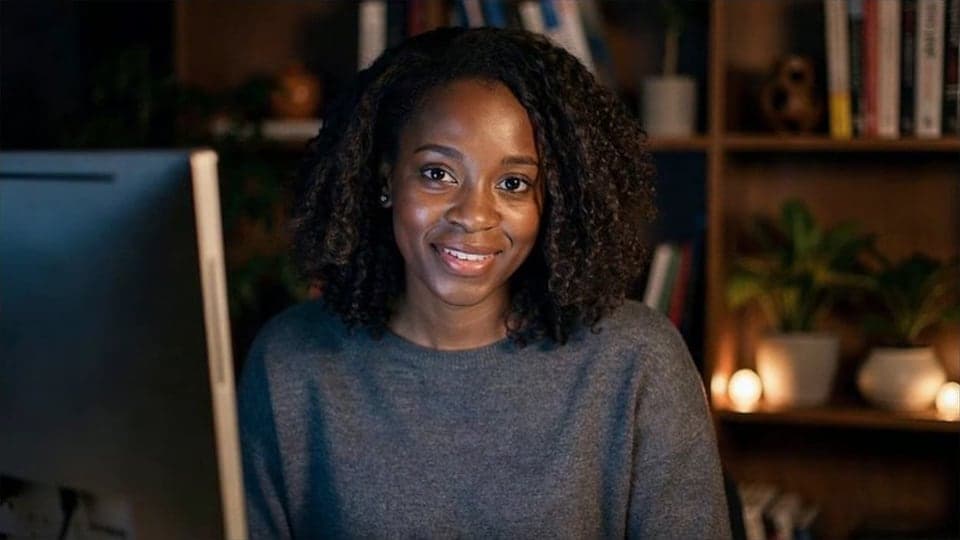
Your browser will ask for camera access when you click.
Where it works
How to use Webcam Effects
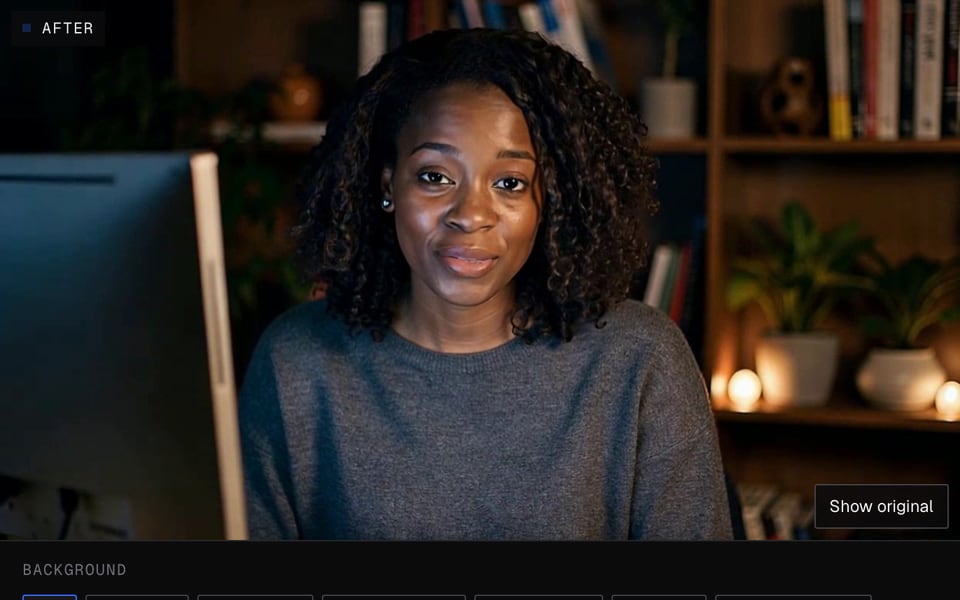
01
Start the camera
Click Start camera and allow camera access.
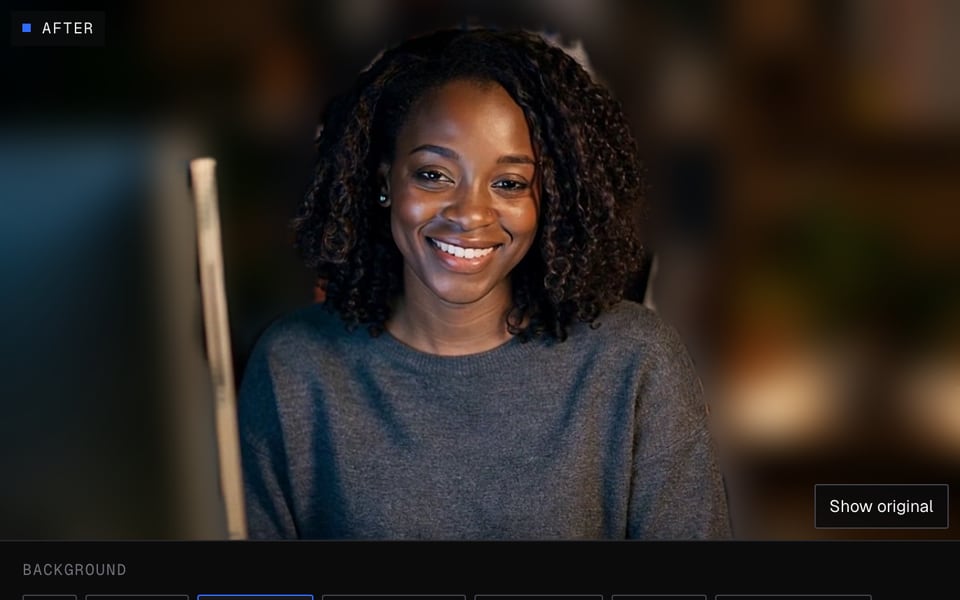
02
Pick a background and look
Blur or replace your background, choose a filter and turn on auto-framing to keep your face centred.
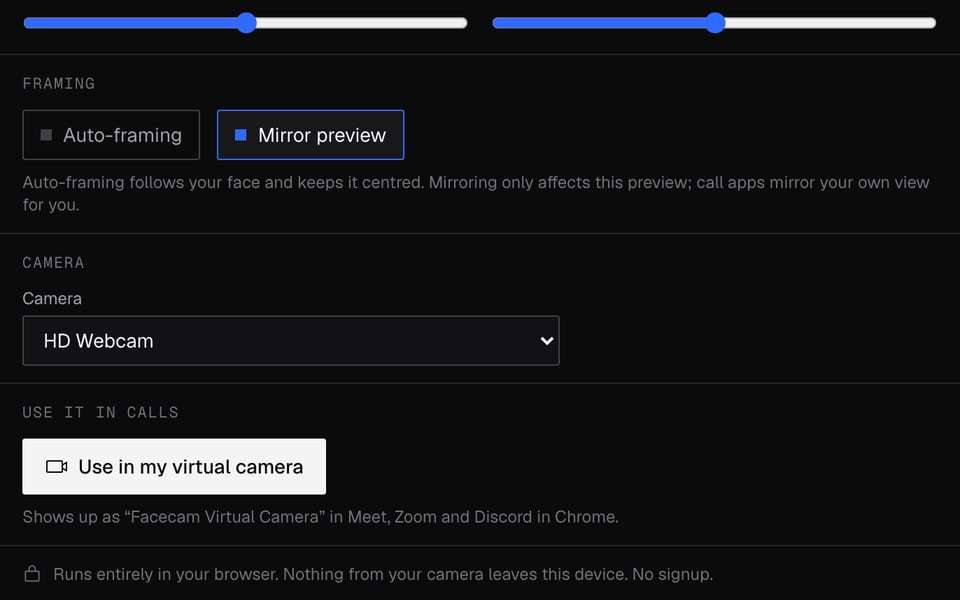
03
Use it in a call
Click Use as my camera in calls, then pick “Facecam Virtual Camera” in your call.


More about Webcam Effects
Facecam's Webcam Effects is a free online tool that blurs or replaces your background, improves your picture and keeps your face centred. Pick “Facecam Virtual Camera” in your Chrome call to use it.
Webcam Effects: what you need and limits
| How it works | Right on this page. Nothing is uploaded. |
|---|---|
| You get | Camera in Chrome calls |
| You need | Any up-to-date browser, a webcam |
| Phones and tablets | Try it on the page; calls need a computer |
| Backgrounds | Blur (light or strong), 4 flat colours or your own image |
| Filters | 6 colour filters plus four sliders |
| Your own background | Stays on your computer, resized to fit |
| Privacy | Your video never leaves your computer |
| Account | Not needed on this page |
Where the effects show up
Only you see the preview on this page. To use the effects in a call, add the Facecam Chrome extension and pick “Facecam Virtual Camera” as your camera. That works in Google Meet, Zoom and Teams on the web, discord.com and online streaming studios in Chrome. Desktop apps such as the Zoom or Discord app, consoles and phones can't see Facecam's camera. In OBS, capture the Chrome window instead.
What it doesn't do
These are background, colour and framing effects on your real picture. There are no face filters, masks, stickers or anime filters. If you want a whole different face, Live Face Swap lets you look like anyone, live; for an avatar that follows your face, use the VTuber or PNGTuber tools.
Cleaner edges
- Light your face from the front. A bright window behind you makes the edges flicker.
- A plain wall behind you gives cleaner edges, especially around hair.
- Sit far enough back that your shoulders are in the frame.
- The Green screen colour is for streaming apps like OBS that remove it, not for calls.
Webcam Effects FAQ
Is it free?
Yes. The effects work right on your computer and use no credits.
Does it work in the Zoom or Teams desktop app?
No. The Facecam camera only shows up on websites in Chrome. Use Zoom or Teams on the web.
Is my video uploaded?
No. Your video never leaves your computer. All the effects happen right on it.
Why does my preview look mirrored?
Mirror preview only flips this page's preview. Call apps mirror your own view for you, and others see you the right way round.
Can I use a photo as my background?
Yes. Upload a JPG, PNG or WebP of up to 15 MB. It's resized to fit and stays on your computer.
More tools

Updated