Free Messenger Video Call Filters on a Computer
Messenger's effects only exist in the phone apps. On a computer, Facecam brings face filters and backgrounds to Messenger calls in Chrome. Free, no sign-up.
Updated · Tested by the Facecam team

Your browser will ask for camera access when you click.

How do I add filters to my camera on Messenger?
Meta says Messenger's call effects, filters and AI backgrounds aren't available on computers. Facecam Virtual Camera adds them from the browser side: Messenger in Chrome sees it as your webcam.
Pick a filter
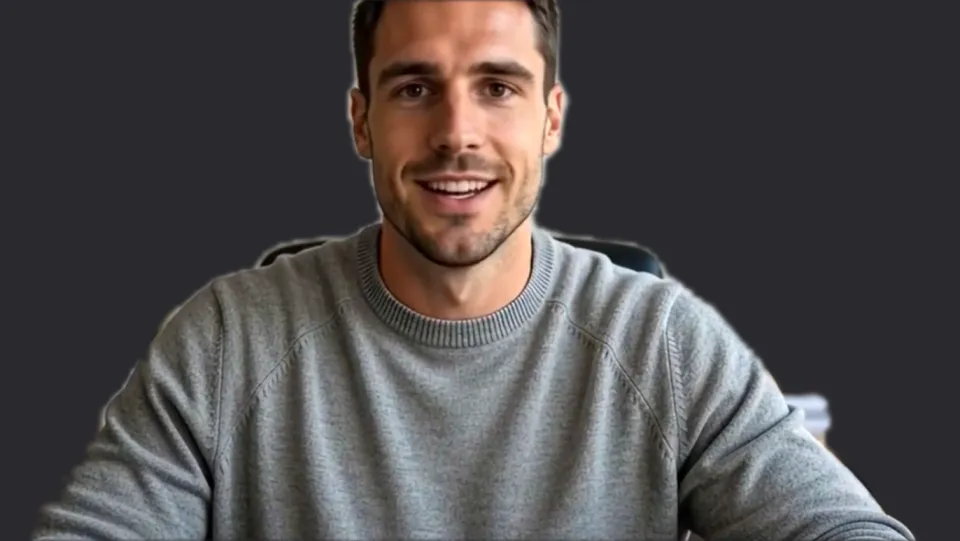
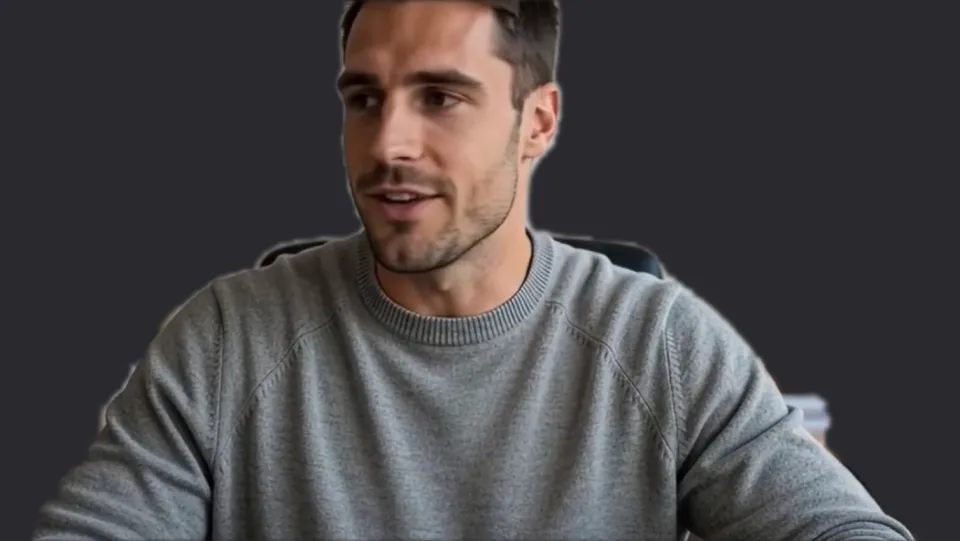
Click the Facecam icon in Chrome's toolbar and choose Effects under Your look. Pick a face filter, a background (blur, a flat colour) or a colour look; the popup remembers it for your next call.
Set Facecam as Chrome's camera for Messenger
Open messenger.com and click the camera icon at the right of Chrome's address bar (or the site settings icon left of the address). Allow the camera and choose “Facecam Virtual Camera” as the camera for the site.
Start the call
Open the conversation and click Start video call. The other person sees your filter on any device.
Filters for a Messenger call

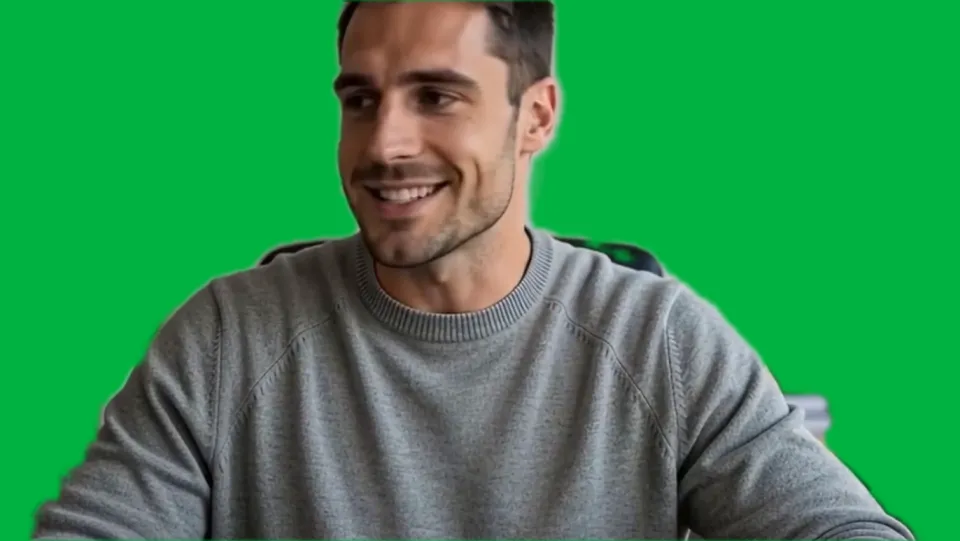
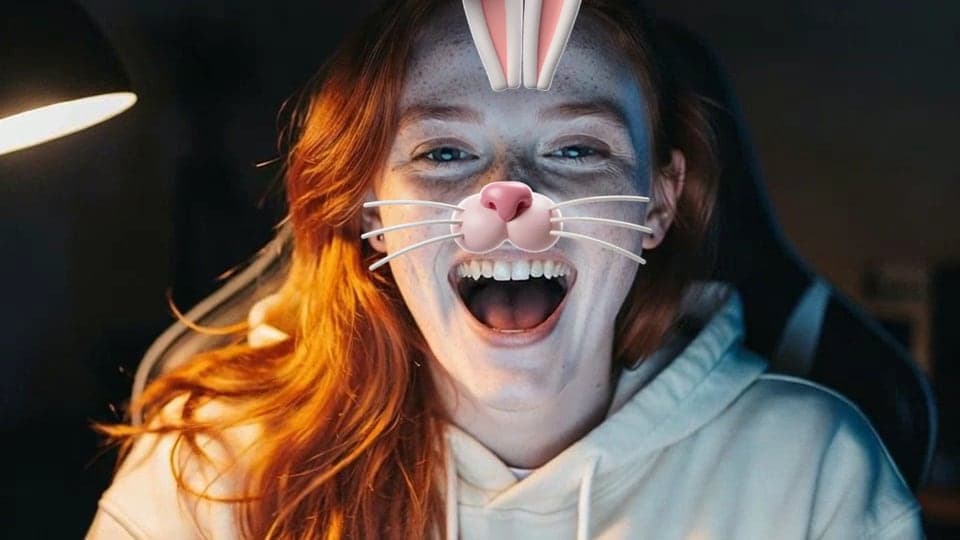
Dog ears and nose, the classic call filter. Our screenshot of Webcam Effects on a test clip, 2026-10-20. 
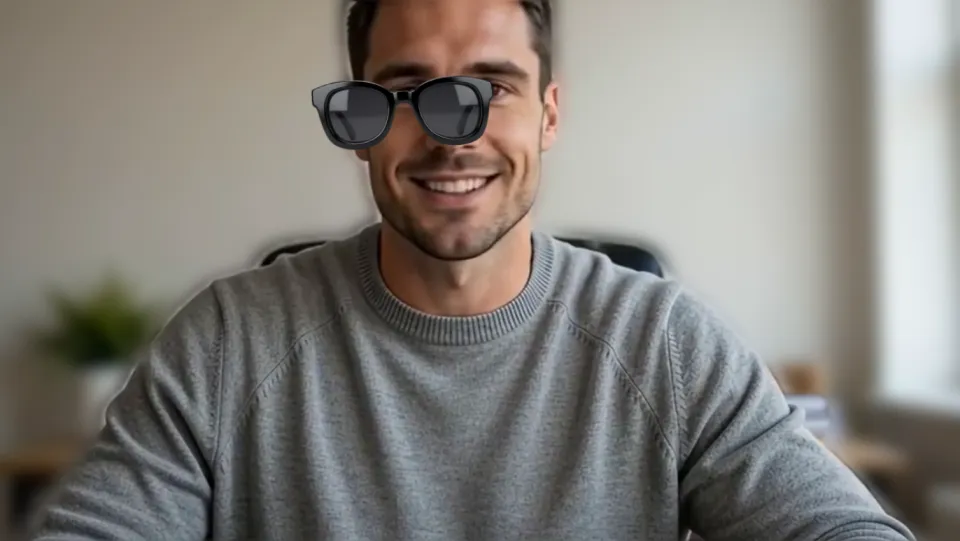
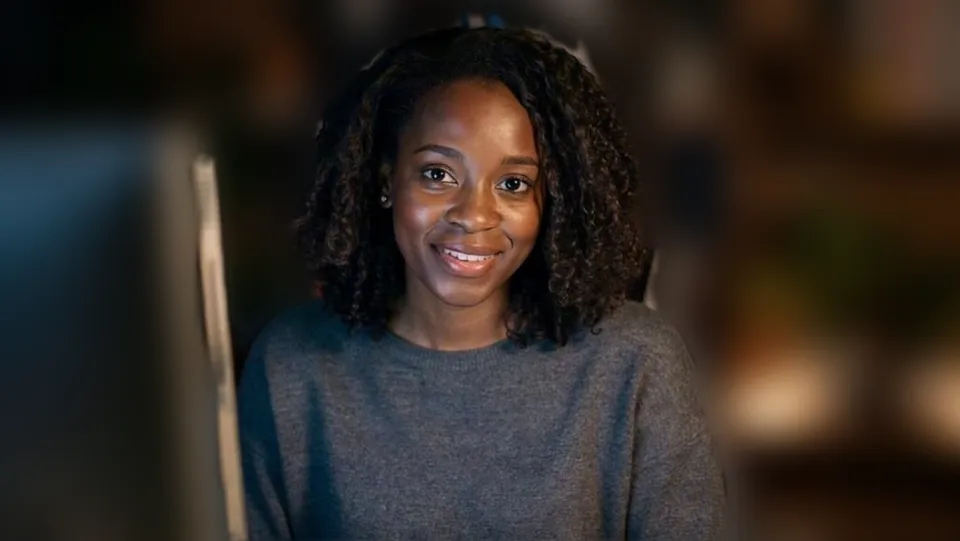
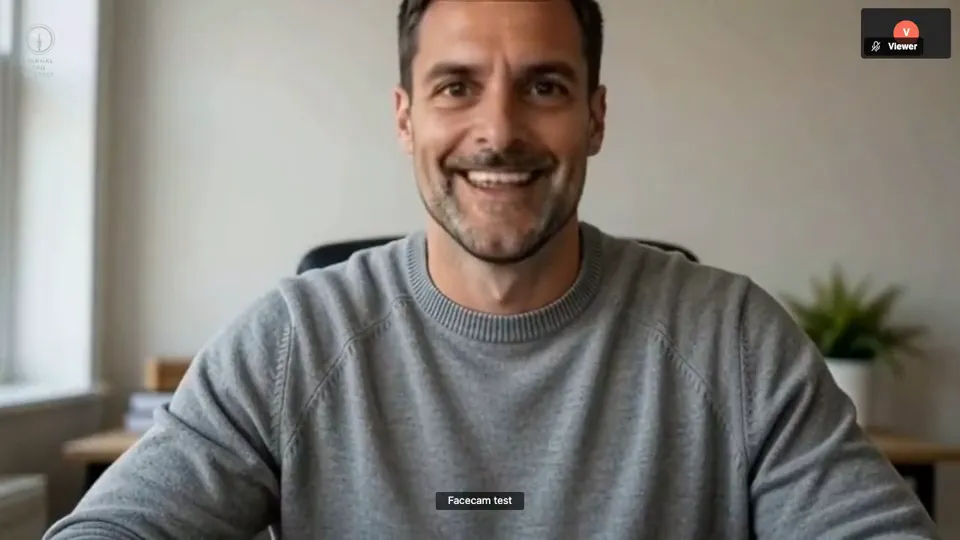
Heart glasses. Our screenshot of Webcam Effects on a test clip, 2026-10-20.

Why isn't my camera filter showing on Messenger?
| Problem | Fix |
|---|---|
| Messenger still shows my normal webcam | Chrome is set to your real webcam for this site. Click the camera icon in the address bar, pick Facecam Virtual Camera, and start the call again. |
| The call won't start | Meta's help: allow the camera for the browser, close other apps that use the camera, and restart the browser. |
| messenger.com sends me to Facebook | Messenger chats are also at facebook.com/messages. The steps are the same there. |

What Messenger has on a phone vs a computer
| Messenger app (phone) | Messenger on a computer | |
|---|---|---|
| Call effects and filters | Yes | Not available, says Meta |
| AI backgrounds | Yes | Not available |
| With Facecam in Chrome | — | Face filters, blur, flat colours, colour looks |
More about Messenger
Calling family from a laptop
A laptop call is where people miss the phone's filters most: the screen is bigger, the camera is fixed, and the kids on the other end ask for the dog ears. Facecam's dog filter even reacts when you open your mouth, the way phone filters do. For a call with grandparents, the Bright look helps more than any filter when the room is dim.
Sources
- Meta: the Messenger desktop app is no longer available; use messenger.com — facebook.com/help/messenger-app/1789649698300122 (checked 2026-10-20)
- Messenger: effects aren't available on computers — messenger.com/help/desktop/253936789003255 (checked 2026-10-20)
- Messenger: supported browsers for calls — messenger.com/help/2322144494758524 (checked 2026-10-20)
- Messenger: start a video call (Start video call) — messenger.com/help/1414800065460231 (checked 2026-10-20)

Questions
Why can't I use filters on Messenger on my computer?
Meta keeps Messenger's effects in its iPhone, iPad and Android apps. A camera with filters built in is the way to have them on a computer.
Does the other person need anything?
No. They see your camera with the filter, on their phone or computer.
Do group calls work?
Meta says group calling isn't available in Firefox or Edge on a computer; use Chrome.
Other platforms
- Zoom virtual background and filters
- OBS camera filters plus background blur
- Teams filters in the browser
- Discord camera filters
- Webex filters in the web app
- Google Meet filters
- Slack huddle filters
- Whereby filters
- Gather Town filters
- Instagram video call filters on a computer
- GoTo Meeting filters
- RingCentral Video filters
- StreamYard filters
- Riverside background blur
- Restream Studio filters
- YouTube live filters
- Preply background blur
- How to blur your background on Zoom
- How to blur your background in Teams
- How to blur your background in Google Meet
- Zoom Touch up my appearance
- How to look good on a video interview
- Webcam setup for online teaching