Webcam Test
A free webcam test: see your camera's real picture quality, smoothness and lighting.
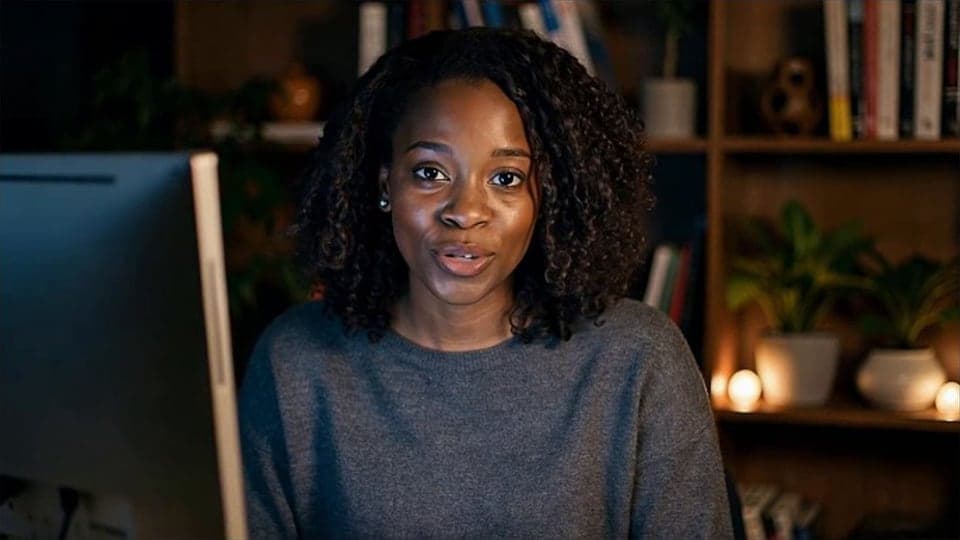
Your browser will ask for camera access when you click.
Where it works
What the result looks like
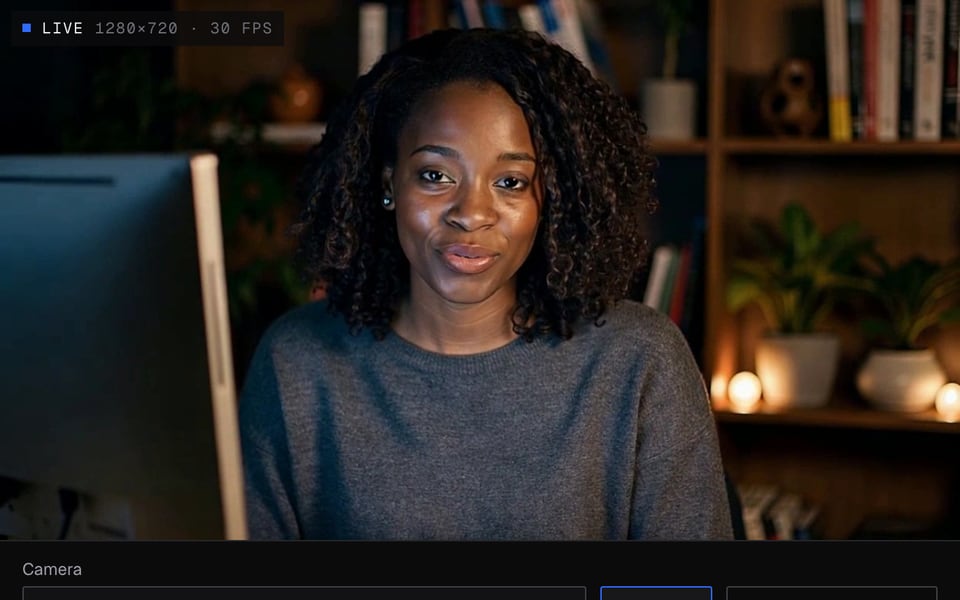
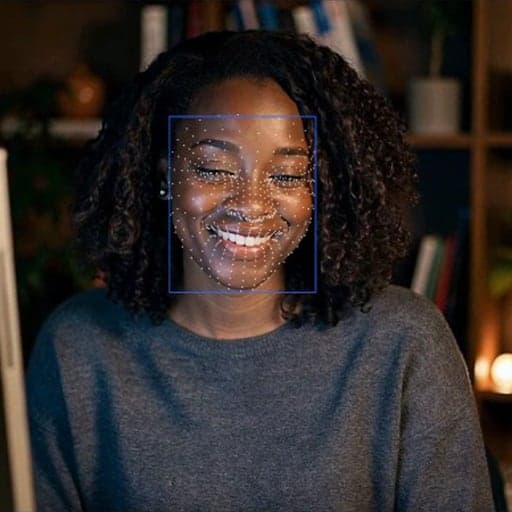
The camera works well 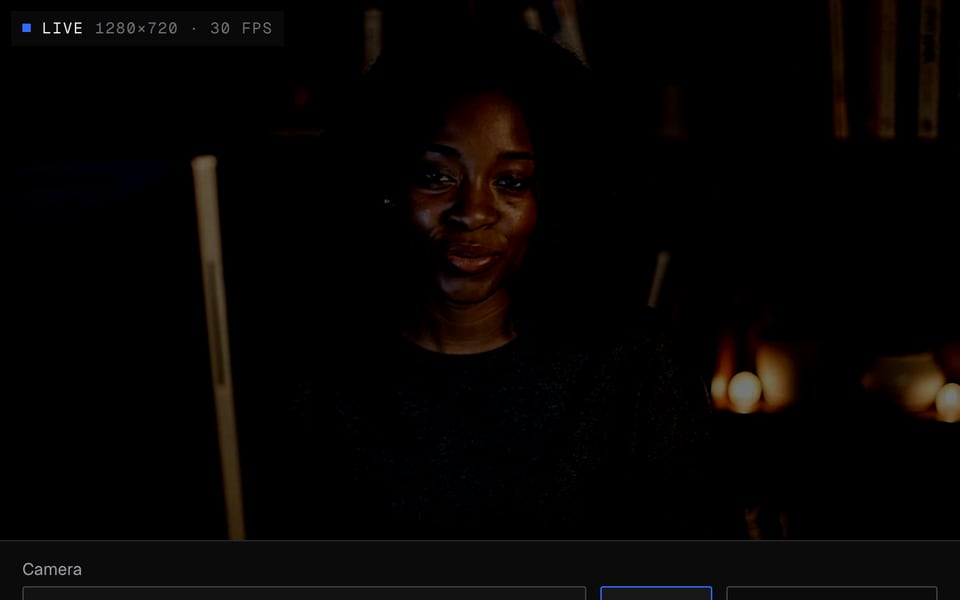
Works, but the picture is too dark 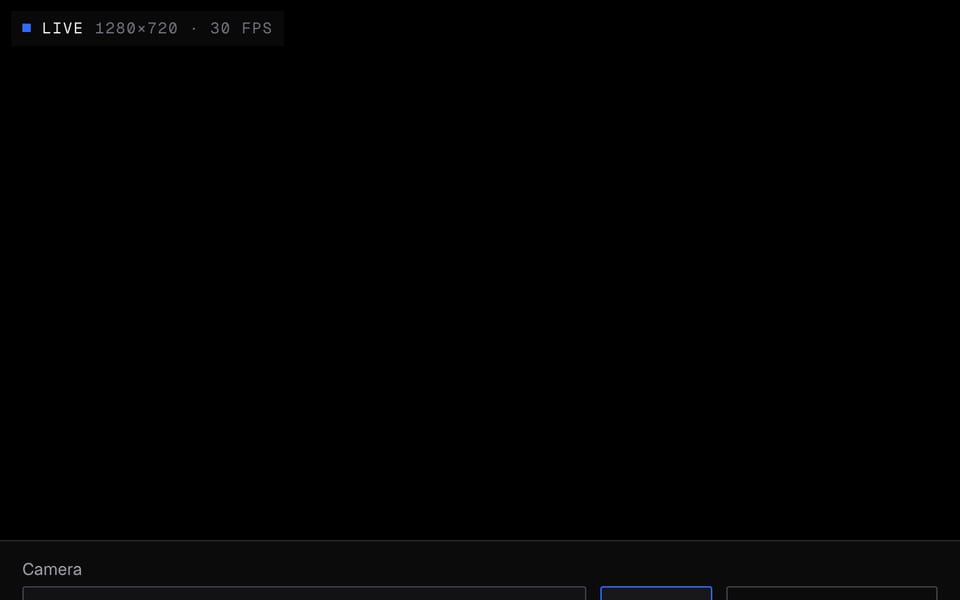
The picture is black


How to use Webcam Test
01
Start the camera
Click Start camera, allow access and pick your camera if you have several.
02
Read the result
After a second you get a result for picture size, smoothness and lighting.
03
Test resolutions
Optional: check which of eight common sizes your camera really supports.
If it doesn't work
| Problem | Fix |
|---|---|
| “Access was blocked” | Click the camera icon at the left of the address bar, choose Allow, then click Start camera again. On macOS, also allow the browser in System Settings → Privacy & Security → Camera; on Windows, check Settings → Privacy → Camera. |
| “Your camera or mic is busy” | Most webcams can only be opened by one app at a time. Quit Zoom, Teams, OBS, FaceTime or other tabs using it, then click Start camera again. |
| “No camera found” | Open the laptop lid or plug the webcam straight into the computer, not a hub, then reload. Check that your computer sees it in the Camera app (Windows) or Photo Booth (macOS). |
| Lighting says “Black image” | Look for a privacy shutter, lens cover, or a camera off switch or F-key on a laptop. OBS Virtual Camera also shows black until you start it. |
| Frames per second is low, or the note says the camera gives fewer frames than it should | Webcams slow down in dim light to let in more light, so the video gets choppier. Put a light in front of you, close heavy apps, and use a USB port on the computer itself. |
| Frame timing or dropped frames fail | The video stutters or skips. Plug the camera directly into the computer, try another cable, and close other apps and tabs that use the camera. |
More about Webcam Test
Facecam's Webcam Test is a free online tool that checks what your camera really gives you: picture size (resolution), how smooth the video is (frames per second), dropped frames and lighting. Then it tells you what to fix.
Webcam Test: what you need and limits
| How it works | Right on this page. Nothing is uploaded. |
|---|---|
| You get | Result on the page |
| You need | Any up-to-date browser, a webcam |
| Phones and tablets | Supported |
| What it checks | Picture size and shape, frames per second, frame timing, dropped frames, lighting |
| Also shown | The biggest picture size and highest frames per second your camera supports, when your browser shares them |
| Sizes tested | 3840×2160, 2560×1440, 1920×1080, 1280×720, 960×540, 640×480, 640×360, 320×240 |
How the checks are graded
| Check | Pass | Warning | Fail |
|---|---|---|---|
| Picture size | 720p or more | 480p to under 720p | Under 480p |
| Frames per second (fps) | 24 or more | 15 to under 24 | Under 15 |
| Frame timing | Frames arrive evenly | A little uneven | In bursts |
| Dropped frames | Under 2% | 2% to under 8% | 8% or more |
| Lighting | Even | Dim, backlit or overexposed | Too dark or black |
Frames per second is counted from what you actually see, not from what the camera promises. When the two are far apart, the result says so. Low light is the usual cause.
Why test resolutions?
A camera sold as 1080p may only give 720p in your browser, or crop the picture to a different shape. The test asks for each size and checks what comes back, so “Best confirmed” is a size you know works in online calls and streaming studios.
Privacy
Your video never leaves your computer. Nothing is uploaded or recorded, and you don't need an account. Closing the tab turns the camera off.
Embed this tool on your site
Put this tool on your own site or blog for free. Paste this code where you want it to show. Visitors are asked for their camera only when they click Start. The test runs on their device and nothing is recorded.
Webcam Test FAQ
Is the preview mirrored for other people?
No. Mirroring only changes your own preview here. Others in a call see you the right way round. Turn Mirror off to see that view.
Can I test my webcam and mic together?
This page tests the camera. Use the Mic Test for your microphone. It checks volume, distortion and noise and plays back a recording.
Does it work on a phone?
Yes. It works in up-to-date phone browsers, and the Camera menu lists the front and back cameras.
Why does my 1080p webcam show 720p?
Browsers often start at a smaller size. Click Test resolutions to see whether 1920×1080 is confirmed. If it isn't, the camera or its USB cable can't give it to your browser.
Does it work with OBS Virtual Camera or other virtual cameras?
Yes. They show up in the Camera menu like any webcam. To fix OBS problems, use the OBS Virtual Camera checker.
Is an online webcam test safe?
Yes. Your video never leaves your computer. The page can only use your camera after you allow it, and you can turn that off from the address bar at any time.
More tools

Related
Updated