Voice changer for Discord
A free voice changer for Discord voice chat: open discord.com in Chrome, pick Facecam Virtual Mic, and talk in a new voice.
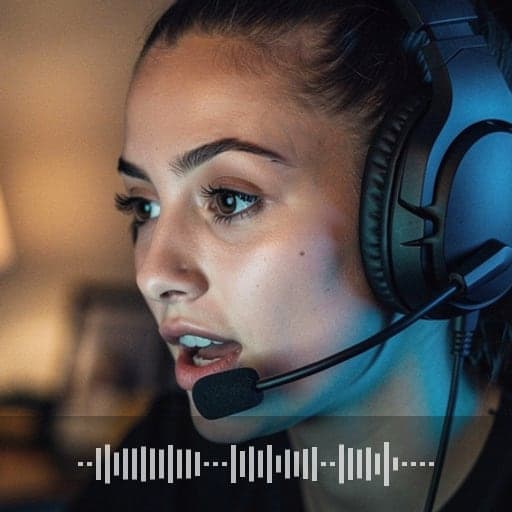
Your browser will ask for microphone access when you click.
Set it up in Discord
01
Open Discord in Chrome
Go to discord.com/app and log in. Close the Discord app if it's open, so you don't join the call twice.
02
Pick a voice
Click the Facecam icon in Chrome's toolbar and pick a voice under Your voice, such as Deep or Robot. More voices are in the free Real-Time Voice Changer.
03
Choose the mic in Discord
Open User Settings (the cog at the bottom left) → Voice & Video → Voice, and set Input Device to “Facecam Virtual Mic”. The first time, Chrome asks to use your mic: select Allow.
04
Turn off noise suppression
On the same page, turn Noise Suppression off. Discord's noise filter can cut effects like robot or echo, because they don't sound like a plain voice.
05
Join a voice channel and talk
Use Voice Activity, or keep the Discord tab in front if you use Push to Talk. Keep the tab open: closing it stops the mic.
Tested by Facecam team. Facecam extension 2.1.0 in Chromium 153 (the open-source version of Chrome) on macOS 26.5, with a recorded voice clip as the microphone, in a plain test call page we built. We didn't record inside discord.com; Discord's menu names come from Discord's help pages (see Sources).
Our test recording
Our recording, 2026-10-02, in a plain test call page (not Discord). Unmute to hear what the call received: about 7 seconds each of voice off, Deep and Robot, picked in the real Facecam popup. The speaker is a synthetic speech clip, not a person.
If it doesn't work
| Problem | Fix |
|---|---|
| Facecam Virtual Mic isn't in the Input Device list | Reload the Discord tab with the extension on, then open Voice & Video again. |
| Others hear my normal voice | The input is still your real mic, or the voice is set to Off in the Facecam popup. Check both. |
| The effect cuts in and out | Noise Suppression is still on. Turn it off in Voice & Video → Voice. |
| Push to Talk does nothing | The Discord tab isn't in front. Use Voice Activity instead. |
More about Discord
Why it doesn't work in the Discord app
Desktop voice changers install extra audio software on your computer, which is how they reach the Discord app and games. Facecam doesn't install anything beyond the Chrome extension, so its mic only shows up on websites in Chrome. That's also why it works on Chromebooks and on laptops where you can't install programs.
Coming from Voicemod
Voicemod's Discord setup picks its own microphone in the Discord app. With Facecam you pick Facecam Virtual Mic in discord.com instead. If you need your changed voice in the Discord app or in games, a desktop voice changer like Voicemod is the better fit.
Sources
- Discord: Voice & Video settings, Input Device and Noise Suppression — support.discord.com/hc/en-us/articles/360045138471 (checked 2026-10-02)
- Discord: Push to Talk in the browser — support.discord.com/hc/en-us/articles/211376518 (checked 2026-10-02)
- Discord: allowing the mic in Chrome — support.discord.com/hc/en-us/articles/205093487 (checked 2026-10-02)
- Discord: browser versions that support voice chat — support.discord.com/hc/en-us/articles/38025123604631 (checked 2026-10-02)
Questions
Do the other people in the call need Facecam?
No. Only you need Chrome and the extension. Everyone else hears the changed voice in any Discord app.
Is this voice changer for Discord free?
Yes. The voice effects run on your own computer and don't use credits.
Can I use it in Discord on my phone?
No. Phone browsers can't run Chrome extensions, and the phone app can't see the mic.
Can I play sounds too?
Yes. Facecam's soundboard plays through the same Facecam Virtual Mic, so your voice and the sounds go out together.
Other platforms
Related
Updated