VTuber Maker
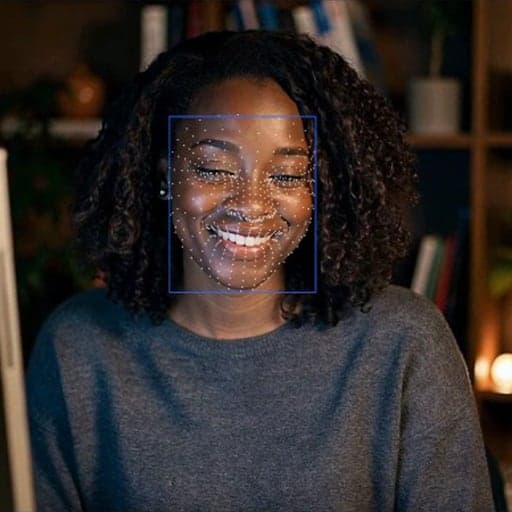
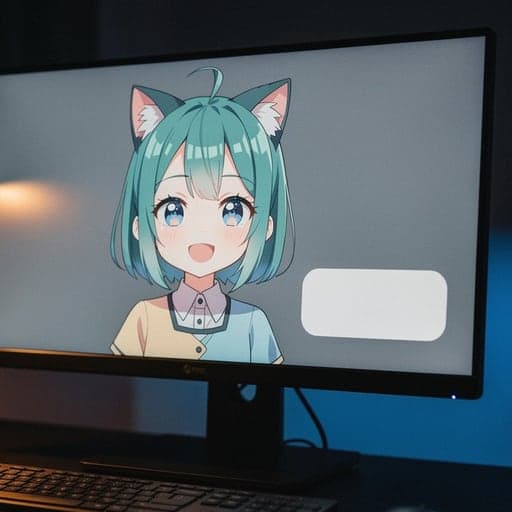
A free VTuber maker: a 3D avatar copies your face through your webcam.
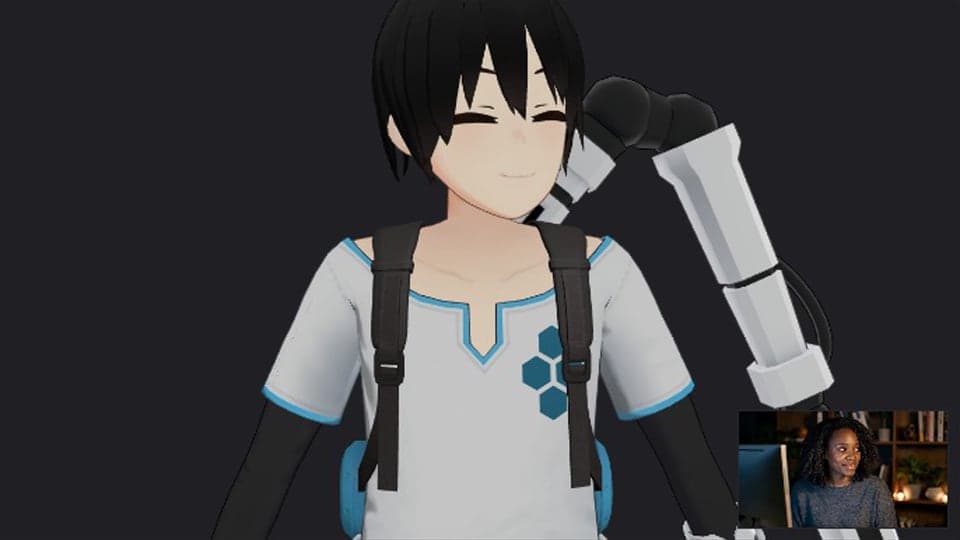
Your browser will ask for camera access when you click.
Where it works
How to use VTuber Maker
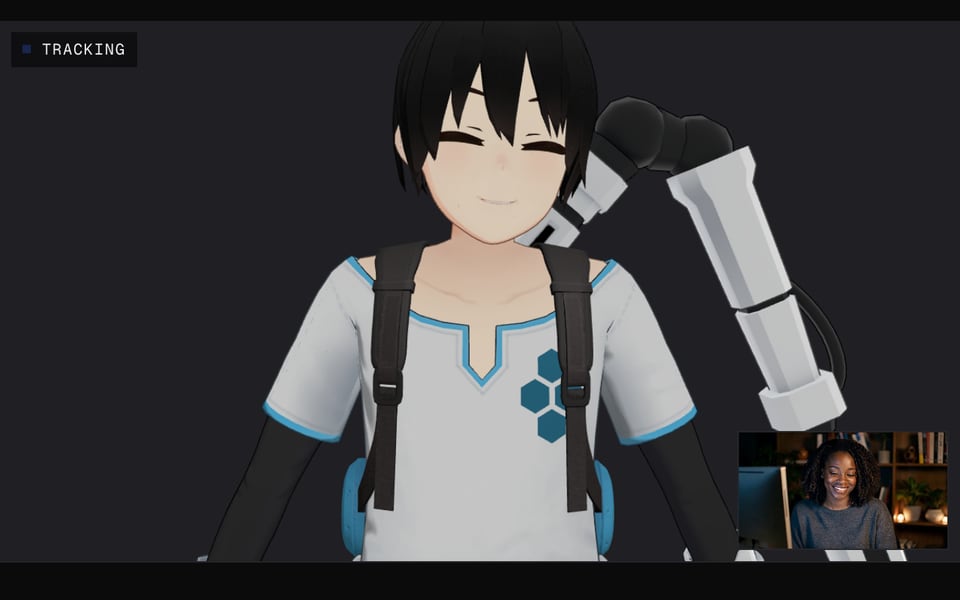
01
Start the camera
Click Start camera and allow camera access. The sample avatar copies your head right away.
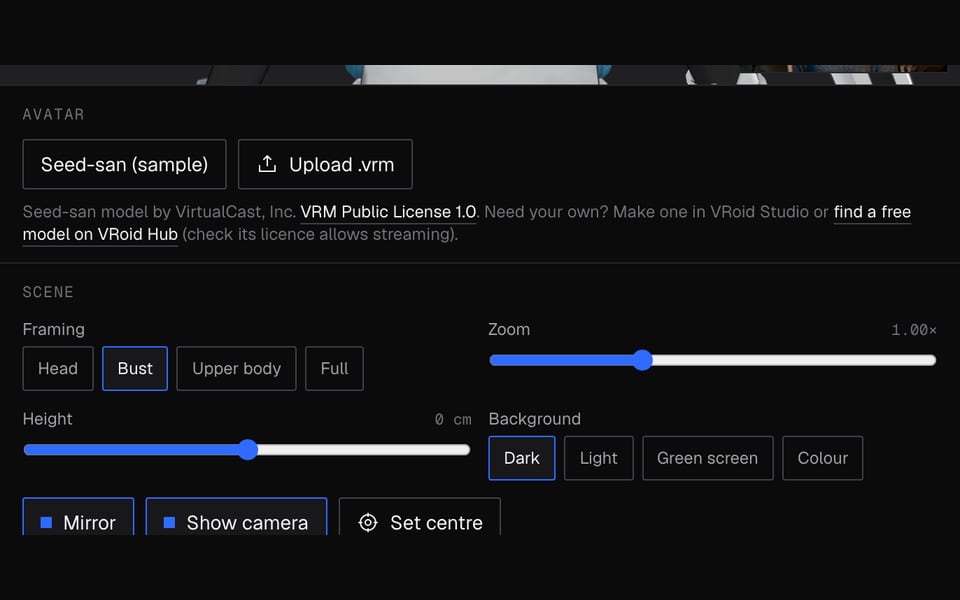
02
Load your avatar
Keep the sample or upload your own VRM file (the 3D avatar file most VTuber apps use). It stays on your computer.
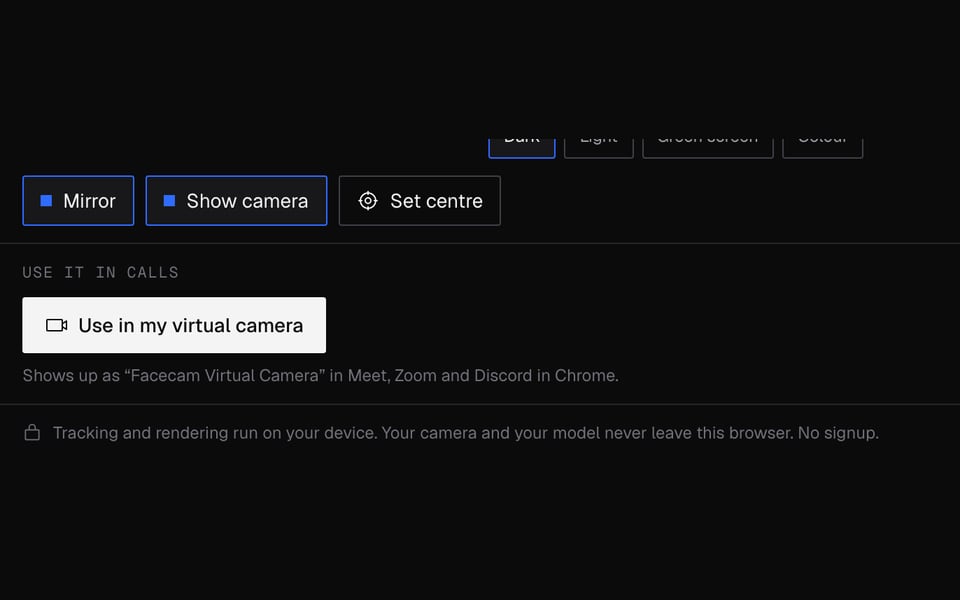
03
Use it in a call
Click Use as my camera in calls, then pick “Facecam Virtual Camera” in your call.


More about VTuber Maker
Facecam's VTuber Maker is a free online tool. A 3D avatar follows your head, eyes and mouth through your webcam, and you can show up as it in your Chrome calls.
VTuber Maker: what you need and limits
| How it works | Right on this page. Nothing is uploaded. |
|---|---|
| You get | Camera in Chrome calls |
| You need | Any up-to-date browser, a webcam |
| Phones and tablets | Try it on the page; calls need a computer |
| Tracking | Your face only, from a normal webcam: head turns and tilts, blinks, mouth shapes and smiles. Hands and body don't move the avatar. |
| Avatar files | VRM (.vrm or .glb), up to 30 MB on this page. |
| Size limit for calls | Your own avatar works in calls up to 30 MB, the same as on this page. |
| Backgrounds | Dark, light, green screen (#00ff00) or any colour. |
| Sign-up | None for this page. Using it in calls needs the Facecam extension. |
What you can do with it
- Try VTubing before you buy a model or install anything. The sample avatar works the moment your camera starts.
- Test a model you paid for, or made in VRoid Studio, on your own face before your first stream.
- Join a Meet, Zoom or Discord call as your avatar from a school or work laptop where you can't install apps.
- Show your avatar in OBS: set the background to Green screen, capture the Chrome window and remove the green.
Where your camera and model go
Everything happens right on your computer. Your camera picture never leaves it. An avatar you upload stays here too, and is only copied to your own Facecam extension when you click Use as my camera in calls.
Limits to know
- The Facecam camera only shows up on websites in Chrome. The Discord, Zoom and Teams desktop apps, OBS, consoles and phones can't pick it.
- It needs a computer. Phones and tablets can't run the extension.
- It works with VRM avatars, not Live2D models.
- Chrome slows down tabs you aren't looking at. For OBS, keep the tool in its own window and don't minimise it.
About the sample avatar
Seed-san is the VRM Consortium's official sample model, by VirtualCast, Inc., shared under the VRM Public License 1.0, which requires credit. For your own avatar, make one in VRoid Studio or find a free model on VRoid Hub, and check its licence allows streaming.
VTuber Maker FAQ
Is this VTuber maker free?
Yes. It costs nothing and needs no account, including using it in calls. It works right on your computer.
Do I need to download anything?
Not to try it. It works right on this page. To use the avatar in calls, add the free Facecam Chrome extension.
Can I use it without a webcam?
No. The avatar copies your face, so it needs a camera. The PNGTuber Maker moves your avatar with your voice instead.
How do I add it to OBS?
OBS can't see the Facecam camera. Set the background to Green screen, add a Window Capture in OBS for the Chrome window, crop it to the avatar and add a Chroma Key filter.
Does it work on Mac, Chromebook or Linux?
Yes, in Chrome on any computer with a webcam. If the avatar doesn't show up, turn on hardware acceleration in Chrome's settings and reload the page.
Can I make the avatar itself here?
No. This tool brings an avatar you already have to life. Make one in VRoid Studio, or use the AI Avatar Maker for a flat PNGTuber-style avatar.
Where do I get a VRM model?
Make one for free in VRoid Studio, or find one on VRoid Hub or BOOTH and check that its licence allows streaming. Then upload the .vrm here; Live2D models don't work.
More tools
Related
Updated