How to Face Swap on a Video Call
Face swap on a video call from Chrome: what to click, how long the swap takes to start, and what the other person sees.
By Facecam team · Updated
Short answer
Add Facecam to Chrome, pick the face you want (a built-in one or any photo you upload), open the call in Chrome and choose “Facecam Virtual Camera” on the join screen. Wait until the preview shows the new face (about half a minute the first time), then join. It works in calls that run in Chrome, not in desktop apps or on phones. The other person needs nothing installed: in our test call, a plain browser saw the swap.
You need
- Chrome on a laptop or desktop
- A webcam
- A Facecam account on Premium or Pro
- A call you can open in the browser: Google Meet, the Zoom web app, Teams on the web, discord.com or Jitsi Meet
Tested by Facecam team. Facecam extension 2.1.0, signed in, in Chromium 153 on macOS 26.5, in a Jitsi Meet call on meet.ffmuc.net (a public Jitsi server that needs no account). A second Chromium window with no extension joined as the other person and recorded what it received. The webcam played a clip of a fictional, computer-made man. We also checked Zoom's web app join screen. We didn't test Google Meet, Teams or Discord, which need signed-in accounts.
Step by step
01
Add Facecam to Chrome and sign in
Install the extension, then sign in from its toolbar icon. Pin it from the puzzle-piece menu so it's one click away.
02
Pick Face swap and a face
In the popup, choose Face swap under Your look and click a built-in face, or upload a photo of anyone you want to look like. The first time, allow face swap: it sends your camera video to our servers to be swapped, and nothing is recorded.
03
Open the call in Chrome, not the app
Use the meeting link in a Chrome tab. If the site offers its app, look for “Join from browser” or “Continue in browser”.
04
Choose the Facecam camera before you join
On the join screen, open the camera menu and pick “Facecam Virtual Camera”. In Jitsi Meet it's the small arrow next to the camera button.
05
Wait for the new face, then join
Until the swap is ready, the preview shows your normal camera. Join once you see the new face, so nobody sees your real face first.
06
Change faces without leaving
Click another face in the popup during the call. We switched seven times in one call and never had to rejoin.
From our test
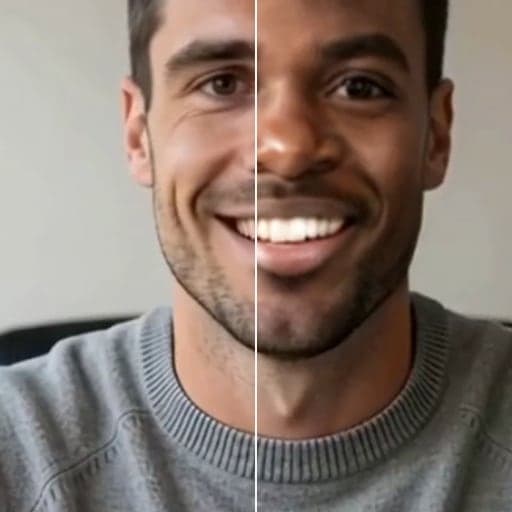
20 seconds recorded on the other person's side of the call, 2026-10-03. The caller switches from Rook to Nova in the popup without leaving. The man underneath is a fictional, computer-made person.
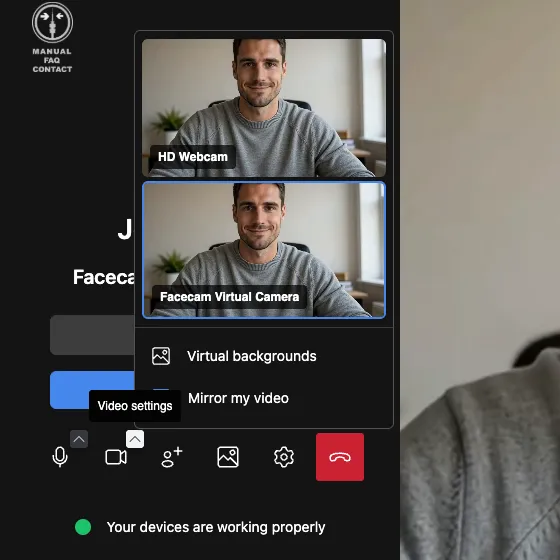
Jitsi Meet's camera menu on the join screen. Both previews still show the webcam: the swap starts once you pick the Facecam camera.

The other person's screen, a plain browser with nothing installed.
If it doesn't work
| Problem | Fix |
|---|---|
| The Facecam camera isn't in the list | You're probably in the desktop app. Open the call in Chrome. In Chrome, reload the call tab. |
| The call shows my real face | The swap is still starting, or no face is picked. Check the popup, and wait on the join screen until the new face appears. |
| The site says the camera is in use | Another tab is using the camera. Close it and open the call link again. |
| The new face still has my hair | That's expected: only the face is swapped. Pick a face whose hairstyle is close to yours. |
What we measured in the test call
| Measure | Result |
|---|---|
| Video the other person received | 1280×720 at 30 frames a second |
| Frames dropped | 3 of 2,020 |
| Freezes | 0 |
| Face changes during the call | 7, with no rejoining |
| Time until the swap showed (Zoom join screen) | 20 to 35 seconds |
Only the face changes. Hair, beard shadow, clothes and the room stay what your camera sees, so a face with a different hairstyle keeps your hair. Our test webcam was a man with stubble, and the women characters showed patches of it around the mouth.
Where the camera setting is in each call app
| App | Where to pick the camera | Tested by us? |
|---|---|---|
| Jitsi Meet | Join screen: arrow next to the camera button | Yes, full call (meet.jit.si asks the first person to sign in; meet.ffmuc.net didn't) |
| Zoom web app | Join from browser, then the arrow next to Stop Video | Join screen only: Zoom blocked our automated browser from the meeting |
| Google Meet | Camera menu under the preview, or ⋮ → Settings → Video | No, needs a Google account. Steps from Google's help |
| Teams on the web | Settings and more → Settings → Devices → Camera | No, needs a meeting invite. Steps from Microsoft's help |
| discord.com | User Settings → Voice & Video → Camera | No, needs a Discord account. Steps from Discord's help |
| Desktop apps (Zoom, Teams, Discord), phones | Not possible | They can't see the camera |
Other ways to change your face on a call
- Built-in effects: Meet has backgrounds, filters and touch-up; Zoom has filters and avatars. Free, but they decorate your face rather than replace it.
- A VTuber or PNGTuber avatar: a cartoon or 3D character instead of a human face, free and run on your computer.
- Deep-Live-Cam or FaceFusion: free and open source. They need a gaming PC with a strong graphics card, and reach desktop apps through OBS.
Faces and AI labels
Be anyone you like: pick a built-in face, make one with the Character Generator, or upload any face in the extension. Facecam draws no AI label on your video, so disclose it wherever the law requires.
Official documentation
- Google Meet Help, change video settings: https://support.google.com/meet/answer/9302964 (checked 2026-10-01)
- Google Meet Help, visual effects: https://support.google.com/meet/answer/10058482 (checked 2026-10-01)
- Zoom Support, using the Zoom web app: https://support.zoom.com/hc/en/article?id=zm_kb&sysparm_article=KB0059744 (checked 2026-10-01)
- Microsoft Support, Teams on the web device troubleshooting: https://support.microsoft.com/en-us/office/troubleshoot-device-features-in-microsoft-teams-on-the-web-567ba59d-fa4d-4c41-87a6-baaa6ec70e33 (checked 2026-10-01)
- Discord Support, input and output devices: https://support.discord.com/hc/en-us/articles/33030151293079 (checked 2026-10-01)
Questions
Does the other person need Facecam?
No. They see the swap like any other video. In our test the other side was a plain browser with nothing installed.
Does it work in the Zoom or Teams desktop app?
No. Facecam's camera is only visible to sites running in Chrome. Join the same meeting from the browser instead.
Is there a free face swap for video calls?
Not on Facecam: live face swap is part of Premium and Pro. Free alternatives are open-source tools like Deep-Live-Cam if you have a gaming PC, or built-in filters that don't swap the face.
Why did the call show my real face at first?
The swap takes a little while to start, and until then Facecam passes your normal camera through. Pick the camera on the join screen and wait for the swapped face before you join.
Can I face swap on a video call from my phone?
No. Phone browsers don't run Chrome extensions, and call apps on phones can't see the Facecam camera.
Used in this guide

Related
Updated