How to Make a PNGTuber
How to make a PNGTuber for free: two images, a microphone and a PNGTuber app. We tested the steps in Facecam's PNGTuber Maker.
By Facecam team · Updated
Short answer
Draw two images of your character on a transparent background, one with the mouth closed and one with it open. Load them into a free PNGTuber app, set the mic threshold so the talking image shows only when you speak, then add the avatar to OBS or use it as your camera in a call.
You need
- Two transparent PNG images of your character (four if you want blinking)
- A microphone
- A free PNGTuber app: Facecam's PNGTuber Maker in Chrome, or a desktop app such as veadotube mini or PNGTuber Plus
Tested by Facecam team. PNGTuber Maker in Chromium 153 (the open-source version of Chrome) on macOS 26.5, with four 512 × 512 PNG frames we drew and a recorded voice clip as the microphone. We didn't test the OBS steps or the desktop apps; those follow OBS's and veadotube's own guides (see Official guides).
Step by step
01
Draw the idle image
Your character with the mouth closed, on a transparent background, saved as PNG. A square canvas is easiest; our test frames were 512 × 512 pixels and about 10 KB each.
02
Draw the talking image
Copy the idle image and open the mouth. Change nothing else, so the switch looks clean.
03
Add blink frames (optional)
Copy both images again and close the eyes. That gives you four frames: idle, talking, blink, and talking + blink.
04
Load the frames
Open the PNGTuber Maker and allow the microphone when Chrome asks. Under Your images, add each PNG to its slot: Idle, Talking, Blink, Talking + blink. Only Idle is required.
05
Set the mic threshold
Talk normally and watch the mic level bar. The mouth opens when the level passes the blue line. The defaults are a 12% threshold, 0 ms attack and 180 ms hold; raise the threshold if keyboard or fan noise opens the mouth.
06
Use it in a call or in OBS
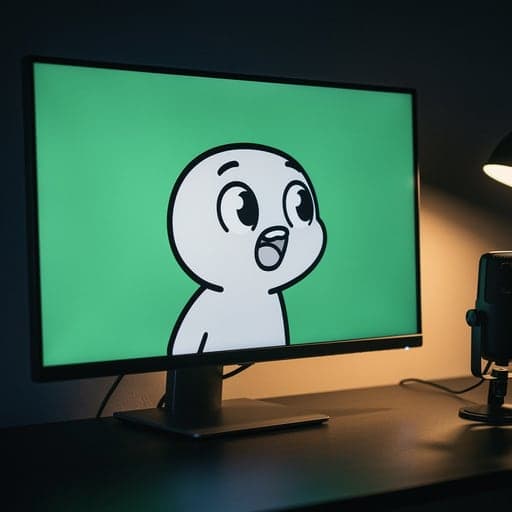
For a call, press Use as my camera in calls and pick Facecam Virtual Camera in Meet, Zoom on the web or discord.com in Chrome. For OBS, set the background to Green screen, add a Window Capture of that Chrome window, and add a Chroma Key filter.
07
Save your avatar
Press Save to a file. The file keeps your images and settings, so Open a saved file brings it all back next time. Ours, with four frames, was about 100 KB.
From our test
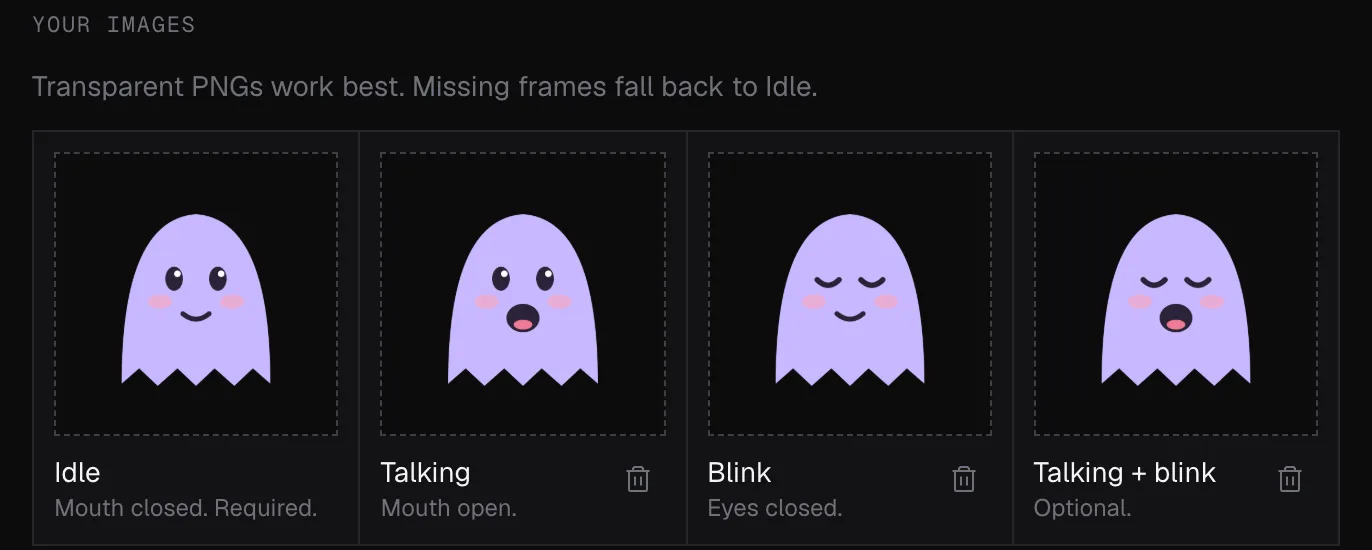
Step 4: our four frames, loaded into the PNGTuber Maker.

Step 5: the talking settings at their defaults.

Step 6: the green background, ready for OBS's Chroma Key filter.
If it doesn't work
| Problem | Fix |
|---|---|
| The avatar flickers on keyboard noise | Raise the threshold, or the hold time so the mouth doesn't snap shut between words. |
| White edges around the image | Export with a transparent background, not white, and avoid JPEG. |
| The avatar doesn't react in OBS | Keep the PNGTuber Maker's Chrome window open and not minimized: Chrome slows down hidden tabs. |
| Grey or black box behind the avatar in OBS | Window Capture can't keep transparency. Use the green background with a Chroma Key filter, or a desktop app's own capture method. |
No drawing skills?
- Start from one of the PNGTuber Maker's four starter avatars (Pip, Mochi, Bolt and Fern), which we drew for Facecam.
- Commission an artist for an idle and a talking image; it costs much less than a moving 3D or Live2D model.
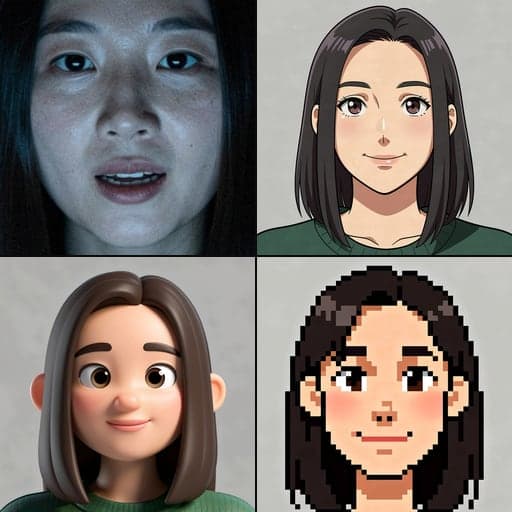
- Facecam's AI Avatar Maker draws an original character with idle and talking images as transparent PNGs. It uses credits.
- If you use a character maker site, check that its terms allow streaming use.
Using a desktop PNGTuber app instead
veadotube mini (name your own price; Windows, macOS and Linux) and PNGTuber Plus (free on Steam for Windows) take the same images and add more options. For OBS, veadotube's guide recommends Spout2 Capture on Windows, Syphon Client on macOS and PipeWire on Linux, which keep the background transparent. To use a desktop app as your camera in Discord or Zoom, start OBS's Virtual Camera and pick it in the app.
Official documentation
- OBS, Window Capture sources: https://obsproject.com/kb/window-capture-sources (checked 2026-10-01)
- OBS, Chroma Key filter: https://obsproject.com/kb/chroma-key-filter (checked 2026-10-01)
- veadotube mini on itch.io: https://olmewe.itch.io/veadotube-mini (checked 2026-10-01)
- veadotube docs, OBS setup: https://veado.tube/docs/usage/obs/ (checked 2026-10-01)
- PNGTuber Plus on Steam: https://store.steampowered.com/app/2596880/PNGTuber_Plus/ (checked 2026-10-01)
- OBS Knowledge Base, Virtual Camera guide: https://obsproject.com/kb/virtual-camera-guide (checked 2026-10-01)
Questions
Is it free to become a PNGTuber?
Yes, if you draw your own images. Facecam's PNGTuber Maker and PNGTuber Plus on Steam are free, and veadotube mini is name-your-own-price.
How do I rig a PNGTuber?
There's no rigging: the app swaps images. Some apps add bounce and sway for extra movement; the PNGTuber Maker has bounce, idle bob and blinking.
What size should PNGTuber images be?
Big enough to look sharp at the size you show it. Keep every frame the same size; ours were 512 × 512 pixels. The PNGTuber Maker shrinks bigger images to 768 pixels on the longest side.
How do I add a PNGTuber to OBS?
With the PNGTuber Maker: set a green background, add a Window Capture of the Chrome window, and add a Chroma Key filter. Desktop apps have their own capture methods, such as Spout2 or Syphon.
Used in this guide

Related
Updated