Mic Test
A free online mic test: check your volume, background noise and distortion.
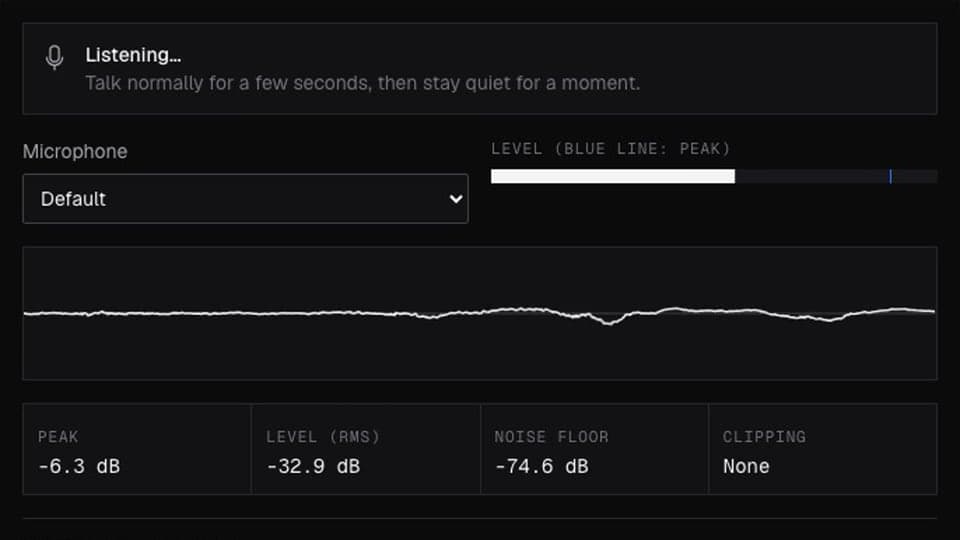
Your browser will ask for microphone access when you click.
Where it works
What the result looks like
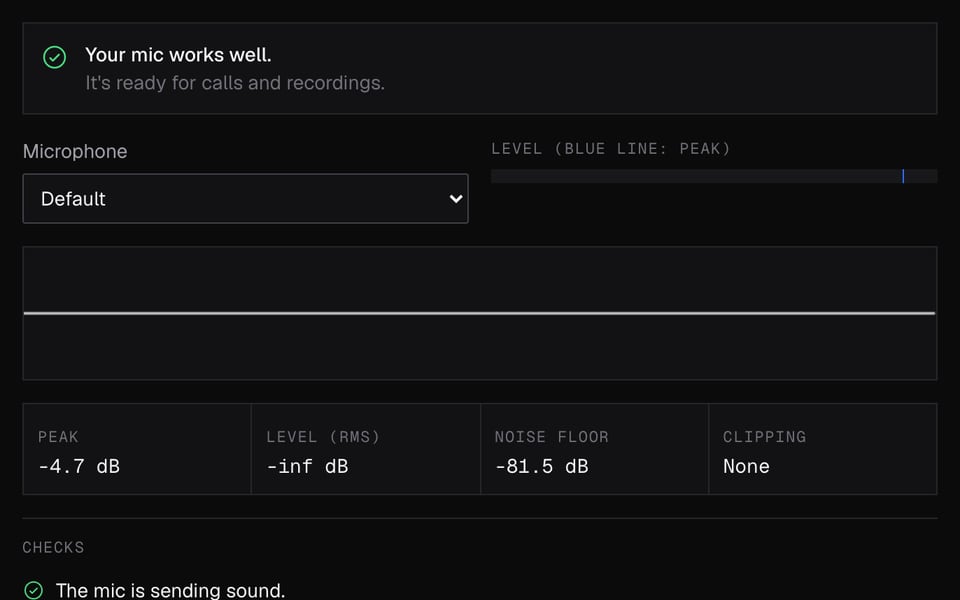
The mic works well 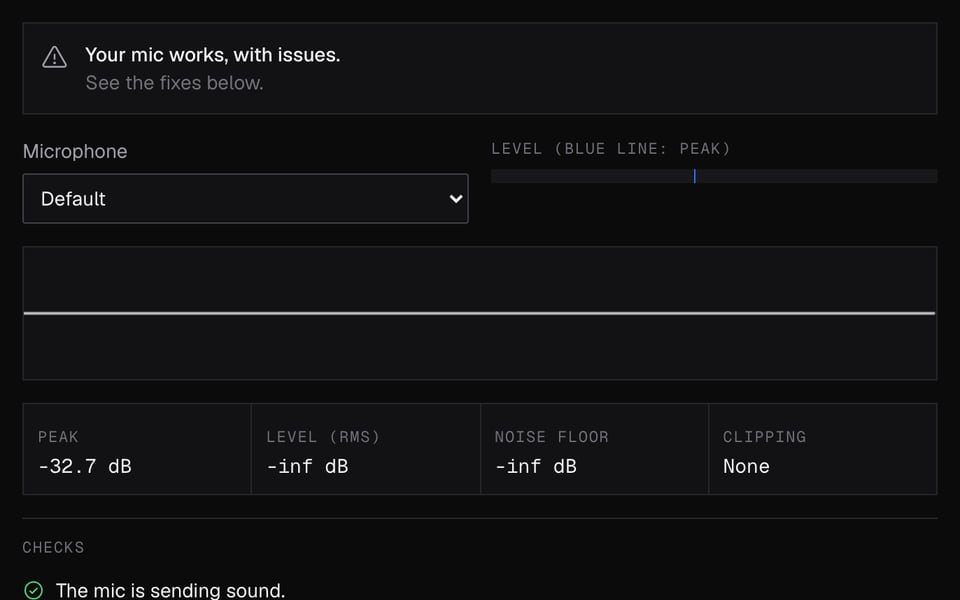
Works, but the voice is too quiet 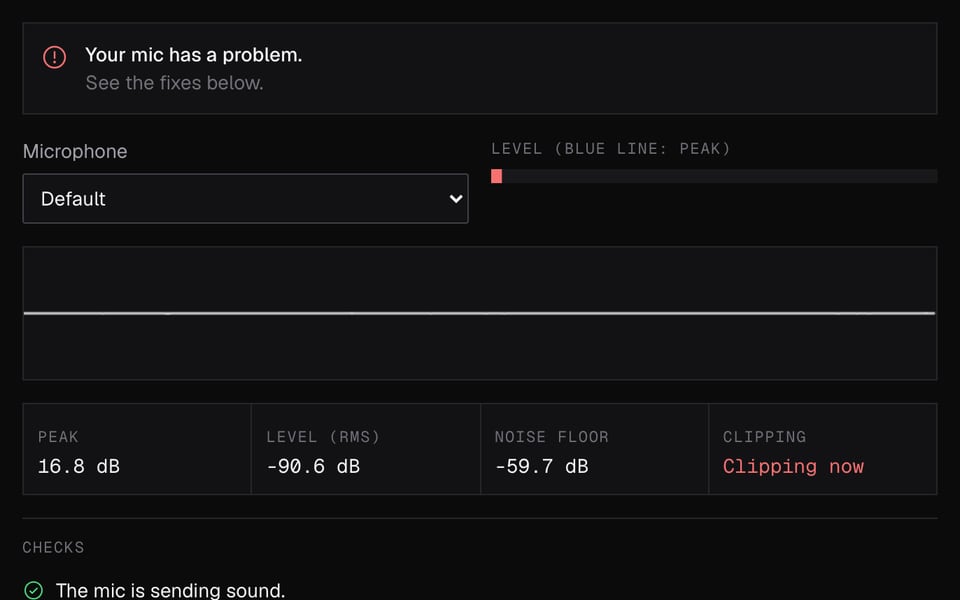
The voice is distorted (clipping)


How to use Mic Test
01
Start the mic
Click Start mic, allow access and pick your microphone if you have several.
02
Talk, then pause
Speak normally for a few seconds, then stay quiet for a moment.
03
Read the result
The result tells you what to fix. Record 10 seconds to hear yourself.
If it doesn't work
| Problem | Fix |
|---|---|
| “Access was blocked” | Click the icon at the left of the address bar, allow the microphone, then click Start mic again. On macOS, also allow your browser in System Settings → Privacy & Security → Microphone. |
| “We can't hear anything” | No sound came through. Check the mute switch on the mic or headset, pick another mic in the Microphone menu, and turn up the input volume in your computer's sound settings. |
| “Your voice is quiet” | Even your loudest talking was too quiet. Move to about a hand's width from the mic or turn up its input volume. |
| “Your voice distorted” several times | Your voice got too loud for the mic. Turn down the gain knob or input volume, or move back a little. One or two times while laughing is normal. More than three is a fail. |
| “There's a lot of background noise” | The room is too loud, or your voice isn't much louder than the room. Move away from fans and open windows, use a headset mic, or turn on noise removal in your call app. |
| “Your camera or mic is busy” | Another app or tab is using the mic. Close it, check the mute switch on your mic, then click Start mic again. |
More about Mic Test
Facecam's Mic Test is a free online tool that checks how loud your mic is, whether it distorts and how much background noise it hears. It tells you what to fix and plays back a short recording.
Mic Test: what you need and limits
| How it works | Right on this page. Nothing is uploaded. |
|---|---|
| You get | Result on the page |
| You need | Any up-to-date browser, a microphone |
| Phones and tablets | Supported |
| What it checks | How loud your voice is, how loud the room is and how often your voice distorts |
| Result after | About 4 seconds of talking |
| Playback | One 10-second recording, deleted when you leave the page |
| Mic settings | Whether echo cancellation, noise suppression and auto gain are on, plus other details about your mic |
What the numbers mean
Volume is shown in dBFS. 0 is the loudest your mic can go, and quieter sounds are negative numbers. Normal talking into a well-set mic is well above -42 without reaching 0.
| Check | Passes when | Warns or fails when |
|---|---|---|
| Sound | The peak rises above -60 dBFS | Nothing reaches -60 dBFS (fail) |
| Voice level | Loud speech is at or above -42 dBFS | It stays below -42 dBFS (warning) |
| Distortion | Your voice never gets too loud | 1–3 distorted moments (warning), more than 3 (fail) |
| Background noise | The room is below -45 dBFS and your voice is clearly louder | Either is not true (warning) |
The tool measures your voice when you talk and the room when you pause. That's why you should stay quiet for a moment during the test.
Automatic voice clean-up
Browsers can clean up your mic by removing echo and noise and evening out your volume. The Device and browser settings panel shows which of these are on. Turn off Browser voice cleanup to hear your mic as it really is, which is closer to what OBS records. Call apps like Meet or Discord add their own clean-up on top.
When to use it
- Before a call or interview, to catch a muted headset or the wrong input.
- Setting the volume on a USB or studio mic so loud laughs don't distort.
- Checking whether a fan, an air conditioner or a noisy room will reach your audience.
- Before using a voice changer or PNGTuber avatar, which both react to how loud you are.
Privacy
Your voice never leaves your computer. Nothing is uploaded. The 10-second recording is gone when you close or leave the page.
Embed this tool on your site
Put this tool on your own site or blog for free. Paste this code where you want it to show. Visitors are asked for their mic only when they click Start. The test runs on their device and nothing is recorded.
Mic Test FAQ
Can I hear myself while I talk?
Not live. Use Record 10 seconds and play it back. Hearing yourself live through speakers causes a loud howl, so the tool records first.
Why does my mic sound different on Discord or Zoom?
Call apps clean up your voice in their own way. Turn Browser voice cleanup on in the tool to get closer to what a call app sends, or off to hear your mic as it really is.
Does the mic test work on a phone?
Yes. It works in up-to-date phone browsers. Some phones don't share every mic setting, so a few rows may say “Not reported”.
Is an online mic test safe?
Yes. This one never uploads your audio. The page can only use your mic after you allow it, and you can turn that off from the address bar.
What level should my mic be at?
Aim for your loud talking to be above -42 dBFS without distorting. If the tool says your voice is quiet, move closer before turning up the volume. That keeps background noise down.
My mic shows up but the meter doesn't move. Why?
The tool may be listening to a different mic, such as your webcam's mic or a muted headset. Pick another one in the Microphone menu and talk again.
Why does my Bluetooth headset mic sound bad?
When you use a Bluetooth headset's mic, most headsets switch to a lower-quality mode for both talking and listening. A wired headset, a USB mic or your laptop's built-in mic usually sounds clearer.
More tools

Related
Updated