Face Tracking Test
A free face tracking test: see how well your webcam follows your face for VTubing.

Your browser will ask for camera access when you click.
Where it works
What the result looks like
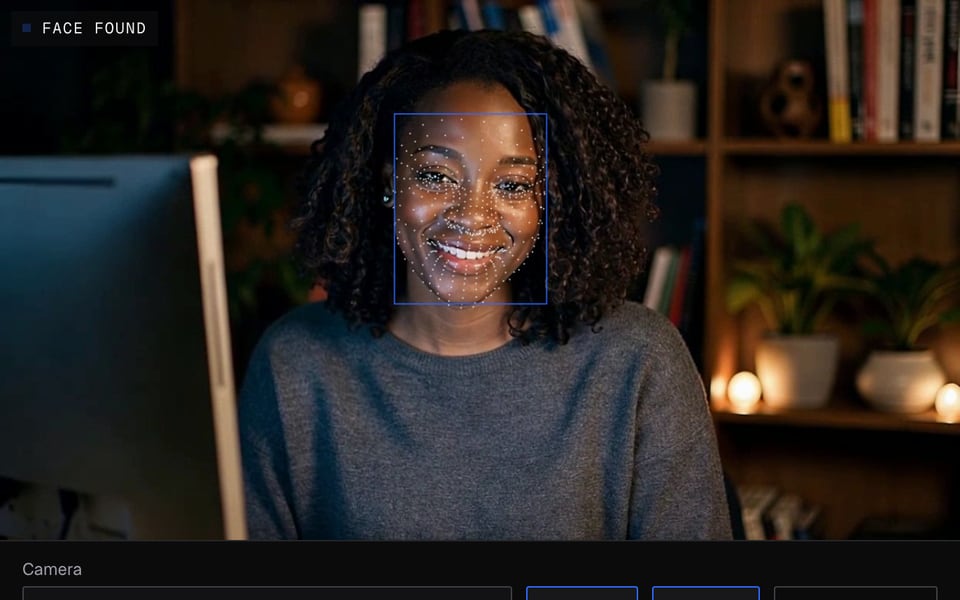
Face found and tracked 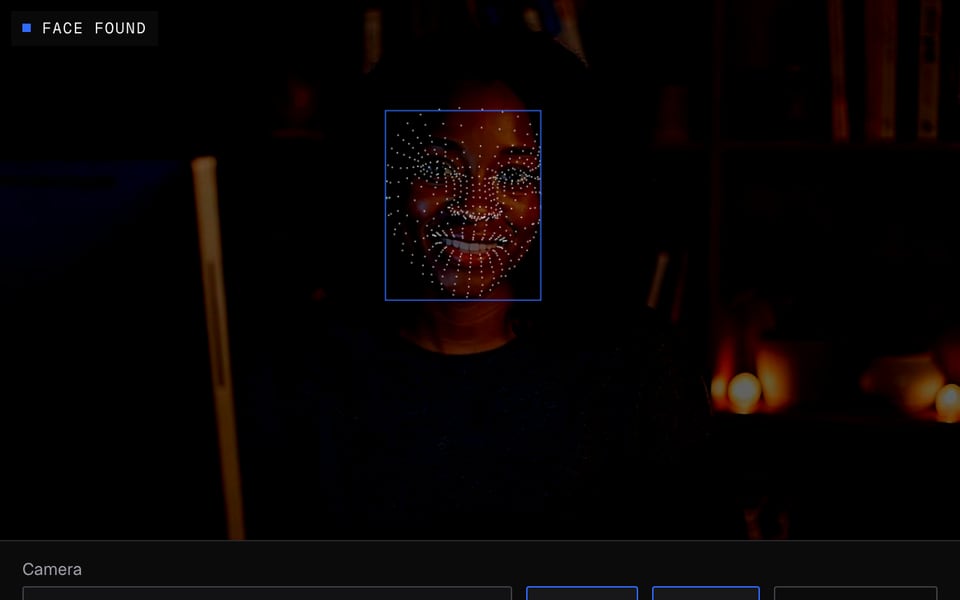
Tracking in a dim room 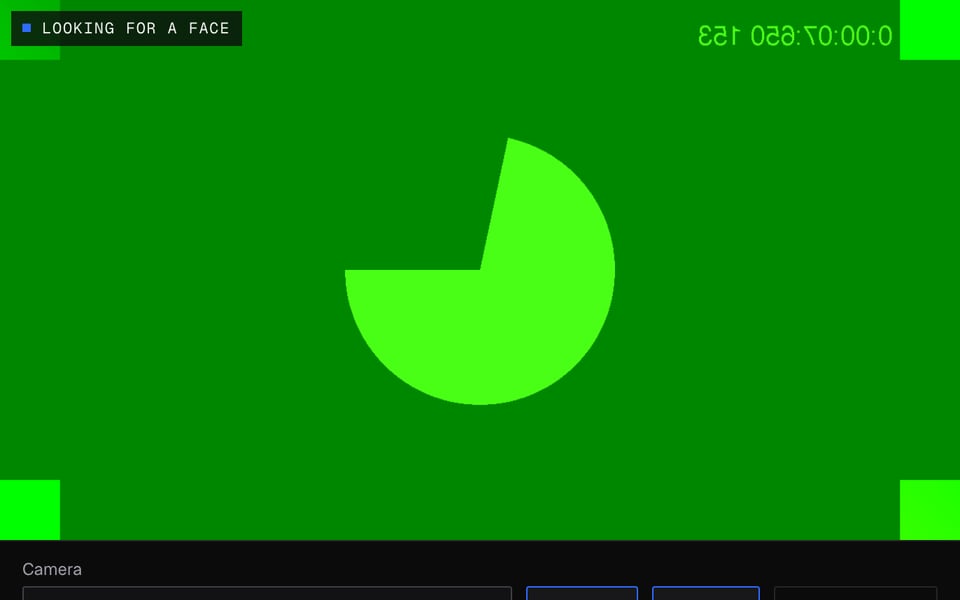
No face in the picture


How to use Face Tracking Test
01
Start the camera
Click Start camera and allow access. Tracking starts in a few seconds.
02
Set your centre
Sit as you would on stream, look straight ahead and click Set centre.
03
Move and read the result
Blink, talk and turn your head, then read the checks for speed, framing and lighting.
If it doesn't work
| Problem | Fix |
|---|---|
| “No face found”, or it often loses your face | Look straight at the camera, keep your whole face in view, and put a light in front of you. Hair over your eyes or glare on glasses can also cause problems. |
| Tracking is slow | Turn on “Use graphics acceleration when available” in Chrome settings, plug in your laptop, and close heavy tabs. |
| Low frames per second | More light makes most webcams smoother. Close other apps that use the camera, and games or video editors. |
| “You're far from the camera” or “You're near the edge” | Move closer or back to the middle so your face fills a good part of the picture, but not all of it. |
| “Face tracking couldn't start” | Something didn't load. Reload the page in the latest Chrome, Edge or Firefox. Very old computers may not support it. |
More about Face Tracking Test
Facecam's Face Tracking Test is a free online tool that shows how reliably and how fast your webcam can follow your face, eyes and mouth, the way a VTuber app would.
Face Tracking Test: what you need and limits
| How it works | Right on this page. Nothing is uploaded. |
|---|---|
| You get | Result on the page |
| You need | Any up-to-date browser, a webcam |
| Phones and tablets | Supported |
| What it checks | How often it finds your face, how fast it keeps up, frames per second, and head turn, nod and tilt |
| Expression meters | Left and right blink, mouth open, smile, pucker, eyebrows up |
| Computer needed | Any laptop or desktop with a webcam. Works on phones too. |
What a good result looks like
| Check | Pass | Warning | Fail |
|---|---|---|---|
| Finding your face | Found 90% of the time or more | 50% to under 90% | Under 50% |
| Time per frame | Even slow frames take 25 ms (thousandths of a second) or less | Up to 50 ms | Over 50 ms |
| Frames per second | 24 or more | 15 to under 24 | Under 15 |
| Framing | Face centred at a good size | Too far, too close or near the edge | — |
The result shows up after a moment. It also checks your lighting: too dark, dim, too bright, or a light behind you.
Who it's for
- New VTubers checking whether a laptop webcam is good enough before setting up an avatar.
- Anyone whose avatar's eyes or mouth don't move. The meters show whether your camera sees the blink, or whether the problem is the avatar.
- Comparing two cameras, or your lighting before and after adding a lamp.
Facecam's VTuber Maker uses the same face tracking, so a pass here means your avatar will keep up with you.
Privacy
Your video never leaves your computer. Nothing is sent anywhere or saved. No account is needed.
Face Tracking Test FAQ
Do I need an iPhone for VTuber face tracking?
No. Webcam tracking like this works on normal laptops. An iPhone can pick up finer expressions, but a decent webcam with good light is enough to start.
Why do my blinks not register?
Glasses glare, low light or a camera below your chin can hide your eyes. Watch the blink meters while you add light or raise the camera.
What does Time per frame mean?
It's how long your computer takes to find your face in a typical frame. To pass, even the slower frames must take 25 ms (thousandths of a second) or less.
Does it track hands or body?
No. It tracks your face only: head position, eyes, eyebrows and mouth.
Does it work on a phone?
It works in up-to-date phone browsers, but older phones may be slow. The result will tell you.
More tools


Related

Updated