Face swap for Zoom
Face swap for Zoom calls: join from your browser, pick Facecam Virtual Camera on the join screen, and wait for your new face.
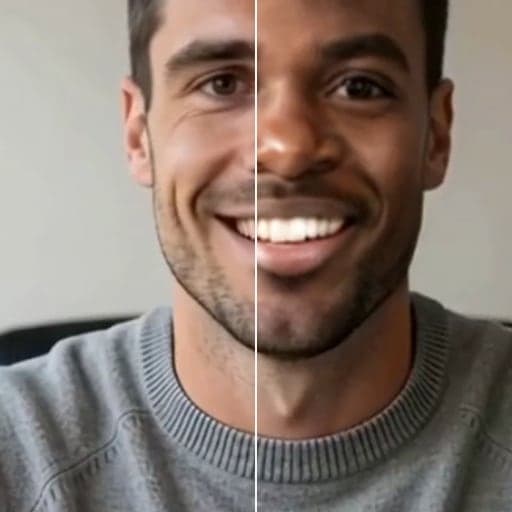
Live Face Swap needs Chrome on a computer. Send yourself the link, or see the examples below.
Set it up in Zoom
01
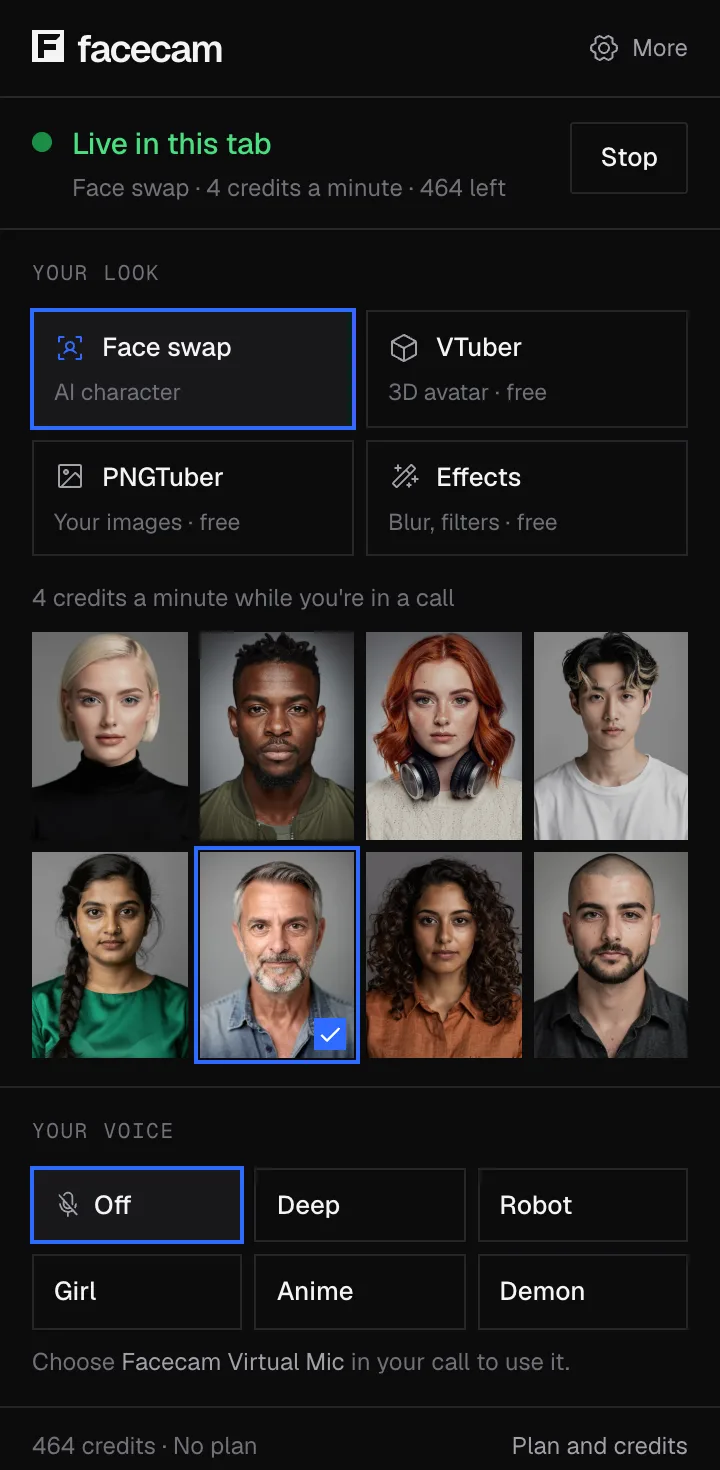
Pick your face first
Click the Facecam icon in Chrome, choose Face swap under Your look, and click a built-in face or upload a photo of the face you want. The first time, Facecam asks you to allow face swap, because it sends your camera video to our servers.
02
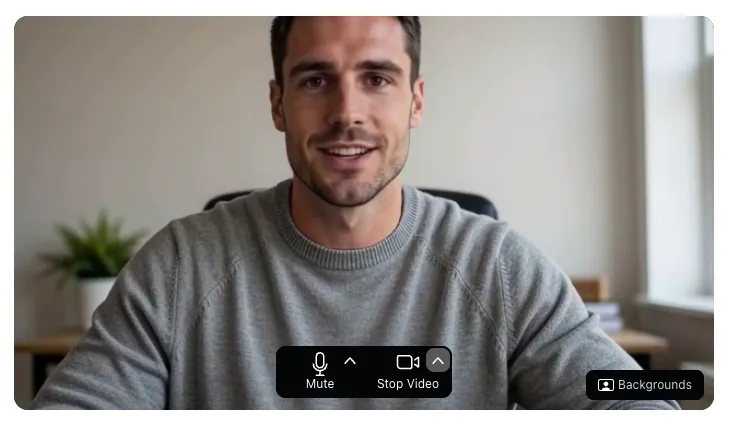
Open the invite and choose Join from browser
Open the Zoom link in Chrome. Zoom first tries to open its app; on that page, click “Join from browser”. If the link isn't there, the host has turned browser joining off.
03
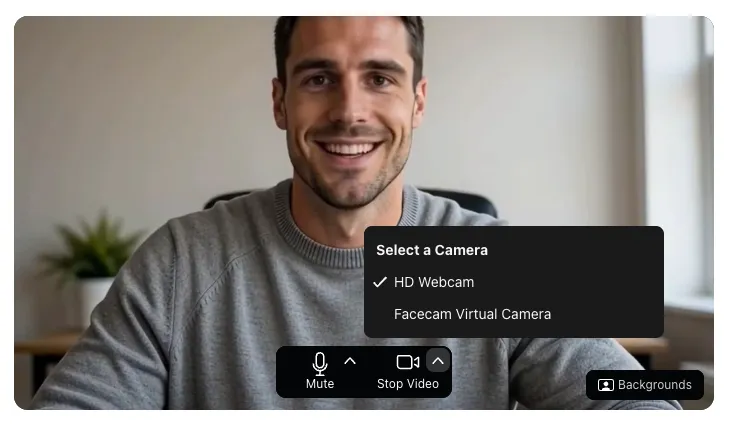
Switch the camera on the join screen
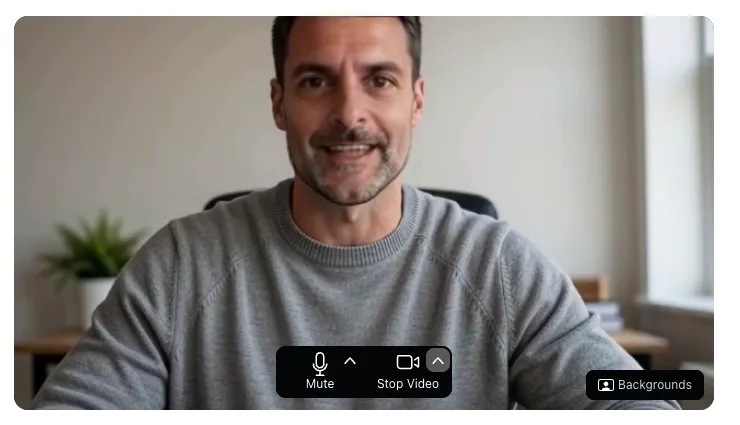
Next to Stop Video under the preview there's a small arrow. Click it, and under Select a Camera choose “Facecam Virtual Camera”.
04
Wait for your new face, then join
Watch the preview. Your normal camera stays on screen until the swap is ready, about 20 to 35 seconds in our test. When the new face appears, type your name and click Join.
Tested by Facecam team. Facecam extension 2.1.0, signed in, in Chromium 153 on macOS 26.5, on Zoom's public test meeting (zoom.us/test → Join from browser, no Zoom account). The webcam played a clip of a fictional, computer-made man. We tested the camera list and the swap in Zoom's join-screen preview. Zoom wouldn't let our automated browser into the meeting itself, so we didn't watch it from another person's side in Zoom; we did that in a Jitsi Meet call (see the video call guide).
Our test recording
35 seconds in: the preview shows Rook, one of the built-in characters. Zoom asked our camera for 640×360 at 30 frames a second.
If it doesn't work
| Problem | Fix |
|---|---|
| There's no Join from browser link | The host has turned off joining from the browser, or the meeting requires the Zoom app. Ask the host, or use a call app that runs in Chrome. |
| Facecam Virtual Camera isn't in Select a Camera | Check you're in Chrome with Facecam turned on, then reload the Zoom tab. The Zoom desktop app never lists it. |
| Zoom says your camera is being used by other apps | We saw this once, right after leaving a call in another tab. Close other tabs that use your camera and open the Zoom link again in a new tab. |
| The preview still shows my real face | The swap takes a little while to start the first time. Stay on the join screen until the new face shows, and only then click Join. |
What we saw on Zoom's join screen
| Check | Result |
|---|---|
| Facecam Virtual Camera in Select a Camera | Yes, under the arrow next to Stop Video |
| Video Zoom asked for | 640×360 at 30 frames a second |
| Time until the swapped face showed | between 20 and 35 seconds after picking the camera |
| Before that | the preview showed the normal webcam |
| Zoom account needed | No, Zoom's test meeting let us reach the join screen as a guest |
More about Zoom
Zoom web app or Zoom desktop app?
Facecam's camera exists inside Chrome, so only sites running in Chrome can pick it. The Zoom web app is one of them: same meeting, same people, just opened in a tab. The Zoom desktop app is a separate program and doesn't see browser cameras at all.
If you must use the desktop app, Facecam isn't the right tool for that meeting. Join that one from the browser, or use Zoom's own avatars, which run in the desktop app if your account allows them.
Sources
- Zoom: join a meeting from the web app — support.zoom.com, KB0064261 (checked 2026-10-01)
- Zoom: change camera in a meeting — support.zoom.com, KB0060612 (checked 2026-10-01)
- Zoom: using avatars in meetings — support.zoom.com, KB0059415 (checked 2026-10-01)
Questions
Does face swap work in the Zoom desktop app?
No. The Zoom desktop and phone apps can't see a camera that lives in Chrome. Use “Join from browser” instead.
Can I switch to the face swap after I've joined?
Zoom's help says the arrow next to Stop Video also switches cameras during a meeting. We tested the join screen, where it's easier: you can wait there until the swap shows.
Can I change faces in the middle of a Zoom call?
Yes. Pick another face in the Facecam popup. The camera stays the same, so Zoom doesn't need to reconnect.
Do I need a Zoom account?
Not for Facecam. Whether you can join as a guest is up to the meeting: we reached the join screen of Zoom's test meeting without signing in.
Will people in the meeting know it's a face swap?
Facecam doesn't put a label on your video. They'll see the face you picked, moving as you talk.
Is this the same as a Zoom face filter?
No. Zoom's own video filters add frames, stickers and colour looks on top of your face. Facecam replaces the face itself with another one, so the meeting sees a different person.
Other platforms
Related
Updated