Zoom filters for your face
Go past frames and stickers: become an astronaut, a knight or an anime character in your next Zoom meeting.

Live AI Filter needs Chrome on a computer. Send yourself the link, or see the examples below.

Set it up in Zoom
Pick your look
Add the Facecam extension to Chrome and sign in. In its popup, under Your look, choose Live AI Filter, then a look such as Astronaut, Anime or Zombie, or type your own under Describe a look.
Join from your browser
Open the Zoom invite in Chrome, dismiss the prompt to open the Zoom app, and click Join from your browser. Allow the camera and microphone when Chrome asks.
Pick the camera
Click the small arrow next to the video button and, under Select a Camera, choose “Facecam Virtual Camera”. The filter starts within a few seconds; until then Zoom shows your normal camera.
Change looks mid-meeting
Open the Facecam popup and click another look. The picture changes in a moment and Zoom keeps the same camera, so nobody sees a reconnect.
Two looks made for meetings
Astronaut: a spacesuit and a space station, his face clear. Tuxedo: only the clothes change.

If it doesn't work
| Problem | Fix |
|---|---|
| Select a Camera lists only my webcam | You're in the desktop app, or the tab loaded before the extension. Rejoin from the browser and reload the tab. |
| Zoom shows my normal camera | The filter is still starting, or your Live AI Filter time has run out. Open the Facecam popup to see which. |
| My face looks doubled or blurred | A Zoom filter or Zoom's virtual background is running on top. Turn Zoom's off; the look already changes your background. |
| Someone walked into the frame and the look went odd | Switch to another look in the popup and back again to reset the picture. |

Zoom's own filters or a live AI filter
| Zoom's filters | Facecam Live AI Filter | |
|---|---|---|
| What changes | Color filters, frames and stickers over your video; Studio Effects touch up brows, lips and facial hair | The whole picture: who you are, what you wear and where you are |
| Where | Desktop and phone apps | The Zoom web app in Chrome, plus Meet, Teams and Discord in the browser |
| Your own look | Zoom's set list | Any look you describe, or an image to look like |
| Price | Comes with Zoom | Paid plans, by the minute while it's on |
Zoom's filters decorate your picture: a tint, a frame, a hat sticker, darker eyebrows. Facecam's filter replaces it. Pick Astronaut and the meeting sees you in a spacesuit inside a space station; pick Anime and your face and room are redrawn as an anime scene, moving with you as you talk. Use Zoom's built-in effects in the desktop app, and the live AI filter when you join from the browser.
More about Zoom
Which looks to use in a meeting
Every one of the 12 looks works in Zoom. The ones below are made for calls: they change your clothes and background but keep your face clear, so colleagues still know who's talking. Tuxedo changes only your clothes, for the call where you didn't have time to dress up.
Sources
- Zoom: join a meeting from the web browser — support.zoom.com, KB0059553 (checked 2026-10-03)
- Zoom: show a "Join from your browser" link — support.zoom.com, KB0067293 (checked 2026-10-03)
- Zoom: background noise suppression in the Web App — support.zoom.com, KB0059985 (checked 2026-10-03)
- Zoom: managing custom video filters (filters are picked in the desktop client or mobile app) — support.zoom.com, KB0062112 (checked 2026-10-04)
- Zoom: changing settings in the Zoom Web App — support.zoom.com, KB0059423 (checked 2026-10-04)

Questions
Are there filters for your face in Zoom?
Zoom has its own: color filters, frames, stickers and Studio Effects for brows, lips and facial hair, in the desktop and phone apps. To change your whole face and outfit, join from Chrome and use Facecam's Live AI Filter as your camera.
How much does it cost?
Live AI Filter comes with every paid plan and counts by the minute only while the filter is on: ≈ 11 min of Live AI Filter a month on Premium, if you use nothing else.
Does it work in the Zoom desktop app?
No. The desktop app only lists cameras installed on your computer. Join the meeting from your browser instead.
Can I use my own look in Zoom?
Yes. Type one under Describe a look in the Facecam popup, for example “a pirate captain on a ship at sunset”, or add an image of a character or a place.
Can I try a look before the meeting?
Yes. Open Live AI Filter on facecam.ai and start your camera to see each look on yourself first.
Do I need a Zoom account?
Not for Facecam. Whether guests can join from the browser is up to the meeting's host.
Related
 Zoom virtual background and filtersBlur your room, put your own picture behind you, or use a plain colour, plus a warmer, brighter picture, in Zoom meetings you join from Chrome. Free, no sign-up.
 Face swap for ZoomFace swap for Zoom calls: join from your browser, pick Facecam Virtual Camera on the join screen, and wait for your new face.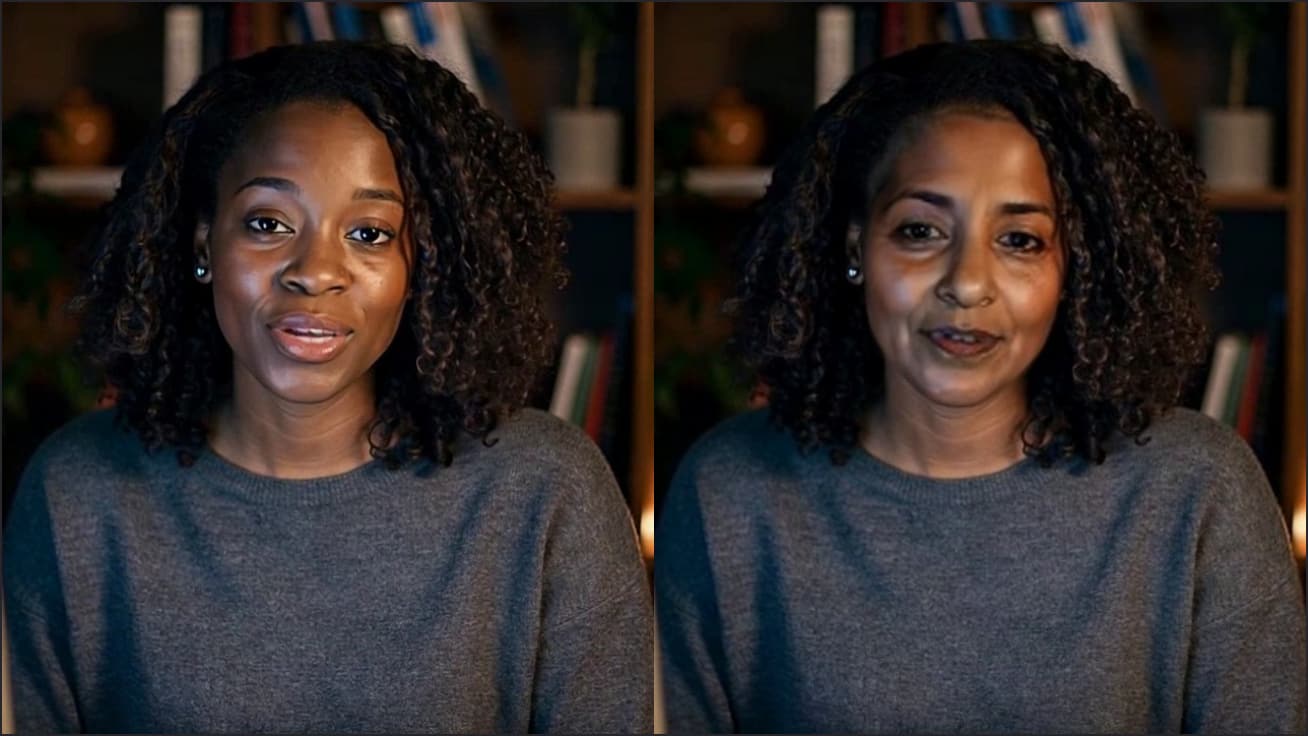
 Webcam TestA free webcam test with no sign-up: see your camera's real resolution, frame rate and lighting in seconds. Your video never leaves your device.
