Live AI Avatar
Your AI avatar talks, blinks and turns its head when you do, live.

Where it works
How to use Live AI Avatar
Pick an avatar and a background
Click Start camera, then pick one you made with AI Avatar Maker or the Character Generator, one of ours, or upload a picture. Keep its background or put it on a green screen or a colour.
Look at the camera
Look at the camera with your mouth closed and click Calibrate. Hold still for the short countdown.
Start
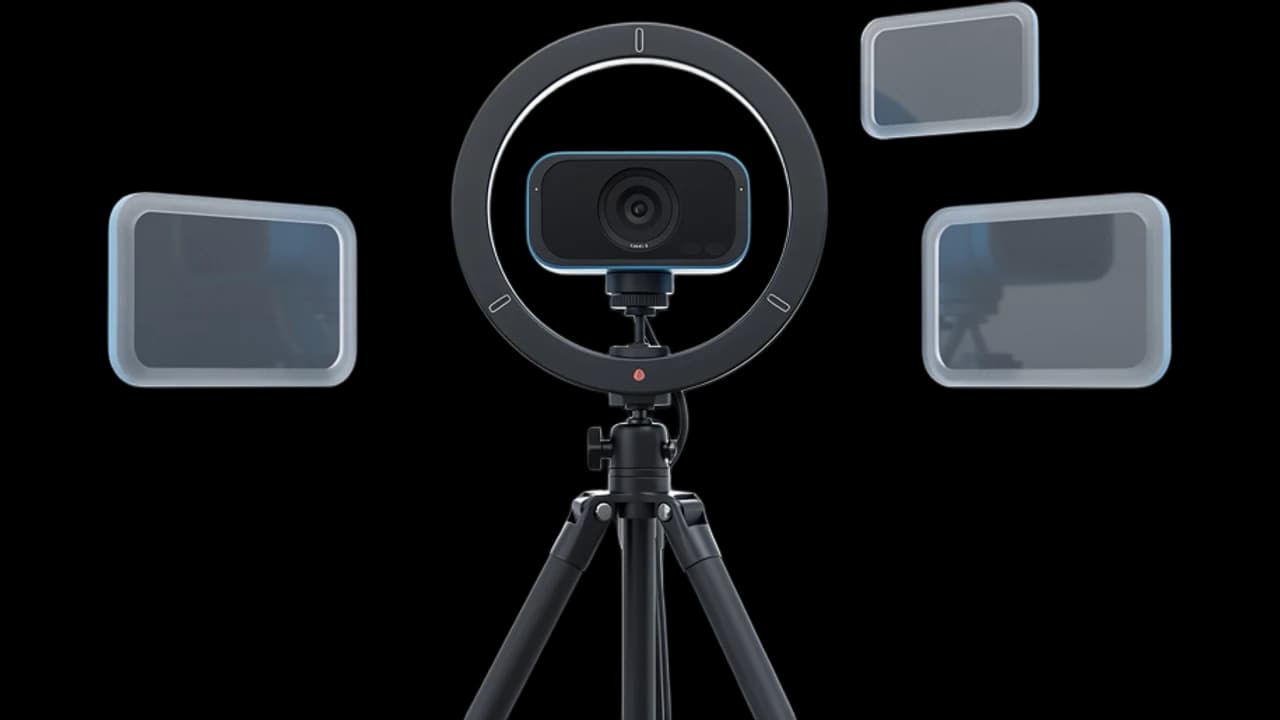
Your avatar moves with you. With the extension, pick “Facecam Virtual Camera” in your call. For OBS, open the Window for OBS.
More about Live AI Avatar
Live AI Avatar animates a still avatar picture with your face, mouth and head movements from your webcam, on this page or as your camera in calls.
Live AI Avatar: what you need and limits
| How it works | Live, on any laptop. Needs a steady internet connection. |
|---|---|
| You get | Camera in Chrome calls |
| You need | A computer (for calls: Chrome and the Facecam extension), a webcam |
| Phones and tablets | Works on the page; calls and streams need a computer |
| Styles | Realistic, 3D cartoon and anime. Pixel art loses its look, so it isn't offered. |
| What moves | Your avatar's face, eyes, mouth and head. Its body and long hair stay still. |
| Head turns | Best facing the camera. Big turns blur the far side of the face. |
| Backgrounds | The picture's own, a green screen, white, dark or any colour. The avatar is cut out of its picture first. |
| Sliders | Expressions (up to twice as big), head movement (down to a still head) and smoothing. Mirror my moves is on by default. |
| OBS | Window for OBS opens your avatar alone in a window: add it with Window Capture, and a Chroma Key filter on the green screen. |
| Delay | The avatar trails your voice by a fraction of a second. The extension can delay your mic to match. |
| Recording | None. Your video is turned into the avatar and sent straight back. Nothing is saved. |
| Computer needed | Any laptop or desktop with Chrome and a webcam. No gaming PC. |
Which avatars work
Pictures of one face, looking at the camera, with the head and shoulders in frame. AI Avatar Maker and the Character Generator make them that way. If we can't find the face in a drawing, you can drag a box around it.

Live AI Avatar FAQ
Can I use my AI avatar on a video call?
Yes, if the call runs in Chrome. Pick “Facecam Virtual Camera” as your camera in Google Meet, Zoom on the web, Teams on the web or discord.com.
How much does it cost?
It comes with every paid plan and counts only while your avatar is live: ≈ 8 h of live AI avatar a month on Premium. The camera preview and picking an avatar are free.
Is my video recorded?
No. Each frame is turned into your avatar and sent straight back. Nothing is saved.
Does it work in the Zoom or Discord desktop app?
No. Desktop apps can't see a camera that lives inside Chrome. Join from the browser instead.
Can I stream my live avatar with OBS?
Yes. Pick the green screen, open the Window for OBS and add it as a Window Capture source, then add a Chroma Key filter to it.
Can I use my own picture?
Yes. Upload a PNG, JPEG or WebP with one face looking at the camera. It stays in your browser.


Try Live AI Avatar now
- Cancel any time
- Runs in your browser
- No gaming PC needed