What Is a Virtual Camera?
A virtual camera is a webcam that isn't a webcam: software pretending to be one, so your call or stream app can show an avatar, a game scene or an effect instead of your plain camera.
By Facecam team
Published · Updated · 5 min read

On this page
Short answer
A virtual camera is software that shows up in your camera list like a real webcam, but sends whatever video the software makes: an OBS scene, an avatar, a blurred background. OBS Virtual Camera is installed on your computer, so every app can pick it. Some tools, like our Chrome extension, add a virtual camera only inside Chrome, so it works in web calls like Google Meet; Facecam for PC and Mac installs one for every app.
Open the camera menu in Zoom or Google Meet and you might see names that aren't cameras at all: OBS Virtual Camera, or one from a VTuber app. Those are virtual cameras. They're how streamers and VTubers get anything other than their raw webcam into a call.
What does a virtual camera do?
Your computer keeps a list of cameras. A virtual camera adds an entry to that list, and instead of a lens, the picture comes from software. To the call app it looks like any webcam. That's the whole trick, and it's why a virtual camera works with apps that were never designed for avatars or scenes.
| System virtual camera | Browser-only virtual camera | |
|---|---|---|
| Example | OBS Virtual Camera, Facecam for PC and Mac | Facecam Virtual Camera from the Facecam extension |
| Installed | On your computer | Inside Chrome, by an extension |
| Who can see it | Every app: Zoom, Discord, Teams, browsers | Only websites open in Chrome |
| Works in desktop apps | Yes | No |
| Needs admin rights to install | Usually | No |
Which apps can see which virtual camera?
| App | OBS Virtual Camera | Facecam Virtual Camera |
|---|---|---|
| Google Meet in Chrome | Yes | Yes |
| Zoom on the web (app.zoom.us) in Chrome | Yes | Yes |
| discord.com in Chrome | Yes | Yes |
| Teams on the web in Chrome | Yes | Yes |
| Zoom, Discord or Teams desktop apps | Yes | No |
| OBS itself | It's the source | No |
| Phone apps | No | No |
The browser-only column comes from how our extension works: the camera is added to web pages inside Chrome, so it can't exist anywhere else. The OBS column assumes the virtual camera is started and the app was reopened afterwards.
How do you use OBS as a virtual camera?
Build your scene in OBS
Add your webcam, avatar, overlays or game capture to a scene.
Click Start Virtual Camera
It's in OBS's Controls dock. OBS now sends that scene as a camera.
Choose what it sends, if you need to
The gear next to the button picks the output: Program (what OBS normally shows), Preview (in Studio Mode), one Scene, or one Source. Source is handy when you want only your avatar in the call, without overlays.
Pick it in your call
In Zoom, Meet, Discord or Teams, open the video settings and choose OBS Virtual Camera.
To check that it's working without joining a call, open our OBS Virtual Camera Checker. It lists every camera your browser can see and previews what OBS is sending.

Why isn't OBS Virtual Camera showing up?

- You haven't clicked Start Virtual Camera. It isn't on by default.
- The app was already open. Many apps read the camera list once. Quit the call app completely and reopen it after starting the virtual camera.
- Another app has it. Some setups only let one app use a camera at a time. Close other apps using it.
- The browser hasn't been allowed. In a web call, the site needs camera permission, and the browser must see the device. Our checker shows whether it does.
- On a Mac, macOS blocked it. The first time, macOS reports a blocked system extension from OBS: open System Settings, click Allow and confirm with your password. On macOS 13 or later you need OBS 30 or newer.
- On Linux, v4l2loopback isn't installed. OBS's virtual camera runs on that kernel module. Install it from your distribution's packages.
- On Windows, it vanished after an update. OBS's troubleshooting page says to run
virtualcam-install.batas administrator fromC:\Program Files\obs-studio\data\obs-plugins\win-dshow.
Why does a browser-only virtual camera exist?
It's the no-install version. Our tools (the VTuber Maker, Webcam Effects, Live Face Swap) run on the page in your browser, even on a phone. To use them in a call, the free Facecam extension adds Facecam Virtual Camera to websites in Chrome on a computer. You pick it in Meet, Zoom on the web or discord.com like any camera, and the call sees your avatar, your effect or the face you chose. Nothing is installed on the system, which is why it needs no admin rights. Our virtual camera for Chrome page lists where it works. Our video call face swap guide shows it in a real call.
The trade-off is reach. Desktop apps, including the Zoom and Discord apps and OBS itself, can't see it, because it only exists inside Chrome. If you need your avatar in a desktop app, Facecam for PC and Mac installs a system virtual camera, or you can capture the Chrome tab in OBS and use OBS Virtual Camera.
What didn't we test here?
We didn't run OBS for this post. Our checker saw Chrome's built-in fake camera, renamed to match OBS's, which shows how the checker reports a working OBS camera but not OBS's own quirks. The OBS steps follow its knowledge base. We also haven't tested other virtual cameras, such as the ones VTuber apps or camera makers install.
Questions
Is a virtual camera safe?
From a trusted source, yes. It only sends video the software makes. Install system virtual cameras only from the official app, as they add a driver.
Can I use a virtual camera on a phone?
Not really. Phone apps use the phone's own cameras. Our avatar and face swap tools do run in a phone's browser, but sending them into a call needs Chrome on a computer.
Why does my virtual camera show a black screen?
The software behind it isn't sending anything: OBS's scene is empty, or the tool's tab is closed or minimised. Check the source app first.
Can a virtual camera change my face in a call?
Yes, if the software behind it does. A live face swap sends a camera picture with a different face on yours, and the call just sees a camera.
Can I use OBS Virtual Camera in Discord?
Yes, in the Discord app and on discord.com. Start the virtual camera in OBS first, then reopen Discord and pick it in Voice & Video settings.
Keep reading
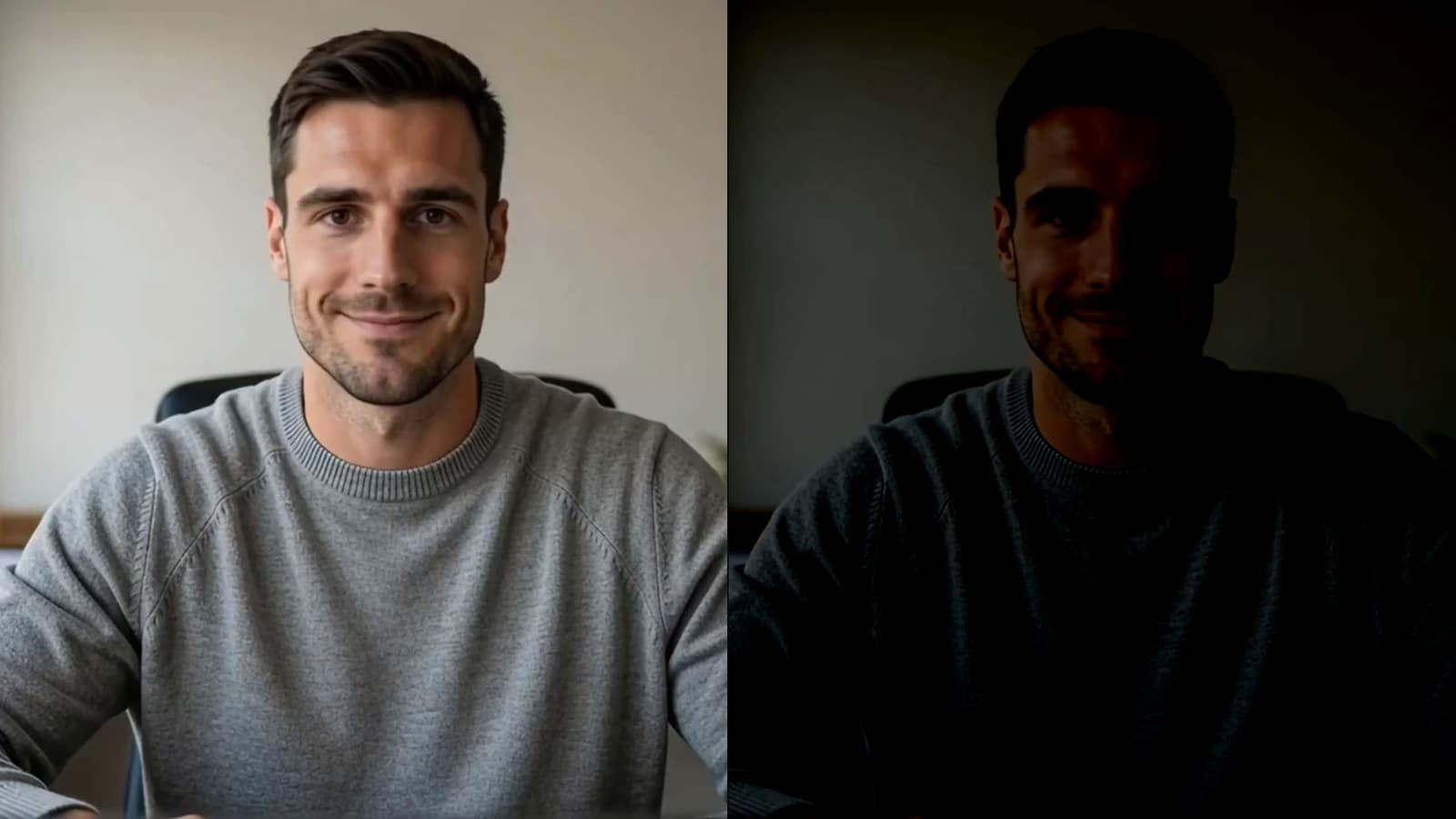
Streaming & Setup
How to Look Good on Webcam
How to look better on webcam in five minutes, mostly by moving a lamp. We ran the same clip through our Webcam Test lit and darkened, and the dark one failed on more than brightness.
4 min read
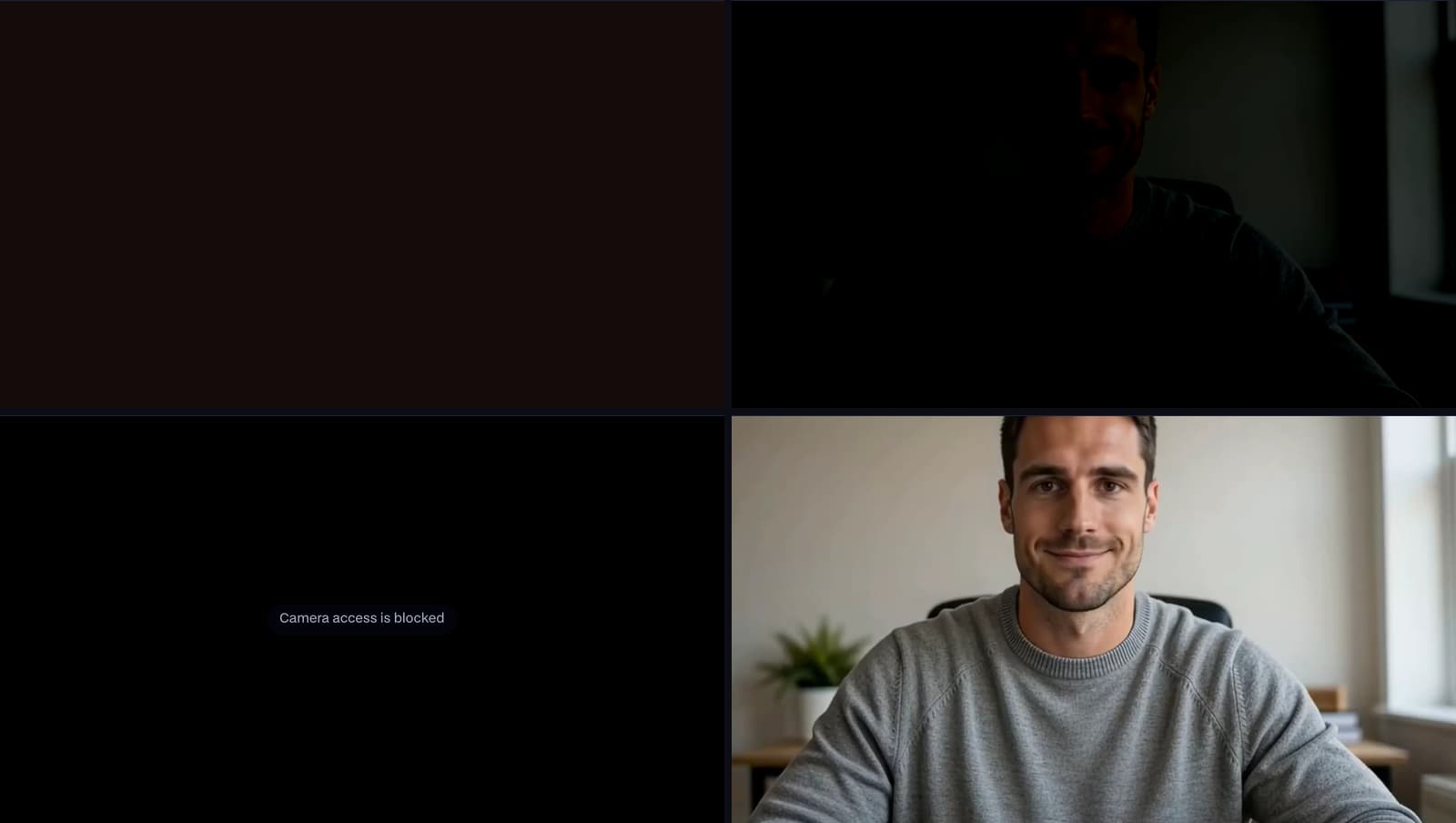
Streaming & Setup
Why Is My Camera Black?
Why your camera shows a black screen, and how to tell which of six causes it is in under a minute. We fed our Webcam Test each one and wrote down exactly what it said.
6 min read
Streaming & Setup
Why Does My Mic Sound Bad?
Why your mic sounds quiet, crackly, muffled or noisy, and how to tell which one it is in a minute. We ran the same voice through our Mic Test three times to show what each problem looks like.
6 min read


Free, in your browser
OBS Virtual Camera Checker
OBS Virtual Camera Checker is a free browser tool that shows whether your browser can see the OBS Virtual Camera and what it is sending.
Open OBS Virtual Camera Checker


