Free GoTo Meeting Filters
Join GoTo Meeting from Chrome with a colour look, a flat background or a face filter on your camera. Free, no sign-up.
Updated · Tested by the Facecam team

Your browser will ask for camera access when you click.

How do I add filters to my camera on GoTo Meeting?
GoTo Meeting's browser join runs entirely in Chrome or Edge, and Facecam Virtual Camera appears there as one of your webcams with the effect already applied.
Pick the effect
Click the Facecam icon in Chrome's toolbar and choose Effects under Your look. Pick a face filter, a background (blur, a flat colour) or a colour look; the popup remembers it for your next call.
Join from the browser
Open the meeting link in Chrome and choose to join in the browser. GoTo says nothing needs to be downloaded.
Choose the camera on the Camera preview screen
Before joining, GoTo shows a Camera preview: pick “Facecam Virtual Camera” there. In a session, click Camera in the lower toolbar, or settings → Camera, to switch.
Clean looks for work calls

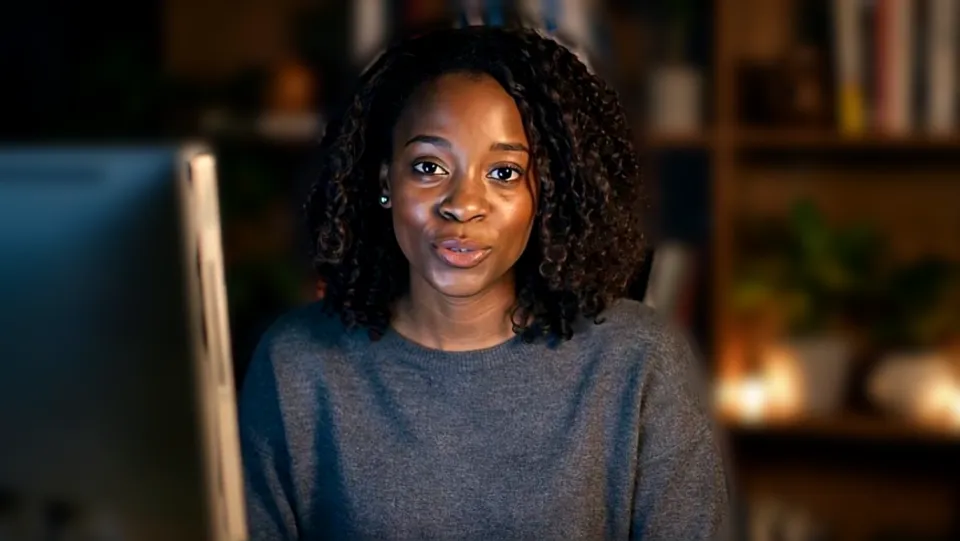
Studio grey with Bright. Our screenshot of Webcam Effects on a test clip, 2026-10-20. 
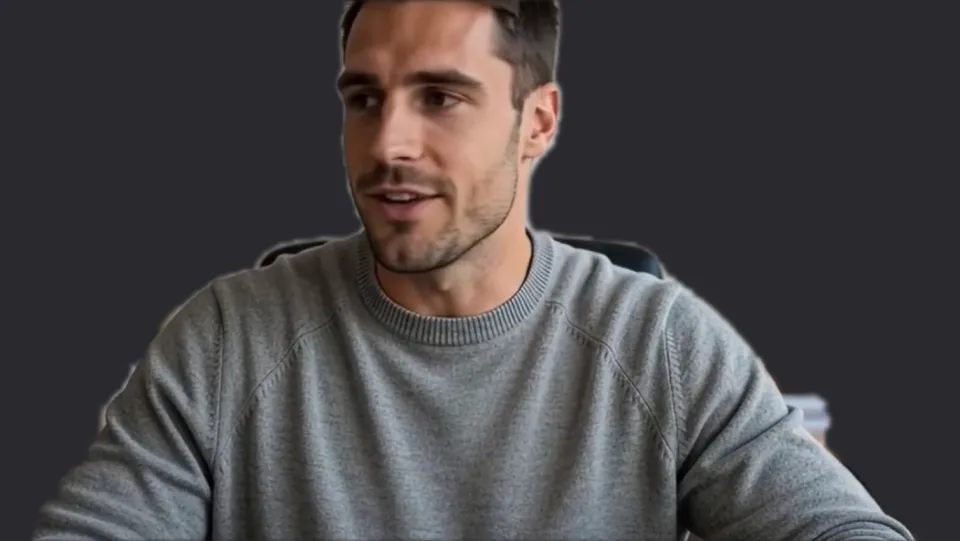
Off-white backdrop. Our screenshot of Webcam Effects on a test clip, 2026-10-20.

Why isn't my camera filter showing on GoTo Meeting?
| Problem | Fix |
|---|---|
| GoTo says my camera failed to connect | GoTo can't take webcams above its maximum resolution. Facecam sends 720p, which is within it; if you see this, pick Facecam again from the Camera menu. |
| I can't turn my camera on | The organizer may have turned off attendee cameras. Ask them, or wait until they allow it. |
| Two backgrounds stacked | GoTo's Virtual Background is on under settings → Camera. Set it to none when Facecam does the background. |

GoTo's Virtual Background and Facecam
| GoTo Virtual Background | Facecam in GoTo | |
|---|---|---|
| Blur | Yes, with adjustable intensity | Light or strong, with a slider |
| Images | Presets and up to 10 uploads | Your picture or flat colours |
| Colour looks | No | Bright, Warm, Cool, Vivid, Mono |
| Face filters | No | Yes |
| Mobile app | Not supported | — |
More about GoTo Meeting
For sales calls and webinars
GoTo Meeting is common in sales teams and support desks, where you're on camera for hours under office lights. The Warm look takes the blue out of fluorescent light, and Off-white or Studio grey make a clean, even backdrop that reads well in a gallery. Keep face filters for the team's internal calls.
Sources
- GoTo: desktop app vs web experience (Chrome or Edge only) — support.goto.com/meeting/help/what-is-the-difference-between-the-desktop-app-and-web-experience (checked 2026-10-20)
- GoTo: share my camera (Camera preview, Camera menu, maximum resolution) — support.goto.com/meeting/help/how-do-i-share-my-camera (checked 2026-10-20)
- GoTo: change my webcam background (Virtual Background) — support.goto.com/meeting/help/how-do-i-change-my-webcam-background (checked 2026-10-20)

Questions
Does GoTo Meeting have filters?
GoTo has a Virtual Background with blur and images. Colour looks and face filters come from Facecam Virtual Camera.
Does it work in Firefox?
GoTo's browser join needs Chrome or Edge, and Facecam's extension is for Chrome.
Other platforms
- Zoom virtual background and filters
- OBS camera filters plus background blur
- Teams filters in the browser
- Discord camera filters
- Webex filters in the web app
- Google Meet filters
- Slack huddle filters
- Whereby filters
- Gather Town filters
- Messenger video call filters on a computer
- Instagram video call filters on a computer
- RingCentral Video filters
- StreamYard filters
- Riverside background blur
- Restream Studio filters
- YouTube live filters
- Preply background blur
- How to blur your background on Zoom
- How to blur your background in Teams
- How to blur your background in Google Meet
- Zoom Touch up my appearance
- How to look good on a video interview
- Webcam setup for online teaching