Webcam setup for online teaching
Tutors and teachers are on camera for hours. A setup that's quick to start, easy on the eyes and a bit of fun for younger students.
By Facecam team · Updated
Short answer
Raise the camera to eye level and face your light. Pick one backdrop (Light blur, or Studio grey for a plain wall) and one look (Warm under cold bulbs, Bright in the evening) and keep them as your default, so every lesson in Zoom, Meet, Teams, Preply or Whereby opens the same. For children, keep two or three face filters as quick rewards.
You need
- A webcam or laptop camera at eye level
- A lamp or window in front of you
- Chrome with the Facecam extension, for the same backdrop in every lesson platform
Step by step
Set the camera and light once
Camera level with your eyes, a lamp behind the screen. Mark where the laptop goes so it's the same every day.
Choose one backdrop and one look
In Webcam Effects or the Facecam popup, pick Light blur or Studio grey, and Warm or Bright. They stay as your defaults.
Pick the camera in your lesson platform
Choose “Facecam Virtual Camera” in the camera menu of Zoom, Meet or Teams on the web, the Preply Classroom, Whereby or any lesson site in Chrome.
Keep a few filters for rewards
With young learners, a crown or bunny ears after a good answer works better than a sticker. Switch from the popup and back in a second.

From our test

Bunny ears, a reward for younger students. 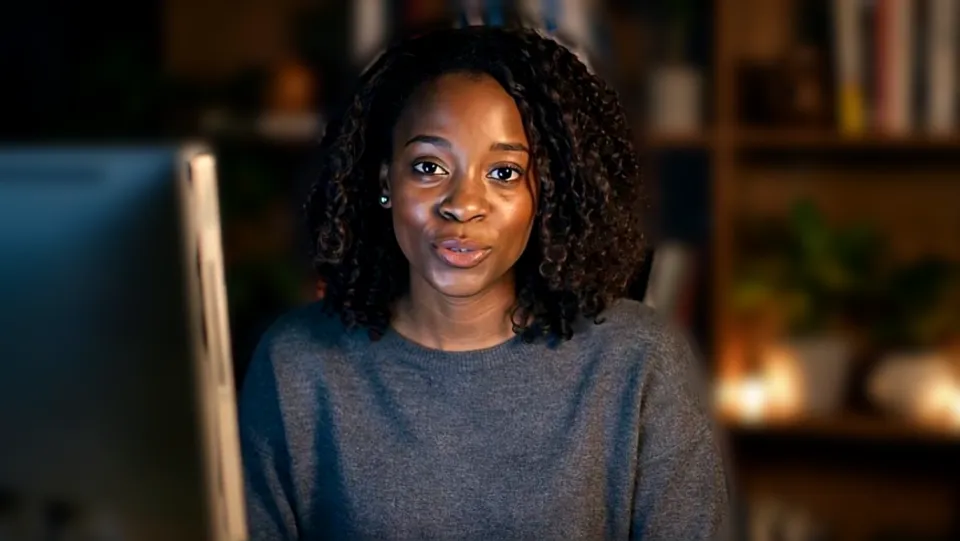
Bright with Light blur for an evening lesson.
If it doesn't work
| Problem | Fix |
|---|---|
| The lesson platform doesn't list Facecam | Reload the lesson tab with the extension on and allow the camera in Chrome's address bar. |
| My whiteboard shows through the blur badly | Hold the board close to the camera or share your screen instead; a blur is made to soften what's behind you. |
One look for every platform
Online tutors rarely use one platform: a school uses Teams, a private student sends a Zoom link, the marketplace has its own classroom. Because Facecam's camera is set in Chrome, the backdrop and look you chose show up in each without setting effects again in every app.
Long days on camera
- Warm takes the blue out of cold LED light.
- Bright helps after sunset more than turning up your screen.
- Auto-framing keeps your face centred when you lean to write.
- Effects are free to try every day; a plan makes them unlimited for full teaching days.

Questions
Do my students need anything?
No. They see your camera with the backdrop, in any app.
Are face filters OK with older students?
Keep them to icebreakers or the end of a lesson; a plain backdrop is better for teaching time.
Used in this guide

Related
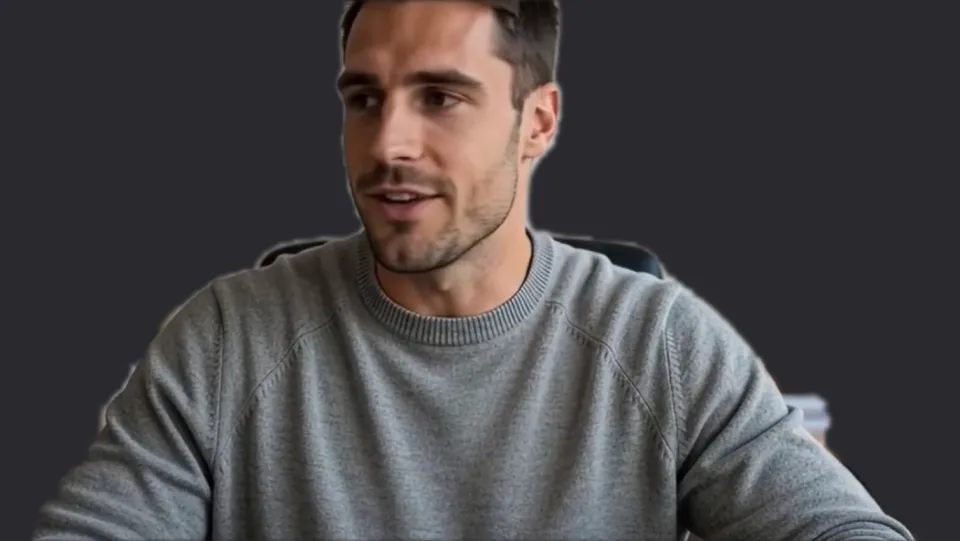 Preply background blurTeach or learn on Preply with your room blurred or behind a clean colour, by picking Facecam's camera in the Classroom. Free, no sign-up.
- Whereby filtersWhereby runs in the browser with nothing to install, and so does Facecam: add face filters and colour looks to any Whereby room. Free, no sign-up.
 Face FiltersLive face filters on your webcam: dog ears with a tongue that pops out when you open your mouth, cat whiskers, a clown wig and 34 more, stuck to your face as you move.

Webcam Effects
Blur or swap your background
Start