Free Whereby Filters
Whereby runs in the browser with nothing to install, and so does Facecam: add face filters and colour looks to any Whereby room. Free, no sign-up.
Updated · Tested by the Facecam team

Your browser will ask for camera access when you click.

How do I add filters to my camera on Whereby?
Whereby uses whatever camera your browser can see, so Facecam Virtual Camera from the Chrome extension shows up in its device list with your face filter, background or colour look already applied.
Pick the effect
Click the Facecam icon in Chrome's toolbar and choose Effects under Your look. Pick a face filter, a background (blur, a flat colour) or a colour look; the popup remembers it for your next call.
Open the room link in Chrome
Guests don't need an account or a download. Allow the camera when Chrome asks.
Choose the camera on the pre-call page
Click the settings cog on the pre-call page and pick “Facecam Virtual Camera” as the camera. In the room, hover over the camera icon on the bottom toolbar or open Meeting Settings to switch.
Leave Whereby's Effects off
Whereby's Background Effects would sit on top of Facecam's. Keep them off when Facecam blurs or replaces your background.
Two looks for Whereby

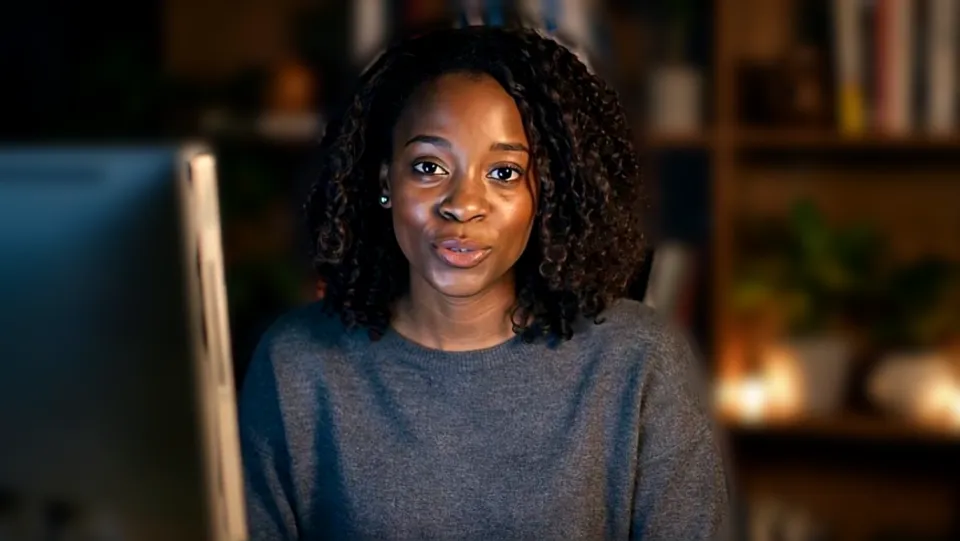
Bunny, for the family call. Our screenshot of Webcam Effects on a test clip, 2026-10-20. 
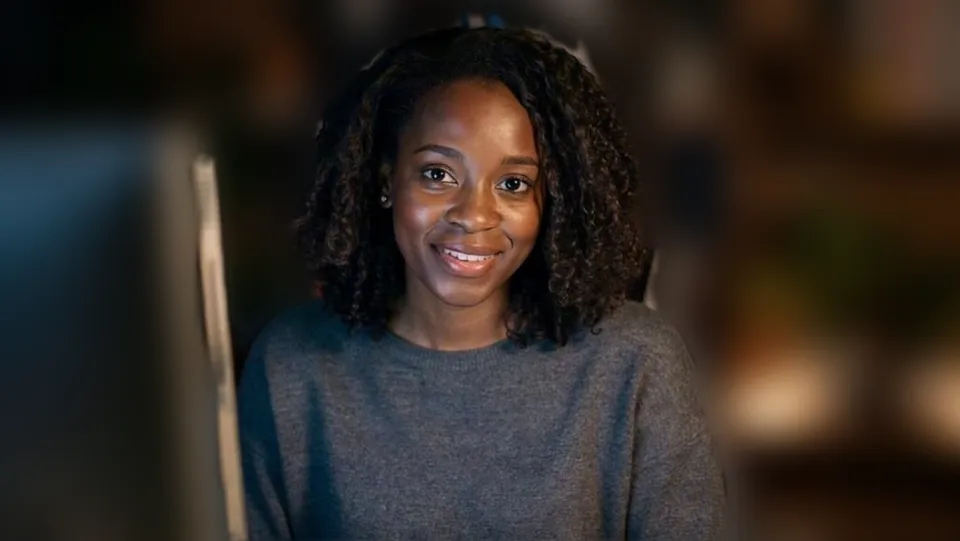
Off-white background with Warm, for the client call. Our screenshot of Webcam Effects on a test clip, 2026-10-20.

Why isn't my camera filter showing on Whereby?
| Problem | Fix |
|---|---|
| Facecam isn't in the camera list | Whereby's help says a device missing from the drop-downs isn't set up at another level. Reload the room tab with the extension on, and check chrome://settings/content/camera has Whereby under Allow. |
| I clicked Block by mistake | Click the camera or padlock icon in Chrome's address bar, allow the camera, and reload. |
| Video is choppy | Whereby's own tip is to switch off background video effects. Turn off Whereby's Effects and keep one effect running, in Facecam. |

Whereby's Background Effects and Facecam
| Whereby Effects | Facecam in Whereby | |
|---|---|---|
| Blur | Yes, on every plan | Light or strong, with a slider |
| Background images | Built-in images or your upload | Your own picture or flat colours |
| Face filters | No | Dog, cat, bunny, glasses, crowns, hats |
| Colour looks | No | Bright, Warm, Cool, Vivid, Mono |
Whereby's Effects are reached from Settings, the camera icon or the waiting room, and they're good for a quick blur. Facecam adds what Whereby doesn't have: filters on your face and colour on your picture. Use one or the other for the background, not both.

More about Whereby
Good fits for Whereby
Whereby's free plan gives one room of up to four people for meetings of up to 30 minutes, which makes it a favourite for quick client calls, tutoring and family check-ins. A Warm look and Light blur suit a client call; the bunny or dog filter suits the family one. Because Whereby takes 720p from any camera, Facecam's picture arrives sharp.
Sources
- Whereby: supported browsers, no login or download for guests — whereby.frontkb.com/en/articles/4369218 (checked 2026-10-20)
- Whereby: choosing your camera and microphone — whereby.frontkb.com/en/articles/4515458 (checked 2026-10-20)
- Whereby: Background Effects (all plans) — whereby.frontkb.com/en/articles/4408322 (checked 2026-10-20)
- Whereby: plans (free: 30 minutes, 4 attendees) — whereby.com/information/meetings (checked 2026-10-20)

Questions
Does Whereby have filters?
Whereby has background blur and background images. Face filters and colour looks come from Facecam Virtual Camera.
Do my guests need Facecam?
No. Only you do. They join your room in their browser and see your camera with the effect.
Is it free?
Webcam effects are free to try every day, and a plan makes them unlimited.
Other platforms
- Zoom virtual background and filters
- OBS camera filters plus background blur
- Teams filters in the browser
- Discord camera filters
- Webex filters in the web app
- Google Meet filters
- Slack huddle filters
- Gather Town filters
- Messenger video call filters on a computer
- Instagram video call filters on a computer
- GoTo Meeting filters
- RingCentral Video filters
- StreamYard filters
- Riverside background blur
- Restream Studio filters
- YouTube live filters
- Preply background blur
- How to blur your background on Zoom
- How to blur your background in Teams
- How to blur your background in Google Meet
- Zoom Touch up my appearance
- How to look good on a video interview
- Webcam setup for online teaching