Free RingCentral Video Filters
Give your RingCentral Video camera a warmer look, a clean backdrop or a face filter, in meetings you join from Chrome. Free, no sign-up.
Updated · Tested by the Facecam team

Your browser will ask for camera access when you click.

How do I add filters to my camera on RingCentral Video?
RingCentral Video joins from any up-to-date browser, and Facecam Virtual Camera shows up in its camera list with your effect applied.
Pick the effect
Click the Facecam icon in Chrome's toolbar and choose Effects under Your look. Pick a face filter, a background (blur, a flat colour) or a colour look; the popup remembers it for your next call.
Choose the camera before you join
On the pre-join screen, open the camera settings under your preview and pick “Facecam Virtual Camera”, then click Join.
Or during the meeting
Click the up arrow next to Start/stop video in the bottom bar and choose “Facecam Virtual Camera”, then Start video.
Looks for RingCentral
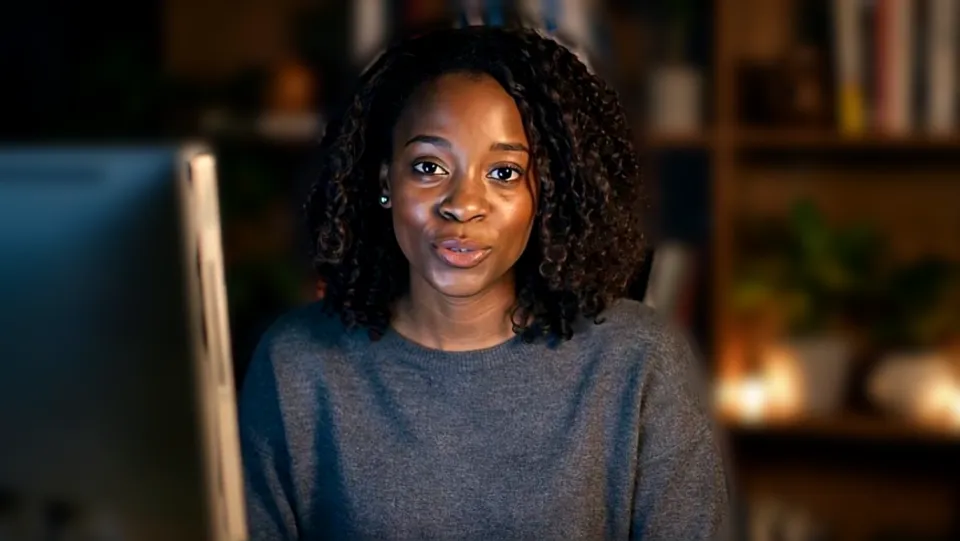
Bright with Light blur, for a dim room. Our screenshot of Webcam Effects on a test clip, 2026-10-20. 
Vivid. Our screenshot of Webcam Effects on a test clip, 2026-10-20.

Why isn't my camera filter showing on RingCentral Video?
| Problem | Fix |
|---|---|
| The camera is missing or greyed out | RingCentral's help: another app may be using the camera. Leave the meeting, close it, and rejoin. |
| Backgrounds look doubled | RingCentral's Background is set to blur or an image. Set it to Off under Settings → Video when Facecam does the background. |

RingCentral's backgrounds and Facecam
| RingCentral Video | Facecam in RingCentral | |
|---|---|---|
| Blur | Blur your background | Light or strong |
| Images | Uploads, themed and AI backgrounds (sign-in for AI) | Your picture or flat colours |
| Colour looks | No | Bright, Warm, Cool, Vivid, Mono |
| Face filters | No | Yes |
RingCentral's backgrounds live under Settings → Video → Edit → Background in the desktop and web app. Use them or Facecam's for the background; colour looks and face filters are Facecam's alone.

More about RingCentral Video
All-day calls
RingCentral is a phone system as much as a meeting app, so people on it are often on camera between calls all day. Set a look once in the Facecam popup and every meeting uses it: Warm for a cold office light, Bright for a dim home office in winter.
Sources
- RingCentral: joining a RingCentral Video meeting from a browser — support.ringcentral.com/article-v2/Joining-a-RingCentral-Video-meeting.html (checked 2026-10-20)
- RingCentral: managing your camera (missing or greyed out) — support.ringcentral.com/article-v2/Managing-your-camera-for-RingCentral-Video-meetings.html (checked 2026-10-20)
- RingCentral: virtual backgrounds — support.ringcentral.com/article-v2/Using-RingCentral-Virtual-backgrounds.html (checked 2026-10-20)

Questions
Does RingCentral Video have filters?
It has backgrounds, blur and AI backgrounds, but no colour filters or face filters. Facecam adds those.
Other platforms
- Zoom virtual background and filters
- OBS camera filters plus background blur
- Teams filters in the browser
- Discord camera filters
- Webex filters in the web app
- Google Meet filters
- Slack huddle filters
- Whereby filters
- Gather Town filters
- Messenger video call filters on a computer
- Instagram video call filters on a computer
- GoTo Meeting filters
- StreamYard filters
- Riverside background blur
- Restream Studio filters
- YouTube live filters
- Preply background blur
- How to blur your background on Zoom
- How to blur your background in Teams
- How to blur your background in Google Meet
- Zoom Touch up my appearance
- How to look good on a video interview
- Webcam setup for online teaching