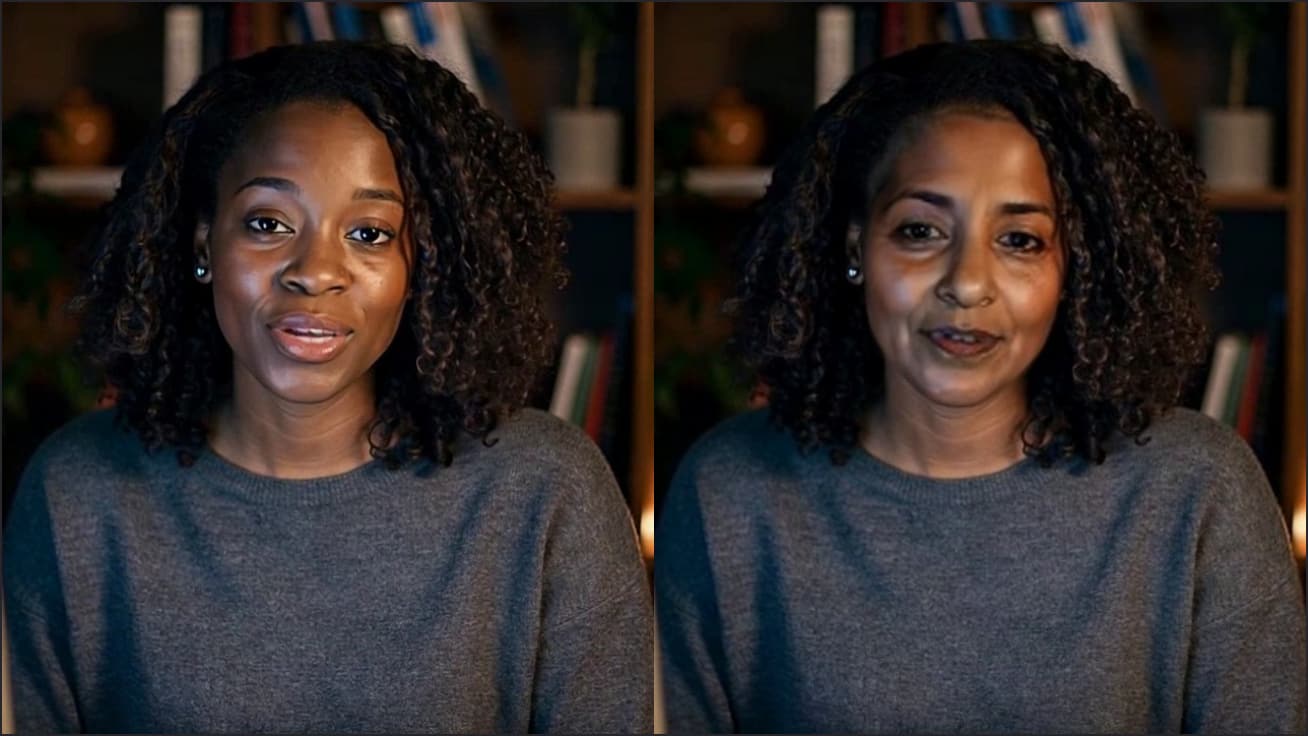
Free Webex Filters in the Web App
A tidier background and a better-lit picture in Webex meetings you join from your browser. Free, no sign-up.

Your browser will ask for camera access when you click.

Set it up in Webex
Choose your effect
Start the camera in the Webcam Effects tool on this page, set the background and sliders, and click Use as my camera in calls.
Join from your browser
Open the invite in Chrome, select Join meeting, then Join from your browser. Enter your name and join as a guest, or sign in.
Pick the camera in the preview
In the preview window's video settings, choose “Facecam Virtual Camera” as the camera and check the preview shows your effect. Then select Join meeting.
If it doesn't work
| Problem | Fix |
|---|---|
| The camera list has no Facecam camera | Reload the Webex tab with Facecam on. Webex also suggests checking Chrome's camera site settings and restarting the browser after adding a device. |
| My outline looks cut out twice | A Webex virtual or blurred background is on as well. Switch it off. |
| Webex keeps opening the desktop app | Use Join from your browser on the join page; when the app is installed, the link reads Join from this browser. |
Picking settings for work meetings
| Situation | Background | Picture |
|---|---|---|
| Home office with laundry in view | Light blur | Natural |
| Customer call | Your company backdrop as the image | Contrast slightly up |
| Window behind you | Studio grey | Bright |
| Evening, warm lamp | Any | Warmth down a touch |
More about Webex
Why choose before joining
Webex says its desktop app has more features than the web app, and its web help covers the camera choice in the preview window. Setting the Facecam camera there avoids leaving and rejoining to change it. The effect itself can still change any time from the Facecam popup, because the camera stays the same.
Sources
- Webex: join a meeting (Join from your browser) — help.webex.com/en-us/article/nrbgeodb (checked 2026-10-03)
- Webex: audio and video settings before you join — help.webex.com/en-us/article/ela6i8 (checked 2026-10-03)
- Webex: remove background noise (Webex smart audio) — help.webex.com/en-us/article/n70a8os (checked 2026-10-03)
- Webex: cameras and mics in the web app on Chrome — help.webex.com/en-us/article/jmcc7r (checked 2026-10-03)
- Webex: use a virtual or blurred background — help.webex.com/en-us/article/0p4gb1 (checked 2026-10-04)

Questions
Is it free?
Yes. The effects run in Chrome on your computer, with no account.
Does it work on a Chromebook?
Webex opens meetings in the browser on Chromebooks, and Facecam runs in Chrome there, so the same steps apply.
Can the host see I'm using effects?
They see your video with the effect, like any camera. Facecam adds no label to the picture.
Other platforms
- Zoom virtual background and filtersBlur your room, put your own picture behind you, or use a plain colour, plus a warmer, brighter picture, in Zoom meetings you join from Chrome. Free, no sign-up.
- OBS camera filters plus background blurOBS's own camera filters fix colour and crop; this adds a blurred or replaced background without a green screen. Free, no sign-up.
- Teams filters in the browserBlur, a backdrop and a brighter, warmer picture in Teams meetings you join from Chrome. Free, no sign-up.
- Discord camera filtersTurn your camera on in Discord with a blurred room, a custom backdrop or a warmer picture, from discord.com in Chrome. Free, no sign-up.
Related
 Webex voice changerA voice changer for Webex meetings: join from your browser and choose Facecam Virtual Mic in the preview window. Free, no sign-up.
 Webex soundboardSound effects for Webex meetings, played through your mic from the Webex web app in Chrome. Free, no sign-up.
 Webcam TestA free webcam test with no sign-up: see your camera's real resolution, frame rate and lighting in seconds. Your video never leaves your device.
 Live Face SwapLive face swap for Meet, Zoom and Discord: become anyone you want, in real time, while you talk. Upload any photo or pick a built-in face.