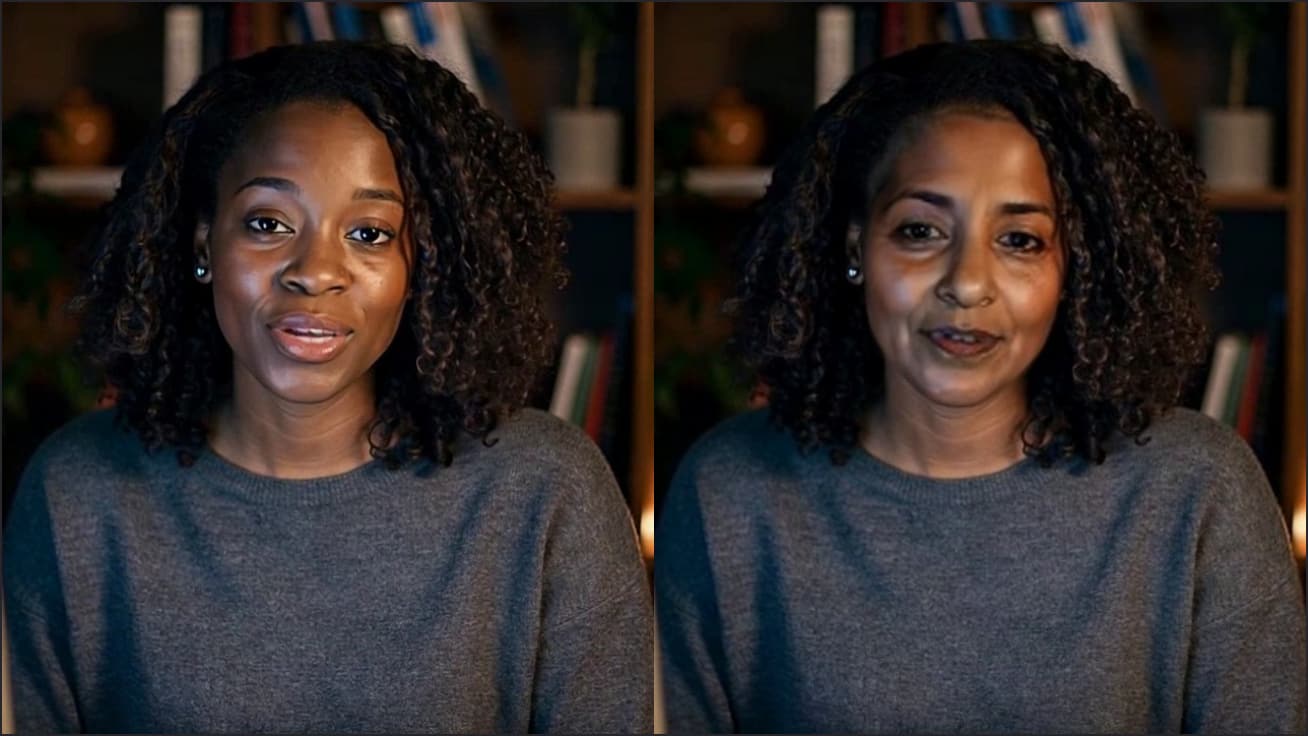
Free Teams Filters in the Browser
Blur, a backdrop and a brighter, warmer picture in Teams meetings you join from Chrome. Free, no sign-up.

Your browser will ask for camera access when you click.

Set it up in Microsoft Teams
Pick your background and picture
In the Webcam Effects tool on this page, click Start camera, choose a background (a blur, a flat colour like Studio grey, or your own image) and a filter, then click Use as my camera in calls.
Open the meeting in Chrome
Select Join the meeting now on the invite, then Continue on this browser. Allow the camera and microphone.
Choose the camera on the pre-join screen
Turn Camera on and choose “Facecam Virtual Camera” from the camera list. When the preview shows your effect, select Join now.
Or switch during the meeting
Select the dropdown arrow next to Camera in the meeting controls and choose “Facecam Virtual Camera”.
If it doesn't work
| Problem | Fix |
|---|---|
| The edges of my hair flicker | Teams' own background effect is running too. Set it to none under Effects and avatars before joining, or Video effects and settings during the meeting. |
| Teams can't use the camera | Check Chrome's Site settings → Camera for Teams, and More options → App permissions inside Teams on the web; refresh after changing either. |
| The extension isn't allowed on my work laptop | Your organisation manages Chrome. Ask IT, or use Teams' desktop background effects instead. |

What Teams offers where
| Teams desktop app | Teams in Chrome with Facecam | |
|---|---|---|
| Background blur and images | Teams background effects | Facecam: a blur, a colour or your image |
| Video filters | Yes (desktop only, says Microsoft) | Brightness, contrast, saturation, warmth |
| Install needed | The Teams app | Only the Facecam extension |
Microsoft's page for Teams for personal use is explicit that filters are only available on desktop. Its background effects article covers the desktop apps too. Joining from a browser is still common for guests and on shared or locked-down computers, and that's where Facecam fills the gap.
More about Microsoft Teams
Looking good in a long meeting
- Warmth slightly up fixes the blue cast of most office lights.
- A flat brand colour as the background looks tidier than a busy blur in a gallery of tiles.
- Auto-framing helps when you lean back; turn it off if you present at a whiteboard and move a lot.
Sources
- Microsoft: join a meeting without an account — support.microsoft.com/en-us/teams/meetings/join-a-meeting-without-an-account-in-microsoft-teams (checked 2026-10-03)
- Microsoft: use meeting controls (Mic and Camera dropdowns) — support.microsoft.com/en-us/teams/meetings/use-meeting-controls-in-microsoft-teams (checked 2026-10-03)
- Microsoft: Teams limits and browser support — learn.microsoft.com/en-us/microsoftteams/limits-specifications-teams (checked 2026-10-03)
- Microsoft: troubleshoot devices in Teams on the web — support.microsoft.com/en-us/teams/troubleshooting/troubleshoot-device-features-in-microsoft-teams-on-the-web (checked 2026-10-03)
- Microsoft: add a background or video filter in Teams for personal use (“Filters are only available on desktop”) — support.microsoft.com/en-us/teams/personal/meetings-calls/add-a-background-or-video-filter-to-your-microsoft-teams-personal-meeting (checked 2026-10-04)
- Microsoft: change your background in Teams meetings — support.microsoft.com/en-us/teams/meetings/change-your-background-in-microsoft-teams-meetings (checked 2026-10-04)
- Microsoft: apply video filters in Teams meetings — support.microsoft.com/en-us/teams/meetings/apply-video-filters-in-microsoft-teams-meetings (checked 2026-10-04)

Questions
Is this the same as Teams' video filters?
No. Teams' filters are frames and colour styles inside the desktop app. Facecam changes your background and picture before Teams receives the video, so it works in the browser.
Is it free?
Yes, with no account. The effects run on your computer.
Do the others need anything?
No. They see your camera with the effect in whatever Teams app they use.
Other platforms
- Zoom virtual background and filtersBlur your room, put your own picture behind you, or use a plain colour, plus a warmer, brighter picture, in Zoom meetings you join from Chrome. Free, no sign-up.
- OBS camera filters plus background blurOBS's own camera filters fix colour and crop; this adds a blurred or replaced background without a green screen. Free, no sign-up.
- Discord camera filtersTurn your camera on in Discord with a blurred room, a custom backdrop or a warmer picture, from discord.com in Chrome. Free, no sign-up.
- Webex filters in the web appA tidier background and a better-lit picture in Webex meetings you join from your browser. Free, no sign-up.
Related
 Face swap for Microsoft TeamsBe anyone in a Teams meeting: join in Chrome, choose Facecam Virtual Camera, and your new face is what the meeting sees.
 Avatar for Microsoft TeamsCamera-off days without a blank tile: join Teams in Chrome as a 3D character that moves with you. Free, no sign-up.
 Voice changer for TeamsChange your voice in a Microsoft Teams meeting: join in Chrome and pick Facecam Virtual Mic as your microphone. Free, no sign-up.
 Webcam TestA free webcam test with no sign-up: see your camera's real resolution, frame rate and lighting in seconds. Your video never leaves your device.