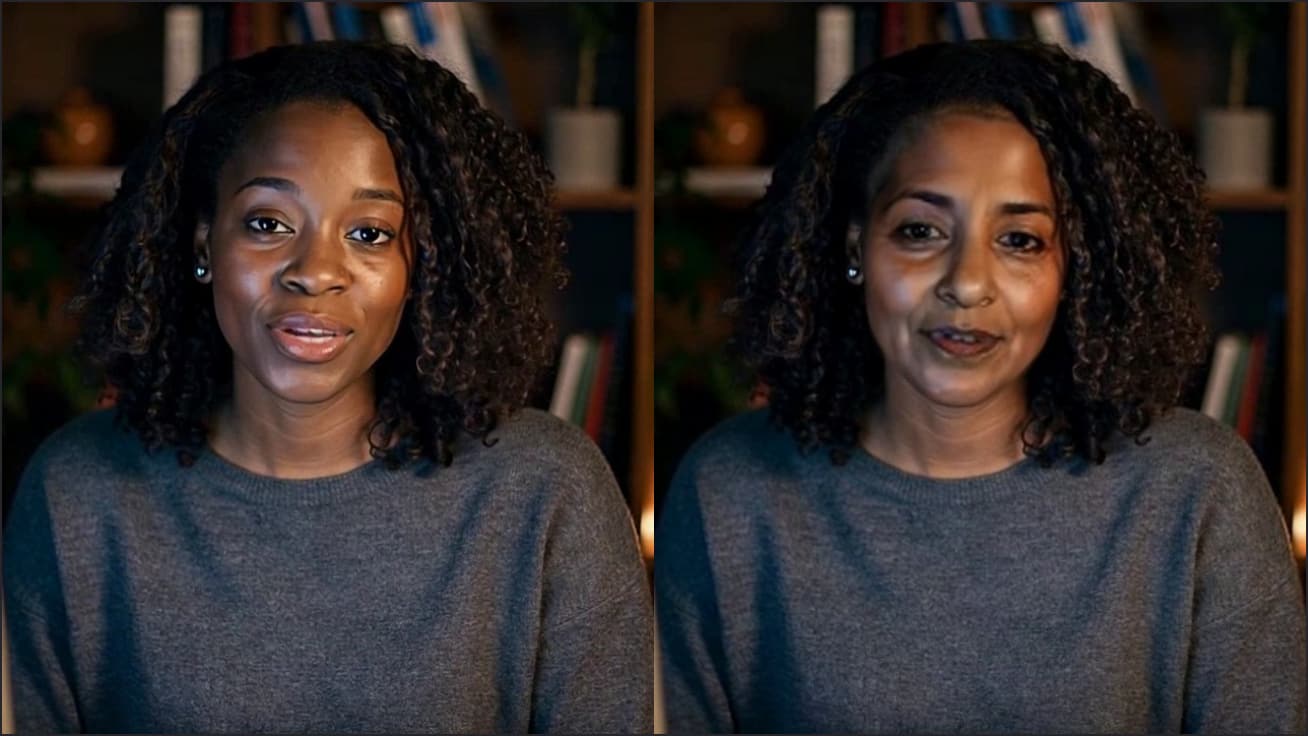
Free OBS Camera Filters Plus Background Blur
OBS's own camera filters fix colour and crop; this adds a blurred or replaced background without a green screen. Free, no sign-up.

Your browser will ask for camera access when you click.
Set it up in OBS
Set the effect in Chrome
In the Webcam Effects tool on this page, click Start camera, pick Light blur, Strong blur, a colour or your own image under Background, and click Use as my camera in calls.
Push the camera from vdo.ninja
Open vdo.ninja in Chrome and choose Add your Camera to OBS. Pick “Facecam Virtual Camera” as the Video Source, leave Digital Video Effects on No effects applied, and press Start.
Add the view link in OBS
Copy the view link, add a Browser source in OBS, paste it as the URL and set the width and height to your camera's size.
Stack OBS filters on top
Right-click the browser source → Filters. Add Color Correction or Apply LUT for grading, or Crop/Pad to frame it; these work on the Facecam picture like on any source.
Our test recording
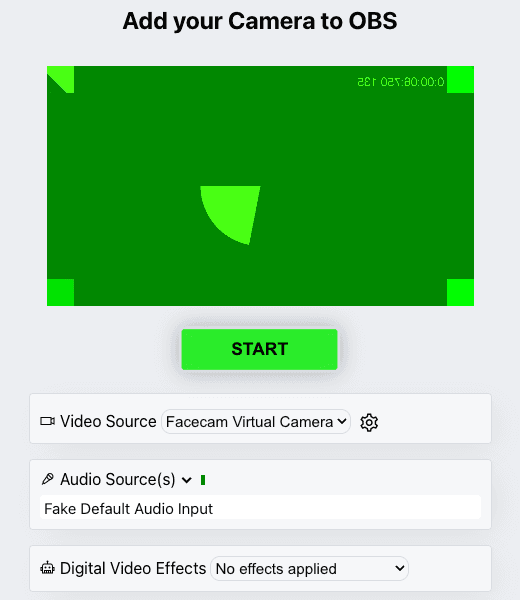
Our screenshot, 2026-10-04: vdo.ninja in Chromium with the Facecam extension picks Facecam Virtual Camera as the video source. The preview is Chromium's built-in test camera.
If it doesn't work
| Problem | Fix |
|---|---|
| The browser source is black | The vdo.ninja tab was closed or isn't started. Press Start again in Chrome, then refresh the source in OBS. |
| The picture stutters when Chrome is in the background | Chrome throttles hidden tabs. Keep the vdo.ninja tab in its own window, not minimised. |
| Chroma Key leaves a fringe | Pick Facecam's Green screen background, then key it in OBS; or skip keying and use a blur or your own image directly. |
OBS's built-in filters and what they don't do
| Need | OBS built-in filter | Facecam effect |
|---|---|---|
| Fix colour | Color Correction, Apply LUT | Brightness, contrast, saturation, warmth |
| Remove a green screen | Chroma Key, Color Key | Not needed: your image or a colour behind you |
| Blur the room | None built in | Light or Strong blur |
| Crop or frame | Crop/Pad, Scaling/Aspect Ratio | Auto-framing follows your face |
The OBS filters guide lists Color Correction, Apply LUT, Chroma Key, Color Key, Luma Key, Crop/Pad, Image Mask/Blend, Scaling/Aspect Ratio, Scroll, Sharpen and Render Delay for video. None separates you from the room without a green screen, which is the job Facecam does in Chrome.
More about OBS
VDO.Ninja's own effects
VDO.Ninja has a Digital Video Effects menu of its own, with blurred and virtual backgrounds. Use either theirs or Facecam's, not both, or the background is cut out twice. Facecam's are the same effects you use in your calls, so your stream and your meetings look alike.
Sources
- VDO.Ninja: getting started (add your camera to OBS) — docs.vdo.ninja/getting-started (checked 2026-10-03)
- VDO.Ninja: share audio with OBS (Control audio via OBS) — docs.vdo.ninja/guides/share-obs-audio-with-vdo-ninja (checked 2026-10-03)
- OBS: browser source — obsproject.com/kb/browser-source (checked 2026-10-03)
- OBS: filters guide (video and audio filters) — obsproject.com/kb/filters-guide (checked 2026-10-04)
- OBS: browser source — obsproject.com/kb/browser-source (checked 2026-10-04)

Questions
Is there a background blur filter in OBS?
Not among OBS's built-in filters. Plugins add one; this route adds one without installing anything into OBS.
Does it work in Streamlabs Desktop?
Streamlabs Desktop has a Browser Source too, so the same view link can go there. We wrote these steps for OBS Studio.
Is it free?
Yes. Facecam's webcam effects and VDO.Ninja are both free.
Other platforms
- Zoom virtual background and filtersBlur your room, put your own picture behind you, or use a plain colour, plus a warmer, brighter picture, in Zoom meetings you join from Chrome. Free, no sign-up.
- Teams filters in the browserBlur, a backdrop and a brighter, warmer picture in Teams meetings you join from Chrome. Free, no sign-up.
- Discord camera filtersTurn your camera on in Discord with a blurred room, a custom backdrop or a warmer picture, from discord.com in Chrome. Free, no sign-up.
- Webex filters in the web appA tidier background and a better-lit picture in Webex meetings you join from your browser. Free, no sign-up.
Related
 OBS Virtual CameraOBS Virtual Camera not showing up? Check what Chrome sees and get the fix.
 Face swap in OBSStream with another face in OBS: the swap runs in Chrome, and a browser source or a window capture brings it into your scene.
 OBS PNGTuberA PNGTuber in OBS from a single link: paste it into a Browser source and the character talks when you do. Free, no sign-up.
 OBS voice changerA free voice changer for OBS with no plugin to install: your changed voice arrives as a Browser source.
 Webcam TestA free webcam test with no sign-up: see your camera's real resolution, frame rate and lighting in seconds. Your video never leaves your device.