Free Riverside Background Blur
Blur your room in a Riverside recording on any plan: pick Facecam Virtual Camera in the lobby. Free, no sign-up.
Updated · Tested by the Facecam team

Your browser will ask for camera access when you click.

How do I add filters to my camera on Riverside?
Riverside's own blur is part of its Pro plans. Facecam Virtual Camera blurs or replaces your background before Riverside sees the picture, so it's in your local recording on any plan.
Pick the blur
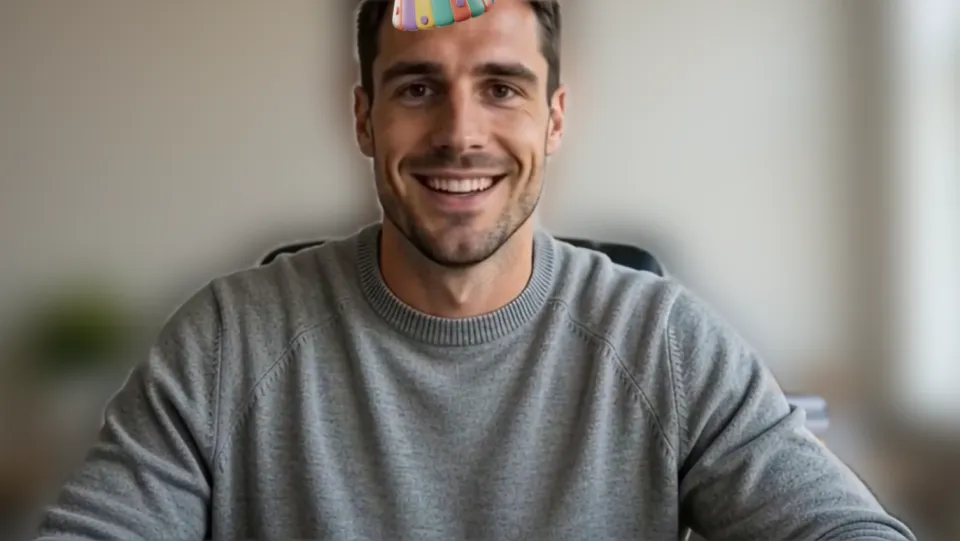
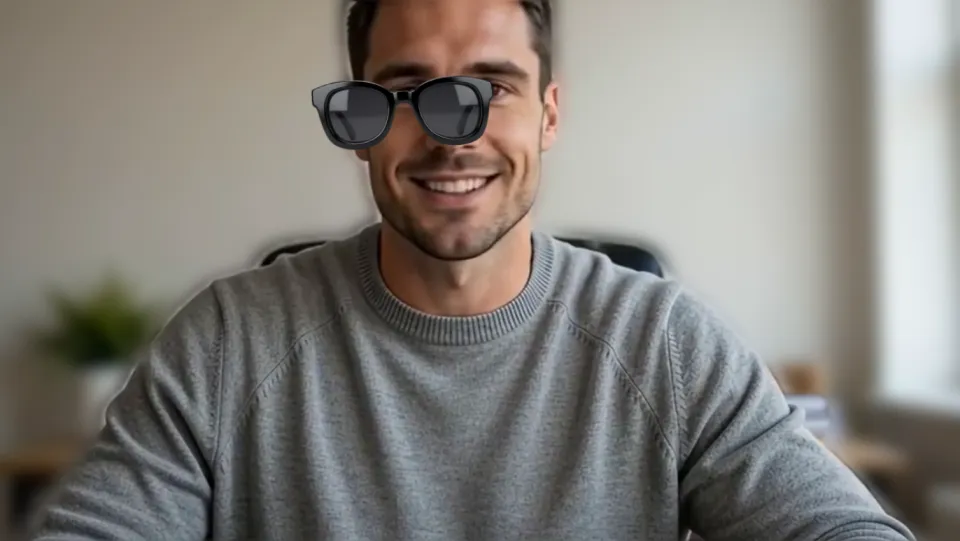
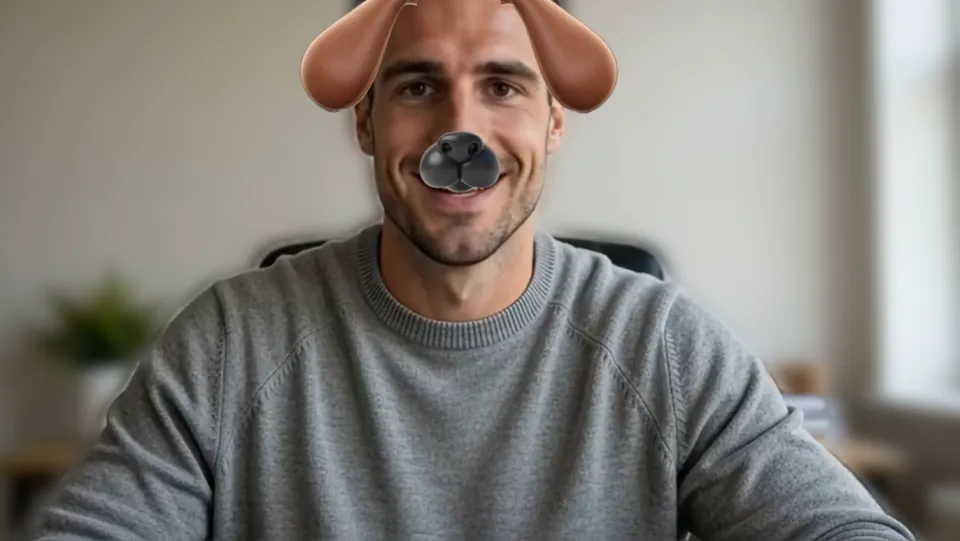
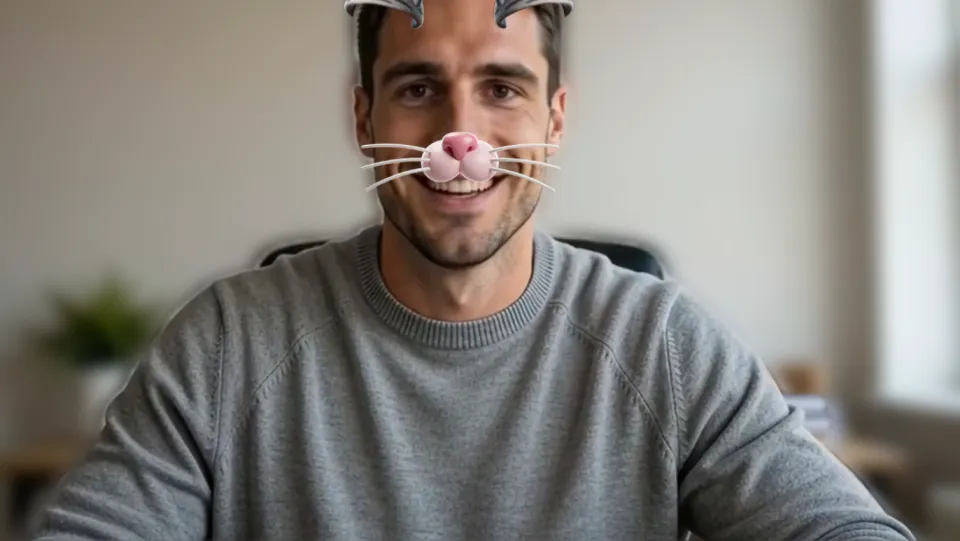
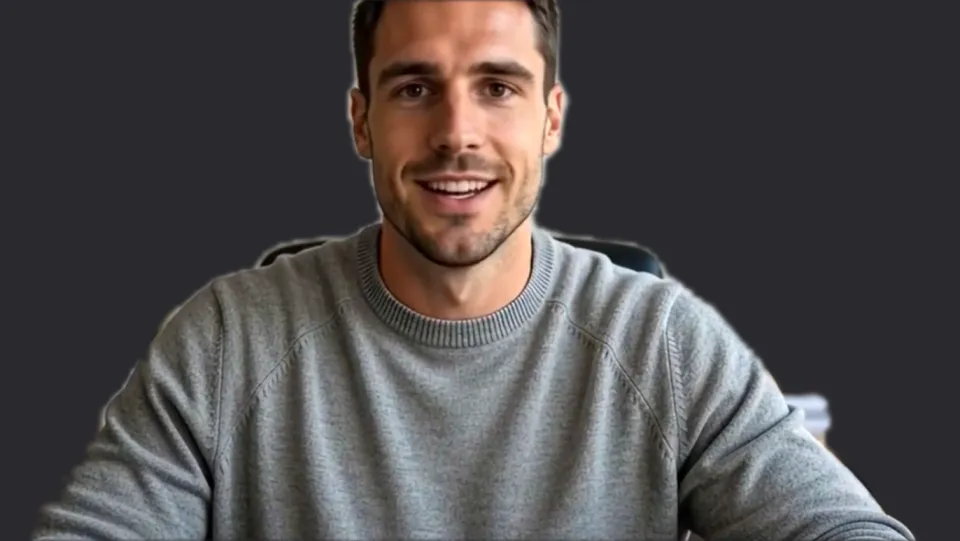
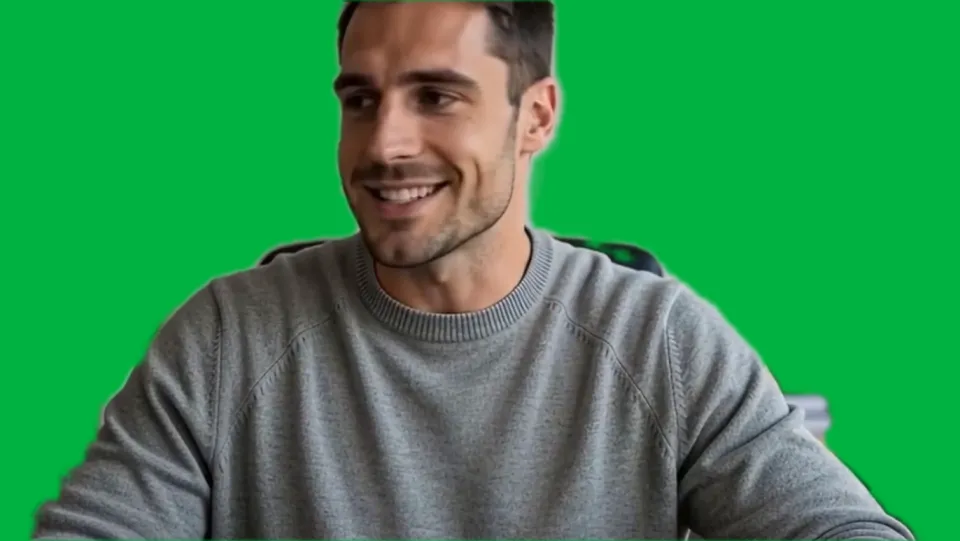
Click the Facecam icon in Chrome's toolbar and choose Effects under Your look. Pick a face filter, a background (blur, a flat colour) or a colour look; the popup remembers it for your next call.
Allow the camera
Join the studio, click Allow camera and mic, and choose Allow while visiting this site in Chrome.
Pick the camera in the lobby
Use the camera menu by the video preview and choose “Facecam Virtual Camera”, then Join studio.
Before and after
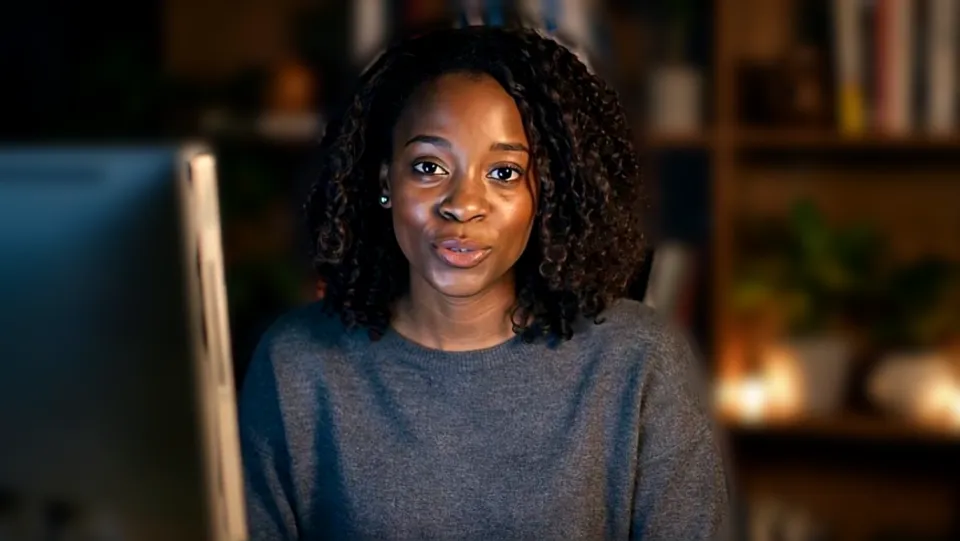
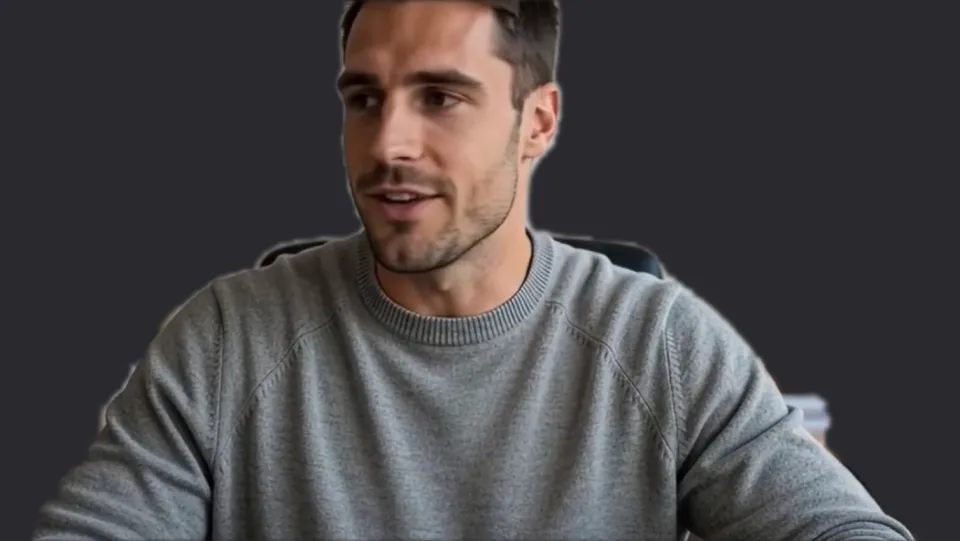
Strong blur. Our screenshot of Webcam Effects on a test clip, 2026-10-20. 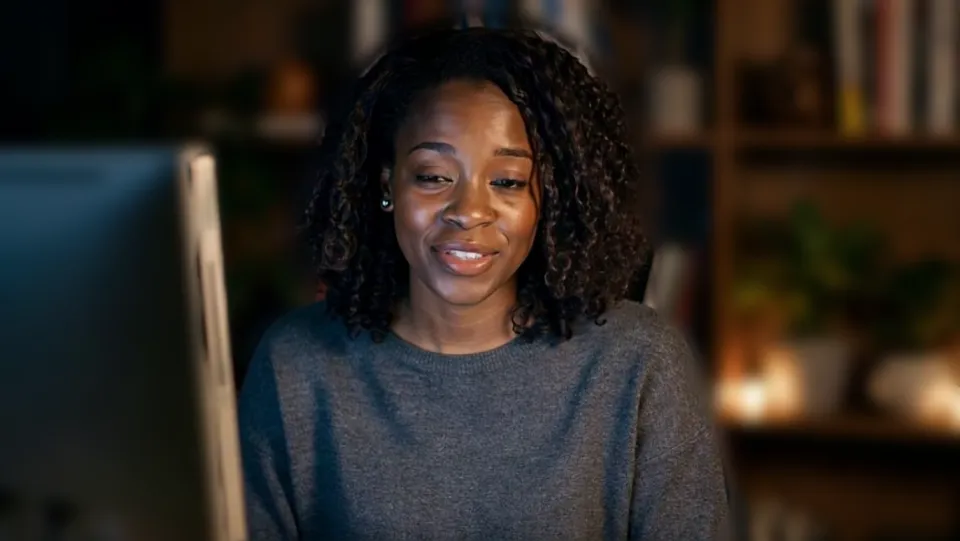
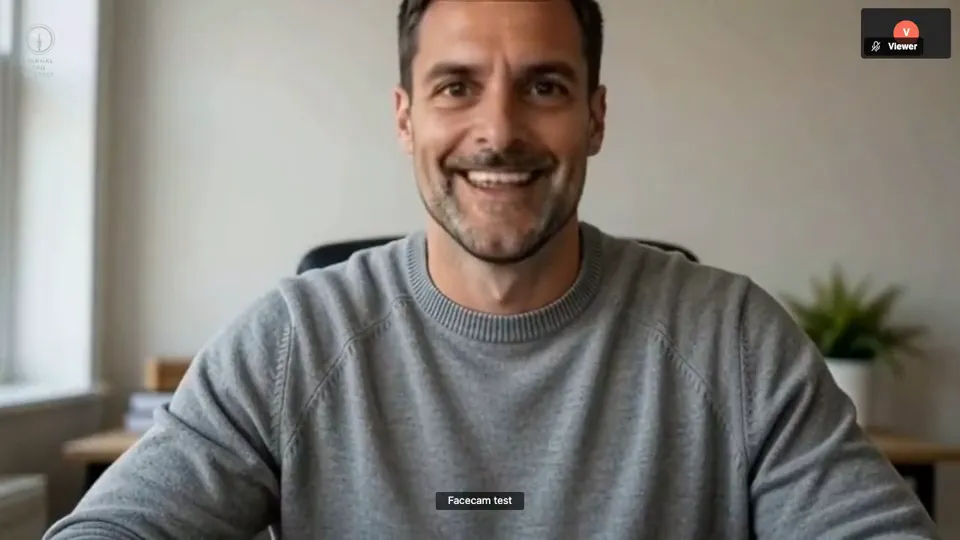
Without the effect. Our screenshot of Webcam Effects on a test clip, 2026-10-20.
Why isn't my camera filter showing on Riverside?
| Problem | Fix |
|---|---|
| Riverside can't see any camera | You denied access earlier. Reset the camera permission for riverside.fm in Chrome's site settings and reload the studio. |
| The recording shows my room | You recorded before switching cameras. Effects are baked into Riverside's local track, so choose Facecam in the lobby before recording. |
Riverside's visual effects and Facecam
| Riverside | Facecam in Riverside | |
|---|---|---|
| Background blur | Pro plans and up | Any plan |
| Preset backgrounds | All plans | Flat colours |
| Touch-ups | Pro plans and up | Colour looks and sliders |
| 4K studios | Effects not available | Facecam sends 720p |
Riverside records every guest locally in separate tracks, and its help says visual effects are baked into the file. The same is true of Facecam: what you pick is what's recorded, in your own track.
More about Riverside
For podcasters
Video podcasts get cut into clips, so the background ends up on social feeds. A Strong blur or Studio grey keeps the attention on you; Warm helps when you record at night under a desk lamp.
Before you record
- Use Chrome in a normal window: Riverside asks you not to record in Incognito, and it needs about 5 GB of free browser storage for local tracks.
- Pick the camera and the effect in the lobby. Changing either mid-session means asking the host to stop recording first.
- Check your look in the lobby preview: what you see there is what lands in your track.
- Guests on phones join through Riverside's app; Facecam's camera is for guests on a computer.
Sources
- Riverside: select mic and camera in the lobby — support.riverside.com/hc/en-us/articles/5803232647965 (checked 2026-10-03)
- Riverside: echo cancellation per participant — support.riverside.com/hc/en-us/articles/5286971557917 (checked 2026-10-03)
- Riverside: noise reduction in the studio — support.riverside.com/hc/en-us/articles/5271863226653 (checked 2026-10-03)
- Riverside: about high-quality local tracks — support.riverside.com/hc/en-us/articles/5260109014045 (checked 2026-10-03)
- Riverside: studio visual effects and virtual backgrounds — support.riverside.com/hc/en-us/articles/5434256894877 (checked 2026-10-20)
- Riverside: add a background blur (Pro plans) — support.riverside.com/hc/en-us/articles/17848782645917 (checked 2026-10-20)
- Riverside: allow access to your mic and camera — support.riverside.com/hc/en-us/articles/5252093048221 (checked 2026-10-20)

Questions
Can I blur my background in Riverside for free?
Riverside's blur needs Pro. Facecam's blur is free to try every day, and a plan makes it unlimited.
Does it work in 4K studios?
Facecam Virtual Camera sends 720p, so record at 720p for the effect.
Other platforms
- Zoom virtual background and filters
- OBS camera filters plus background blur
- Teams filters in the browser
- Discord camera filters
- Webex filters in the web app
- Google Meet filters
- Slack huddle filters
- Whereby filters
- Gather Town filters
- Messenger video call filters on a computer
- Instagram video call filters on a computer
- GoTo Meeting filters
- RingCentral Video filters
- StreamYard filters
- Restream Studio filters
- YouTube live filters
- Preply background blur
- How to blur your background on Zoom
- How to blur your background in Teams
- How to blur your background in Google Meet
- Zoom Touch up my appearance
- How to look good on a video interview
- Webcam setup for online teaching