Free YouTube Live Filters
YouTube's webcam streaming has no effects of its own. Pick Facecam's camera and go live with a filter, a blur or a colour look. Free, no sign-up.
Updated · Tested by the Facecam team

Your browser will ask for camera access when you click.

How do I add filters to my camera on YouTube?
YouTube Studio's webcam streaming takes your camera straight from the browser, so Facecam Virtual Camera brings face filters, backgrounds and colour looks to the stream with no streaming software.
Pick the effect
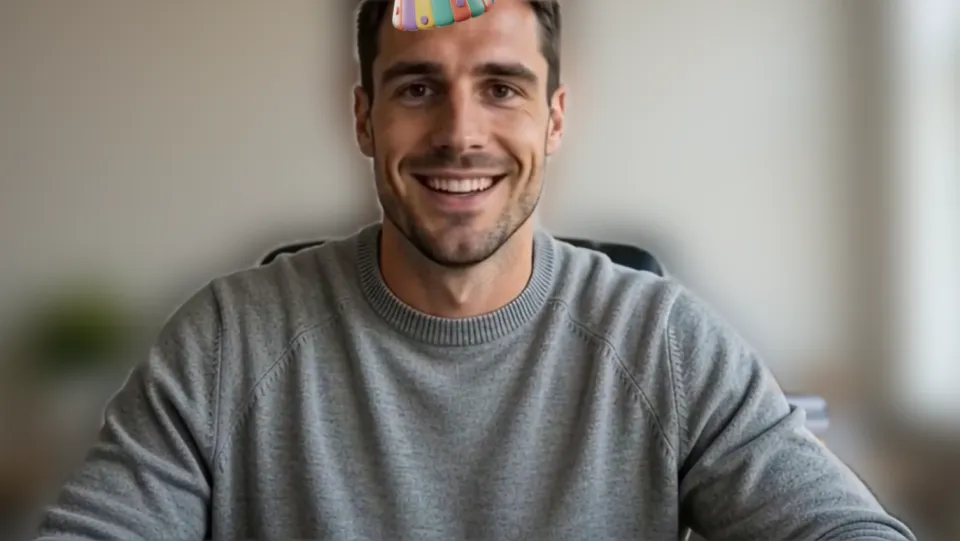
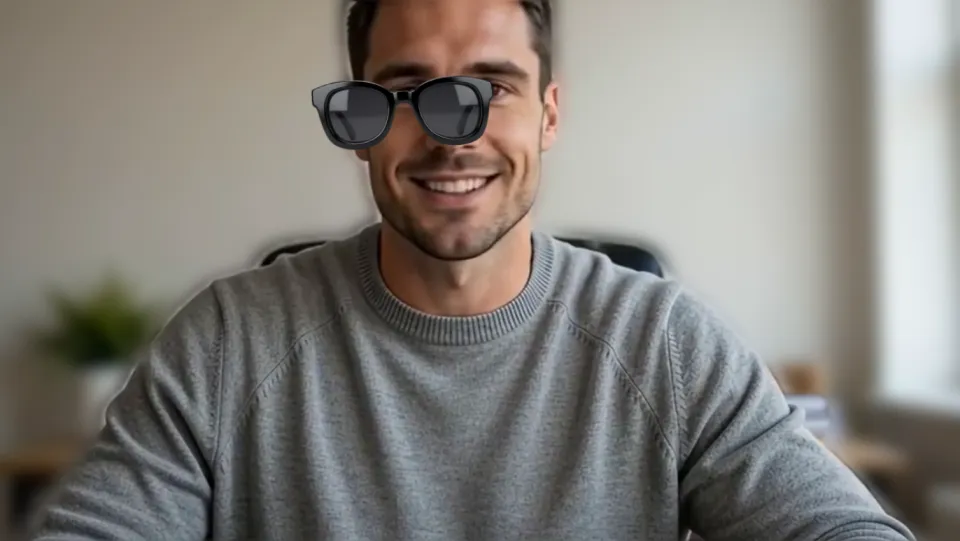
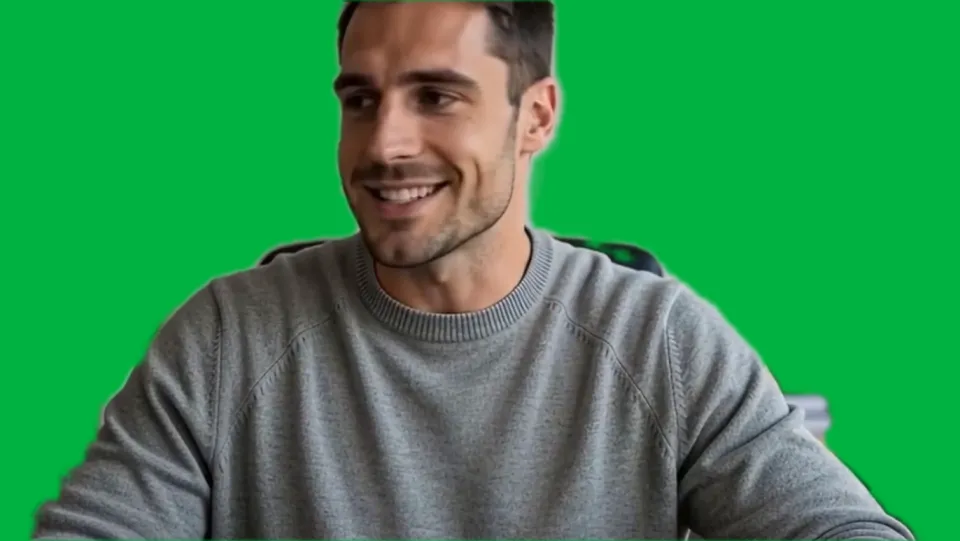
Click the Facecam icon in Chrome's toolbar and choose Effects under Your look. Pick a face filter, a background (blur, a flat colour) or a colour look; the popup remembers it for your next call.
Open Go Live
In YouTube Studio, click Create at the top right, then Go Live, and select Webcam on the left.
Choose the camera
Add a title and privacy setting, click Next, and make sure “Facecam Virtual Camera” is the webcam. Then Go Live.
Looks for a webcam stream
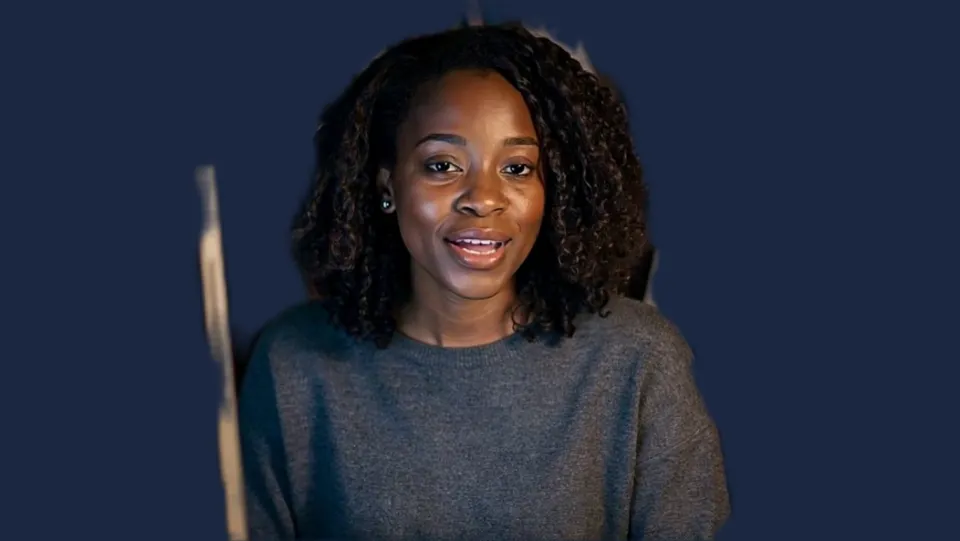
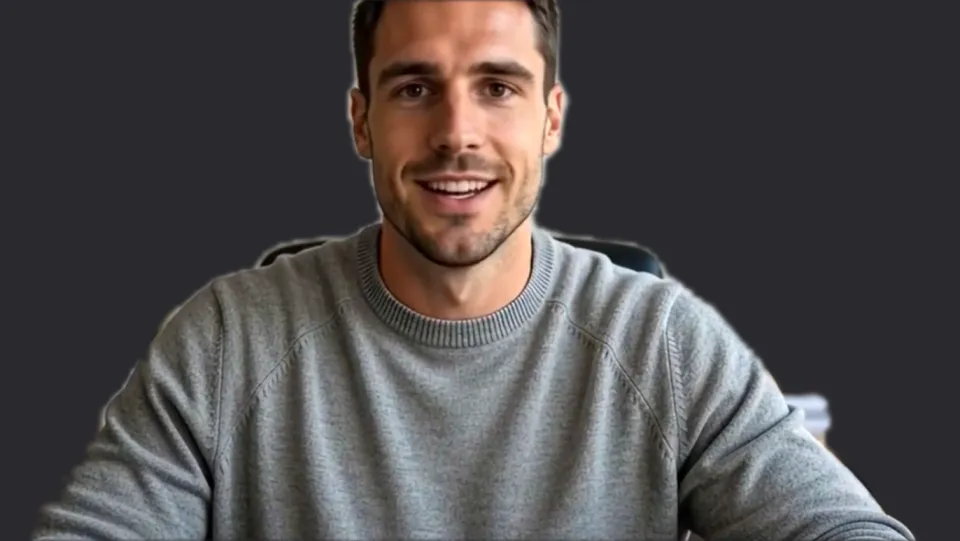
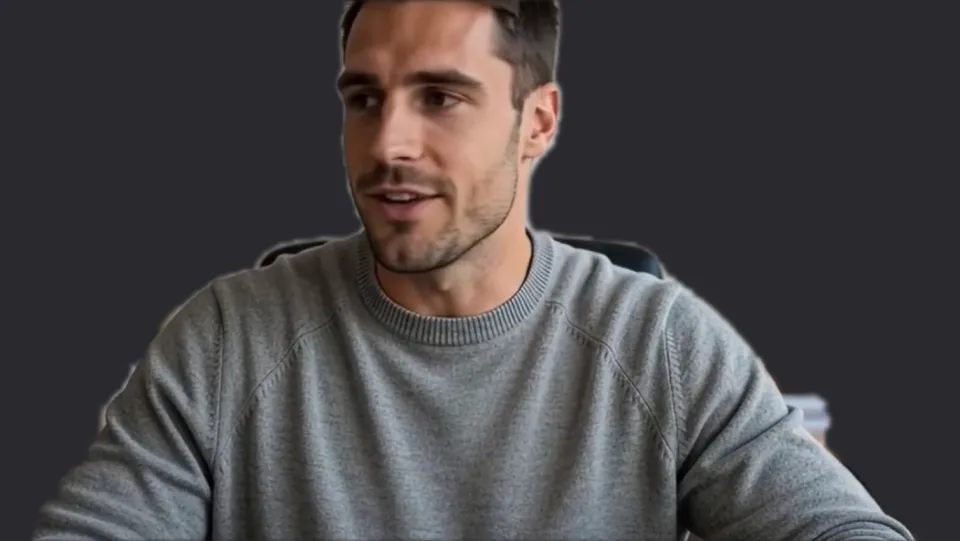
Navy backdrop. Our screenshot of Webcam Effects on a test clip, 2026-10-20. 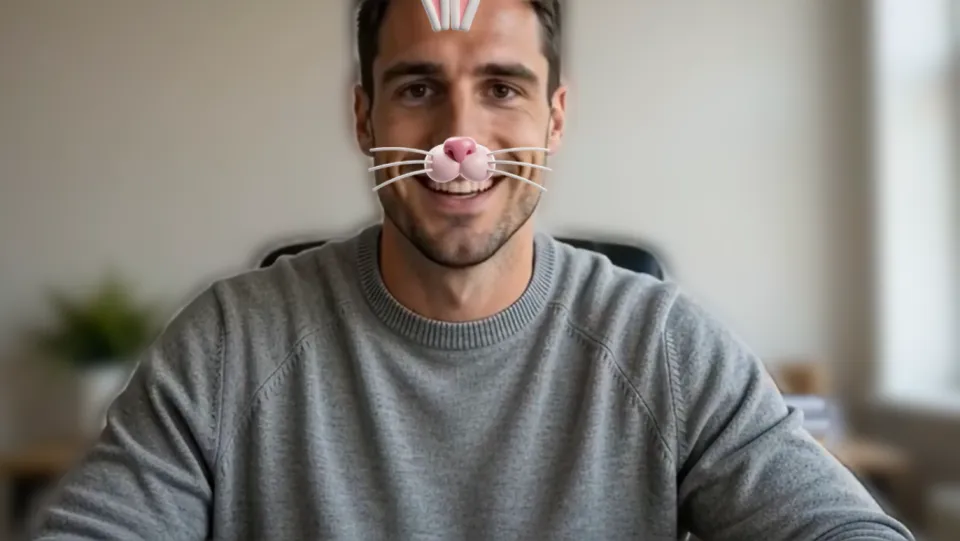
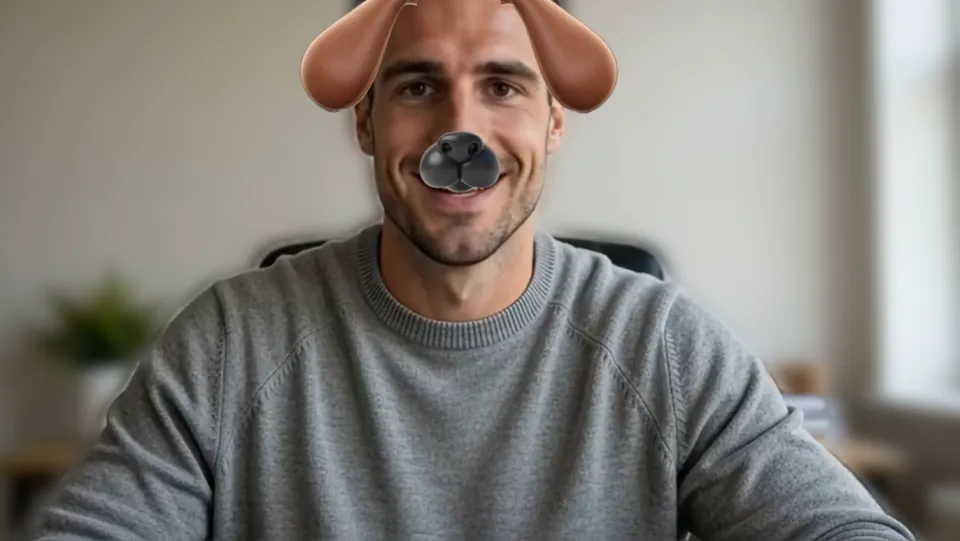
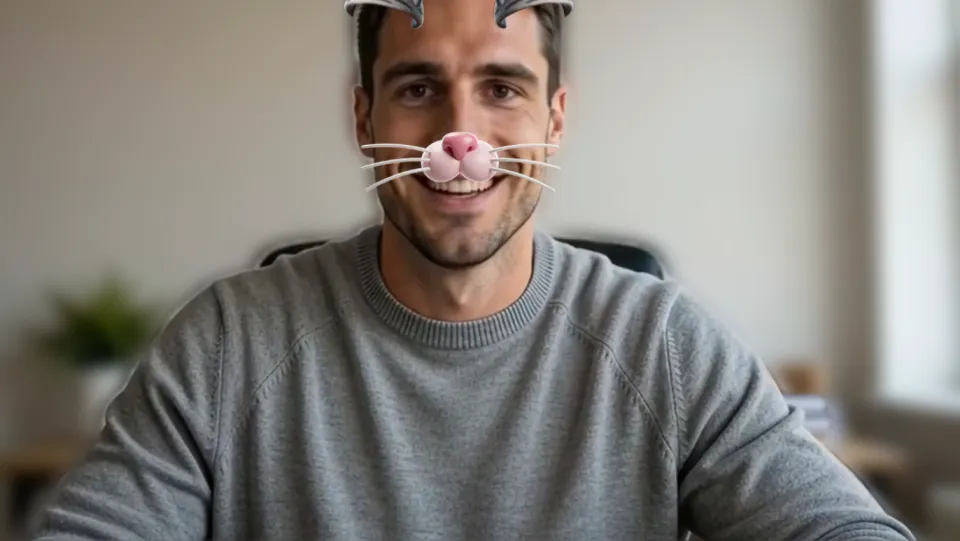
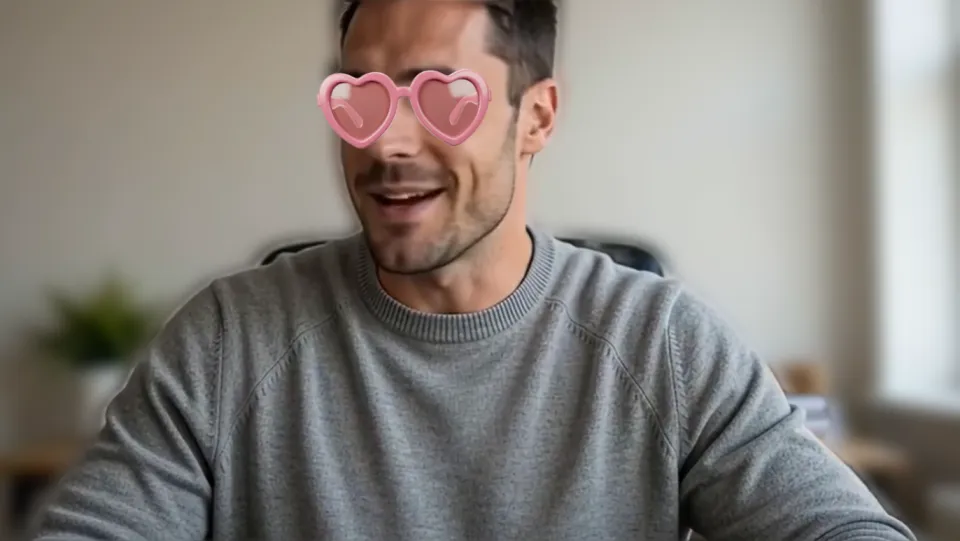
Bunny ears for a holiday stream. Our screenshot of Webcam Effects on a test clip, 2026-10-20.
Why isn't my camera filter showing on YouTube?
| Problem | Fix |
|---|---|
| Webcam isn't offered | Your channel isn't enabled for live streaming yet. Enable it in YouTube Studio first. |
| The thumbnail shows my plain webcam | YouTube took the thumbnail before you switched. Pick Facecam before you click Next. |
More about YouTube
Why webcam streaming and Facecam fit
Webcam streaming is YouTube's no-software way to go live: no OBS, no stream key. It also has no filters, overlays or backgrounds. Facecam fills that gap without changing how you stream. YouTube sets webcam streams up for interactivity, so viewers' chat stays close to live while you talk.
Stream ideas
- Just chatting streams: Light blur and the Warm look.
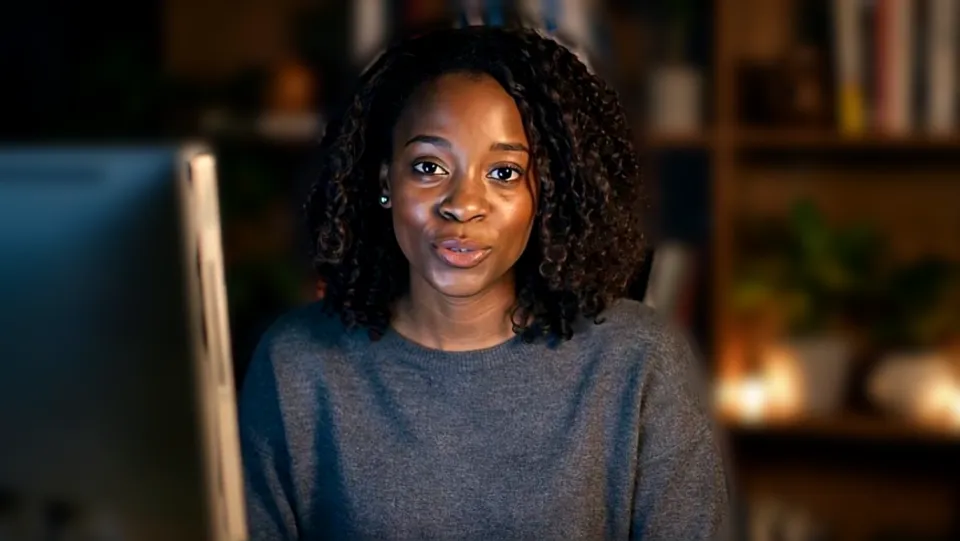
- Q&A at night: Bright with a flat Navy background.
- Holiday streams: Santa or the reindeer antlers.
Before your first webcam stream
- YouTube asks for a verified channel with no live streaming restrictions in the last 90 days.
- Set the effect before clicking Next: YouTube takes the stream's thumbnail from your camera at that step.
- Share Screen sits next to the mic button if you want to switch to a game or slides; your camera comes back with the same filter.
- Streams under 12 hours are archived on your channel automatically when you click End Stream, with the effect baked in.
Sources
- YouTube Help: create a live stream with a webcam — support.google.com/youtube/answer/9228389 (checked 2026-10-03)
- YouTube Help: get started with live streaming (requirements) — support.google.com/youtube/answer/2474026 (checked 2026-10-03)
- YouTube Help: create a live stream with a webcam (Chrome 60+) — support.google.com/youtube/answer/9228389 (checked 2026-10-20)
- YouTube Help: latency for webcam streams — support.google.com/youtube/answer/7444635 (checked 2026-10-20)

Questions
Does YouTube have filters for live streams?
Not for webcam streams. Facecam Virtual Camera adds them.
Do I need OBS?
No. Webcam streaming in YouTube Studio is enough.
Other platforms
- Zoom virtual background and filters
- OBS camera filters plus background blur
- Teams filters in the browser
- Discord camera filters
- Webex filters in the web app
- Google Meet filters
- Slack huddle filters
- Whereby filters
- Gather Town filters
- Messenger video call filters on a computer
- Instagram video call filters on a computer
- GoTo Meeting filters
- RingCentral Video filters
- StreamYard filters
- Riverside background blur
- Restream Studio filters
- Preply background blur
- How to blur your background on Zoom
- How to blur your background in Teams
- How to blur your background in Google Meet
- Zoom Touch up my appearance
- How to look good on a video interview
- Webcam setup for online teaching