Free D&D Voice Changer
Give every NPC their own voice: a sneering goblin, an ancient dragon, a doddering wizard. Free, live, in your Discord or Roll20 session.
Updated · Tested by the Facecam team

Your browser will ask for microphone access when you click.

Set it up in D&D
Open your table in Chrome
Open your session where it happens: discord.com/app for a Discord game, or your Roll20 or Foundry VTT game in a Chrome tab.
Choose Facecam Virtual Mic
In Discord, User Settings → Voice & Video → Input Device: “Facecam Virtual Mic”, with Noise Suppression off. In Roll20 or Foundry, pick “Facecam Virtual Mic” as the microphone in the game's audio and video settings; Chrome asks once to allow the mic.
Line up your NPC voices
Try voices on this page first (it starts on the goblin). In the session, the Facecam popup switches voices instantly, so the innkeeper and the dragon can speak in the same scene.
Keep your own voice one click away
Set the popup's voice to Off for rules talk and table chat, and back on for the next character. Off passes your normal voice straight through.
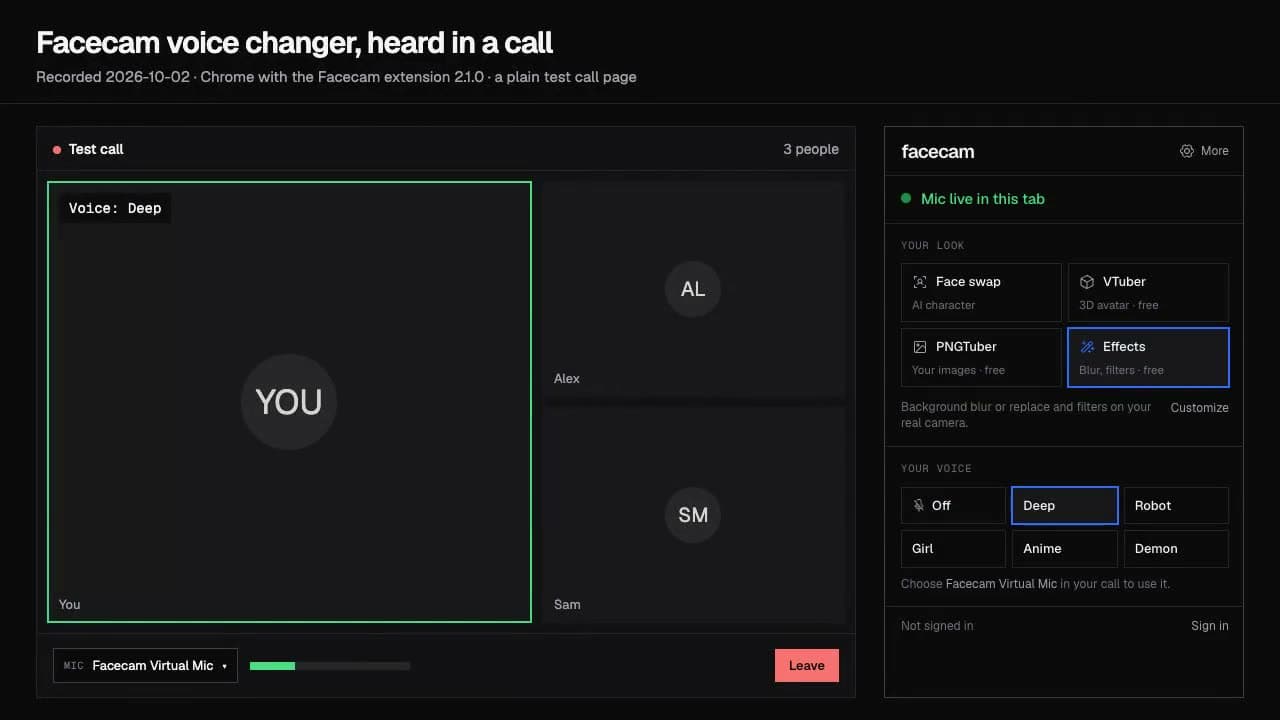
Our test recording
Before: our test line with no effect.
After: the goblin voice the page starts on, small, nasal and nasty.

If it doesn't work
| Problem | Fix |
|---|---|
| Roll20 or Foundry doesn't list Facecam Virtual Mic | Reload the game tab with the extension on. Foundry's audio and video need the game served over https; on a plain http address Chrome won't give the page a mic at all. |
| Players say the NPC voice drops in and out | A noise filter is cutting the effect. In Discord turn Noise Suppression off; in other apps, look for noise cancellation in the audio settings. |
| Deep voices sound muddy | Speak a little slower and closer to the mic. Very low voices like the demon lose words when you talk fast. |

An NPC voice for every encounter
| NPC | Voice | What it does to your voice |
|---|---|---|
| Goblin, kobold, imp | Goblin voice | Higher, with a nasty bit of distortion |
| Orc, ogre, troll | Monster voice | Eight steps down with a growl |
| Dragon, demon, lich | Demon voice | Ten steps down, huge and echoing |
| Elf, fey, sprite | Elf voice | Lighter and brighter, with a touch of forest air |
| Old wizard, sage | Old man voice | Older and shakier |
| Hag, witch | Witch voice | Crooked, nasal and cackling |
| Ghost, banshee | Ghost voice | Breathy and far away |
| Vampire lord | Vampire voice | Low, elegant and cold |
| Narration and boxed text | Narrator voice | A warm storyteller's voice |

More about D&D
Where the table talks
| Voice chat | Works with Facecam? | Why |
|---|---|---|
| Discord on discord.com in Chrome | Yes | We tested it: discord.com lists and opens Facecam Virtual Mic |
| Roll20 voice and video in Chrome | Yes | Roll20's built-in chat runs in the browser (WebRTC) |
| Foundry VTT audio and video | Yes, over https | Foundry's A/V runs in the browser and needs a secure address |
| Discord desktop app | Yes, with the desktop app | Pick Facecam Virtual Microphone in Voice & Video |
| Phone or tablet | No | Mobile browsers can't run the extension |
We tested discord.com ourselves. Roll20 and Foundry choose the microphone in Chrome the same way, which is why Facecam Virtual Mic appears there too; their menus in the steps come from their own help pages.
Tips from the DM's chair
- Give each recurring NPC one voice and stick to it. Players remember the goblin voice long after they forget the goblin's name.
- Pick two or three voices before the session. Switching between a dozen gets confusing for you, not just the party.
- Use effects for the big moments: the lich's first words, the dragon waking up. Keep the shopkeepers lighter.
- Add ambience from the free soundboard: thunder, a creaky door or a wolf howl play through the same mic.
Sources
- Roll20 Help: Video and Voice Chat (built into the browser) — help.roll20.net/hc/articles/360041544734 (checked 2026-10-07)
- Roll20 blog: WebRTC on Roll20 — bloghub.roll20.net/posts/webrtc-on-roll20 (checked 2026-10-07)
- Foundry VTT: Audio/Video Communication (browser A/V, needs SSL) — foundryvtt.com/article/audio-video (checked 2026-10-07)
- Discord: Voice & Video settings, Input Device and Noise Suppression — support.discord.com/hc/en-us/articles/360045138471 (checked 2026-10-07)
- Discord: Push to Talk in the browser — support.discord.com/hc/en-us/articles/211376518 (checked 2026-10-07)

Questions
Can I switch NPC voices in the middle of a scene?
Yes. Pick a different voice in the Facecam popup and the next word comes out in it. Nobody in the call has to do anything.
Does it work in Roll20?
Yes, in Roll20's built-in voice and video in Chrome: pick Facecam Virtual Mic as your microphone there. The Roll20 app on phones and tablets can't see it.
Do my players need Facecam?
No. Only the person changing their voice needs Chrome and the extension.
Is the D&D voice changer free?
Yes. The voices run on your own computer with no account and no credits.