Free Voice Changer for VR
A voice changer for VR that matches your avatar: an anime, girl, deep or robot voice in VRChat and other PC VR games, picked right in VRChat's microphone menu.
Updated · Tested by the Facecam team

Your browser will ask for microphone access when you click.

How do I change my voice on VRChat?
A voice changer for VR changes how you sound in social VR. In VRChat on PC, you pick your microphone in the game's settings; choose Facecam Virtual Microphone and every world hears the voice you chose, matched to your avatar.
Get the Facecam desktop app
Download Facecam for Windows or Mac and add Facecam Virtual Microphone when it asks. It's a microphone your whole computer can use, VRChat included.
Pick a voice
Choose a voice in the app (the voice changer on this page starts on one that fits) and give it a shortcut, so you can switch mid-match.
Pick it in VRChat
In VRChat, open the menu, Settings, Audio, and choose Facecam Virtual Microphone as the microphone. Turn the Microphone Level up and say something: your avatar's mouth moves with the new voice.
Switch voices with your avatar
Give each voice a shortcut in the app (a key or a Stream Deck button) so a new avatar gets a new voice without leaving the headset.
A voice to match every avatar
The Facecam desktop app adds a microphone VRChat can pick, with a shortcut per voice, so a new avatar gets a new voice without taking the headset off.
Get the voice changer for PC and Mac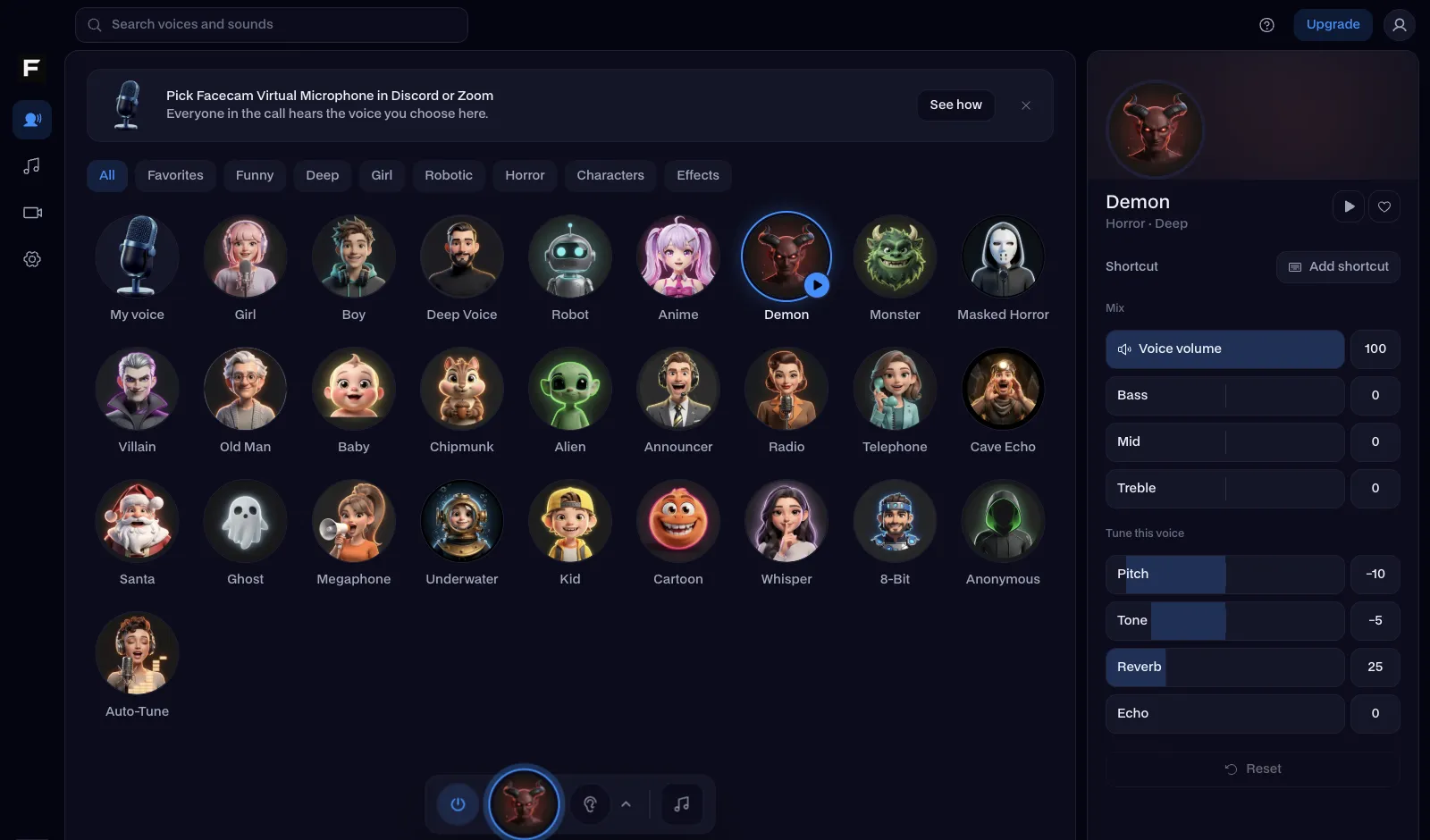
The anime voice, before and after
Before: the test line with no effect.
After: the anime voice the page starts on, bright and high.
Why isn't my voice changing on VRChat?
| Problem | Fix |
|---|---|
| VRChat doesn't list Facecam | VRChat only refreshes its microphone list at launch. Start the Facecam app first, then restart VRChat. |
| I'm on a standalone Quest | A Quest without a PC can't load a virtual microphone. Play through Quest Link, Air Link or Virtual Desktop on your PC, and the PC's microphone, Facecam's, is the one VRChat hears. |
| My voice sounds thin or robotic in worlds | VRChat's noise suppression is cutting the effect: turn Noise Suppression off in its audio settings. |

A voice for your avatar
| Avatar | Voice |
|---|---|
| Anime girl, catgirl | Anime voice |
| Any feminine avatar | Girl voice |
| Protogen, robot, mech | Robot voice |
| Demon, giant, monster | Demon voice |
| Tiny creature or plushie | Chipmunk voice |
| VTuber model | VTuber voice |
More about VRChat
Other VR games
Rec Room, Gorilla Tag, Among Us VR and most other PC VR games on Steam use your system microphone. Make Facecam Virtual Microphone the default input on your PC and they hear the new voice too. Want sounds as well? The Gorilla Tag soundboard plays through the same mic.

Questions
How do you change your voice in VRChat?
Run a voice changer that adds a microphone, like the Facecam desktop app, then pick Facecam Virtual Microphone in VRChat's Settings, Audio. Choose a voice in the app and talk.
Is a voice changer allowed in VRChat?
Yes. Lots of players use one to match their avatar.
Does it work on Meta Quest?
Through a PC, yes: with Quest Link, Air Link or Virtual Desktop, VRChat uses the PC's microphone. A standalone Quest can't run it.
Will people notice it's a voice changer?
Pitch and formant voices, like the girl and anime voices, sound most natural when you speak a little softer and higher yourself. The page's clips show how much changes.