Okada voice changer alternative
The Okada voice changer is free, open source and powerful, if you have a strong GPU and an evening for setup. Facecam is the alternative with 26 ready voices that start in a browser tab.
Updated · Tested by the Facecam team
Verdict
Stay with Okada if you want real AI voice conversion for free and don't mind the work: load an RVC model of a character and you can sound like it live, with full control over chunk size, pitch and the model itself, and a network mode that runs the conversion on a second PC. Pick Facecam if you want to press Start and talk: no models to find, no Python, no CUDA, no GPU, and voices that keep up on a laptop. Facecam's live voices are effects on your own voice, not AI models, so they won't make you sound like a specific character the way a good RVC model can.
How they compare
| Okada (VCClient) | Facecam | Edge | |
|---|---|---|---|
| Price | Free, open source | The voice changer and soundboard are free | — |
| Systems | Windows, Mac (Apple Silicon), Linux, Google Colab | Any computer with Chrome; Windows and macOS app | — |
| How voices work | AI models (RVC, Beatrice; older versions MMVC, so-vits-svc, DDSP-SVC) | Effects on your own voice | — |
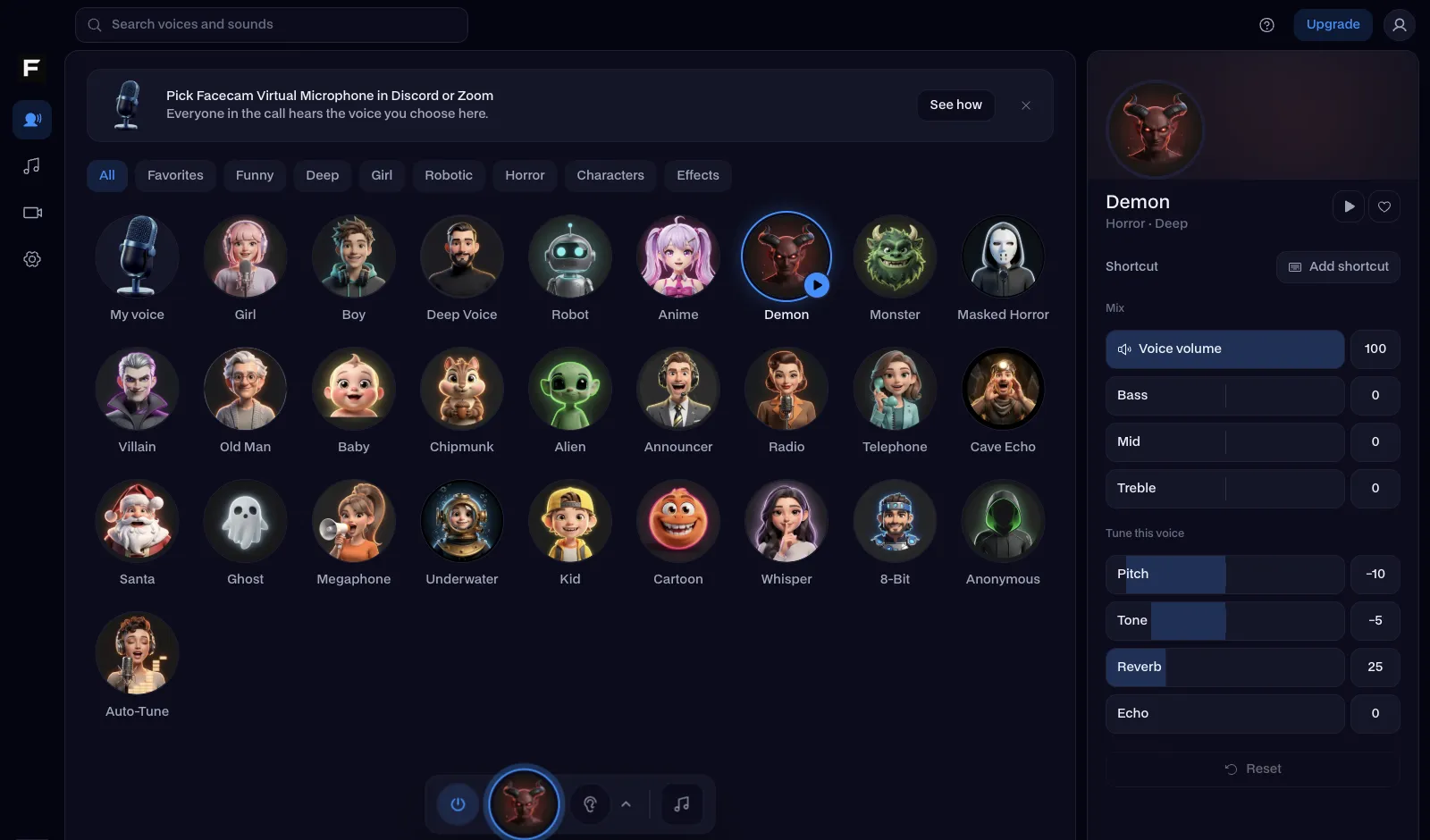
| Voices included | A few sample models; you load your own | 26 ready voices | — |
| Hardware | A fast NVIDIA GPU recommended for low delay | Any computer | — |
| Setup | Download, extract, run, then load and tune a model | Press Start on a web page | — |
| Soundboard | No | Yes, with hotkeys | Facecam |
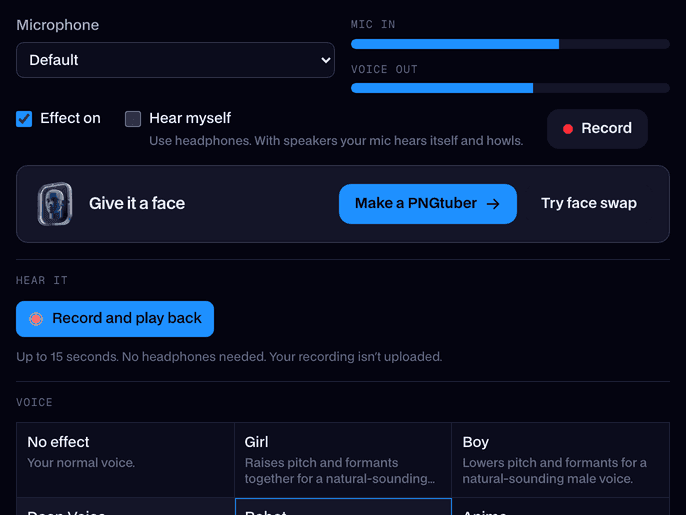
Facecam's side
Where each one wins
Okada (VCClient)
Pros
- Free and open source
- Real AI voice conversion with any RVC model
- Deep control, plus a mode that offloads the work to another PC
Cons
- Needs a strong GPU for low delay
- Setup and model tuning take time
- No built-in voice library or soundboard
Facecam
Pros
- Ready voices in a browser tab, no install
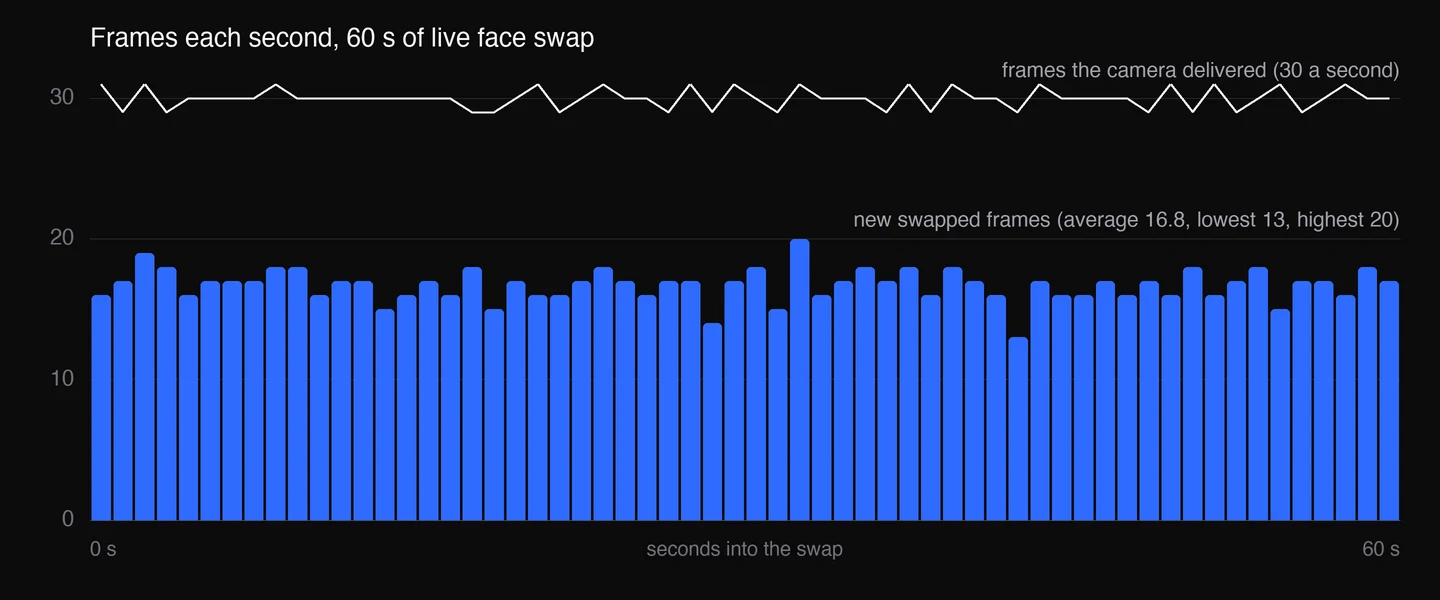
- Runs on any laptop with almost no delay
- A soundboard with a hotkey per pad
Cons
- Effects, not AI models: it can't copy a specific voice live
- Not open source
Switch from Okada in three steps
Try the voices in your browser
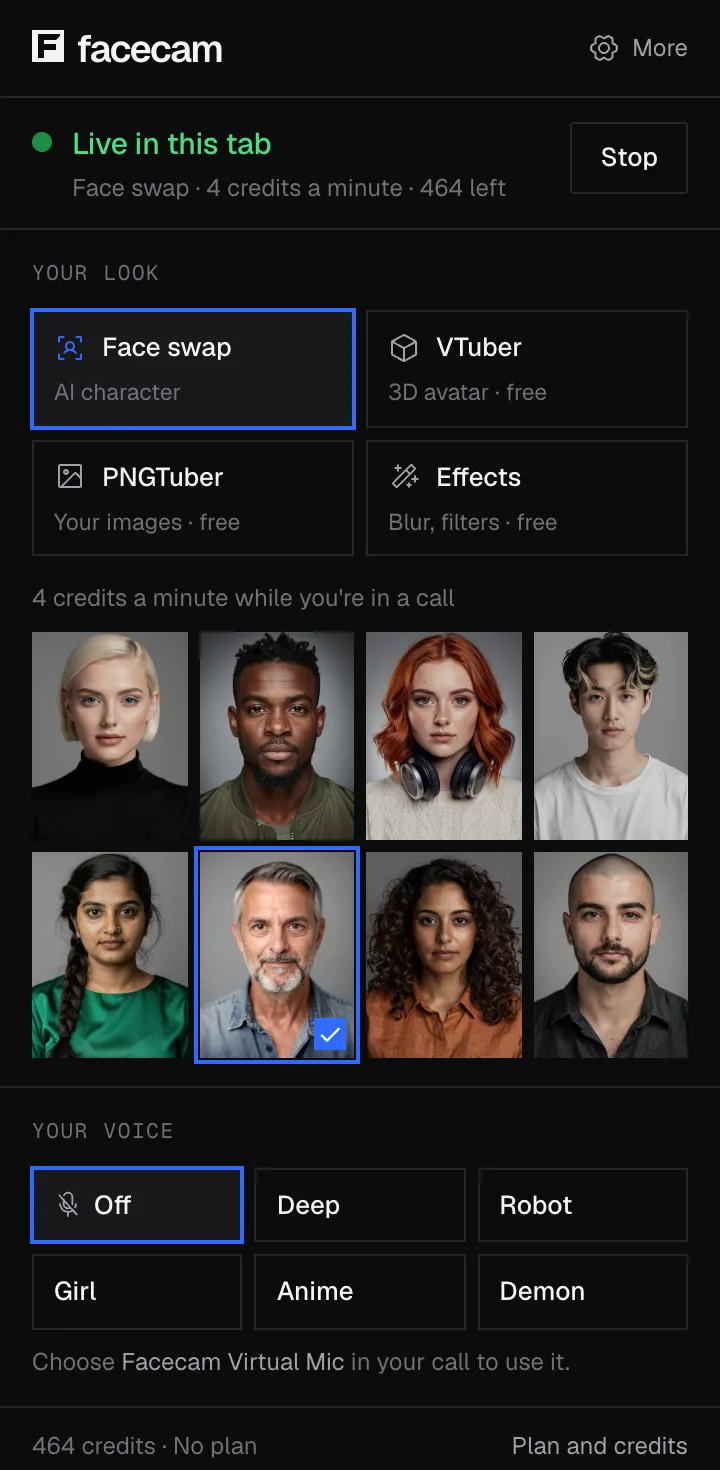
Open the real-time voice changer on facecam.ai, press Start and go through the voices with headphones on. Nothing to install.
Get the desktop app
Download Facecam for Windows or Mac and add Facecam Virtual Microphone when it asks.
Pick it in your apps
Choose Facecam Virtual Microphone as the input in Discord, Steam, OBS or your game. If VCClient's virtual cable is still your default mic, switch the default back to your real microphone.
When each one makes sense
| You want | Use |
|---|---|
| To sound like a specific character with an RVC model | Okada |
| A fun voice in Discord tonight, no setup | Facecam |
| A voice changer on a laptop without a GPU | Facecam |
| To train and tweak models yourself | Okada |
| To change the voice in a recording | Facecam's online voice changer |
Sources
- w-okada/voice-changer on GitHub (editions, supported models, platforms) (checked 2026-10-16)

Questions
Is the Okada voice changer free?
Yes, VCClient is free and open source on GitHub. Facecam's voice changer is free too.
Does the Okada voice changer need a GPU?
It runs on CPU, but for low delay with RVC models a fast NVIDIA GPU is recommended; the CUDA edition is Windows only. Facecam's voices run on any computer.
Does Okada work on Mac?
Yes, on Apple Silicon Macs, with the onnx and standard editions. Facecam also has a Mac app.
Where do I get voice models for Okada?
VCClient ships a few sample voices; most people load RVC models from model sites. With Facecam there are no models: the voices are built in.
Other comparisons
- Deep-Live-Cam alternative without a gaming PC
- FaceFusion alternative for live video calls
- DeepFaceLive alternative for Mac, Windows and any laptop
- Swapface alternative with no download
- Remaker alternative with card plans and live face swap
- Uberduck AI alternative
- 15.ai alternative
- TopMediai alternative
- Voicemod alternative
- Clownfish voice changer alternative
- Live3D AI face swap alternative
- Snap Camera alternative
- Dubbing AI voice changer alternative
- Voxal voice changer alternative
- EaseUS voice changer alternative
- HitPaw voice changer alternative
- Tuna soundboard alternative
- Soundboard Max alternative
- Blerp alternative
- ManyCam alternative
- YouCam alternative
- XSplit VCam alternative
- NVIDIA Broadcast alternative
- Streamfog alternative
- FilterOnMe alternative
- SplitCam alternative
- CiCi Cam alternative
- Facecam vs LiveSwap
- Facecam vs Livesync










Related
- Real-Time Voice ChangerA free real-time voice changer, no sign-up needed: talk, hear your new voice right away and use it in Discord, Meet and Zoom.
- Online Voice ChangerA free online voice changer with no sign-up: upload or record audio, pick one of 26 voices and download a WAV. Nothing is uploaded.
- Dubbing AI voice changer alternativeDubbing AI is a free AI voice changer for gaming with hundreds of character voices. Facecam is the alternative you can try in your browser first, with voices that stay your own.
- Voice changer for VRA voice changer for VR that matches your avatar: an anime, girl, deep or robot voice in VRChat and other PC VR games, picked right in VRChat's microphone menu.
- Voxal voice changer alternativeVoxal is NCH Software's long-running voice changer, free for home use. Facecam is the alternative with more ready voices, a hotkey soundboard and nothing to install to try it.


Real-Time Voice Changer
Change your voice live
Start