Free Streamlabs Voice Changer
Get a changed voice into Streamlabs Desktop as its own mixer channel, with no audio driver or plugin. Free, no sign-up.

Your browser will ask for microphone access when you click.
Set it up in Streamlabs
Pick your voice in Chrome
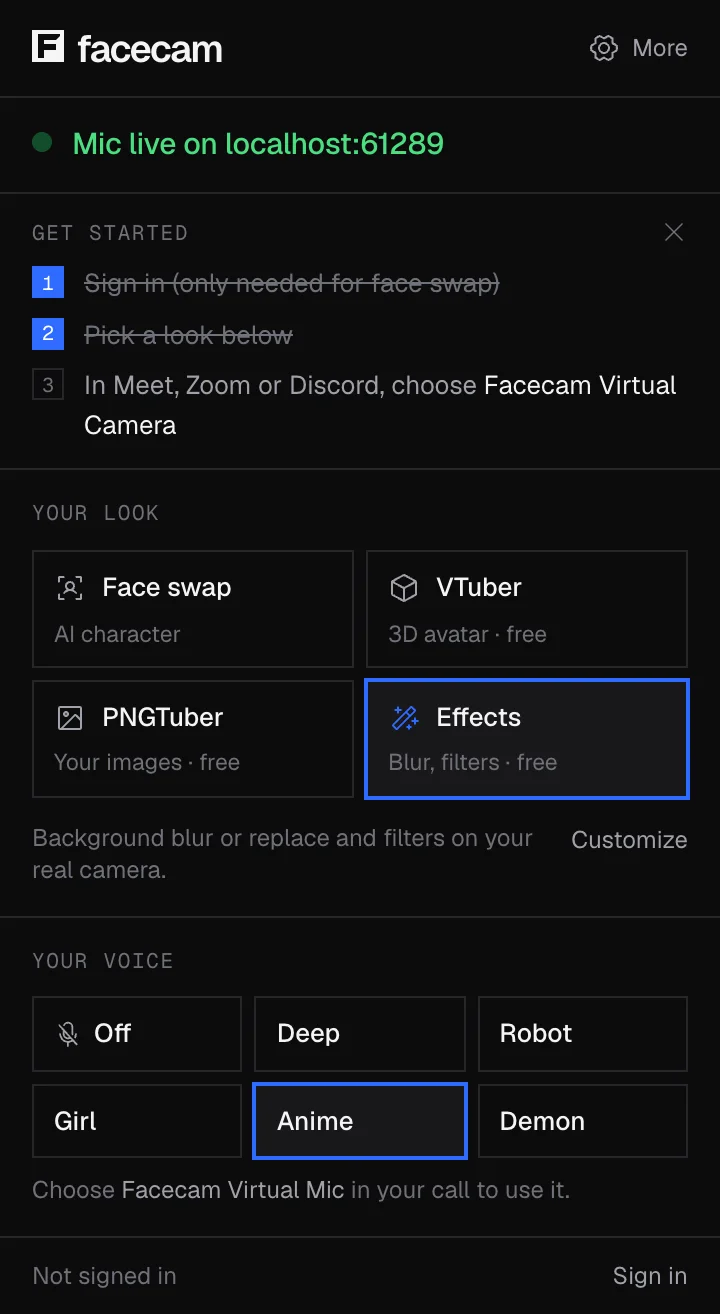
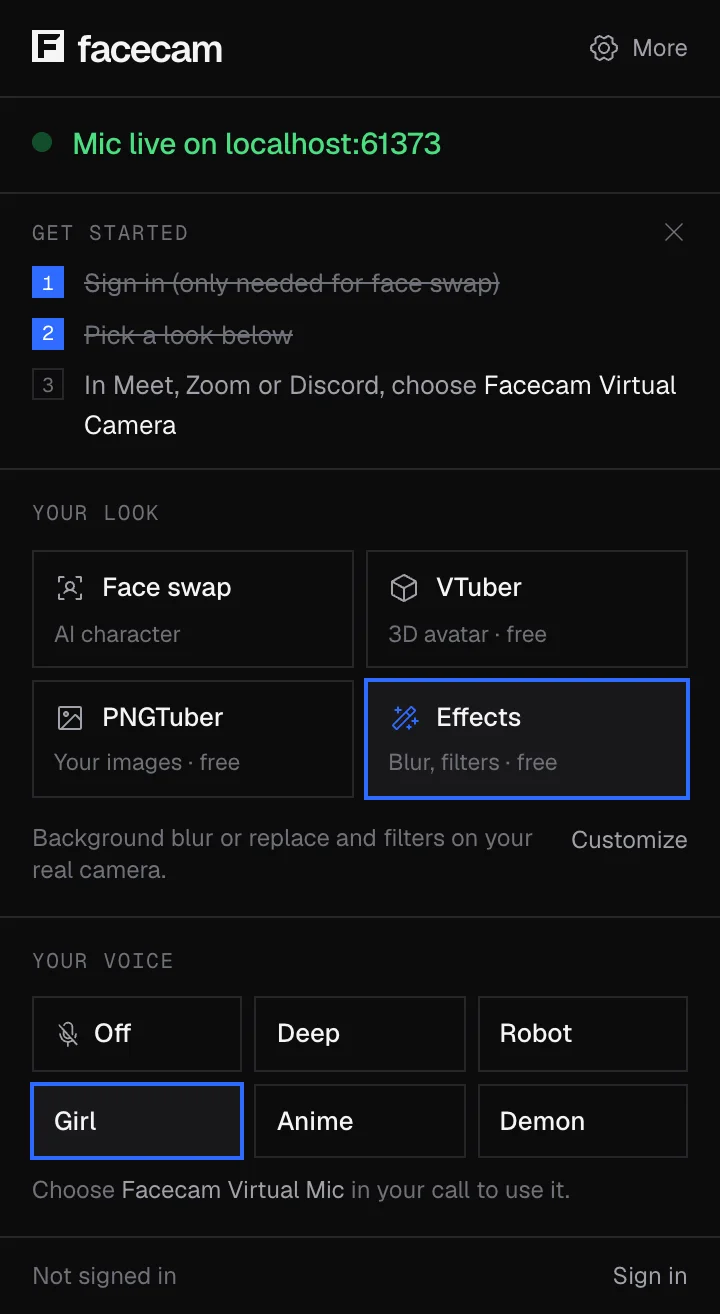
Choose a voice in the Facecam popup, or press Use this voice in calls on any voice page.
Send the mic from vdo.ninja
In Chrome, open vdo.ninja → Add your Camera to OBS. Under Audio Source(s), tick “Facecam Virtual Mic” and untick your real microphone. Press Start and copy the view link.
Add a Browser Source in Streamlabs
In Streamlabs Desktop's Sources panel, click “+”, choose Browser Source and paste the view link as the URL.
Route its audio to the mixer
In the source's properties, tick Control Audio via Streamlabs Desktop. The voice now has its own fader.
Mute your old mic
Mute the Mic/Aux channel in the mixer so viewers don't hear your normal voice as well.
Our test recording
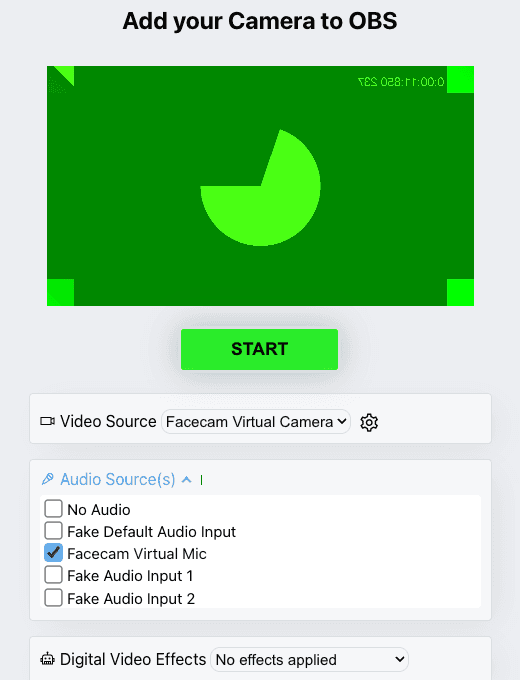
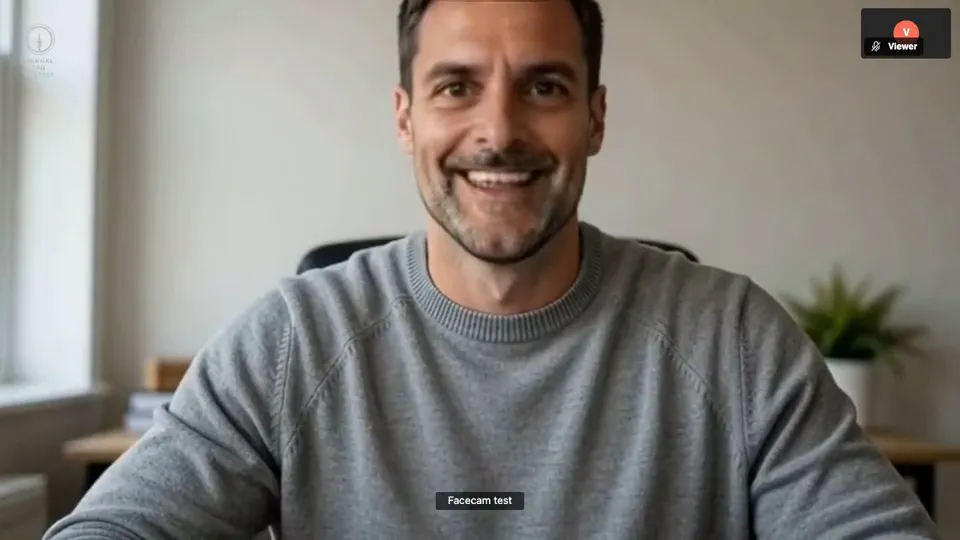
Our screenshot, 2026-10-04: vdo.ninja in Chromium with the Facecam extension. The preview is Chromium's built-in test camera, and the other inputs are its test devices.
If it doesn't work
| Problem | Fix |
|---|---|
| The Browser Source has no fader | Control Audio via Streamlabs Desktop isn't ticked in its properties. |
| Viewers hear two voices | Your real mic is still live in the mixer. Mute it. |
| The voice stops when I switch scenes | Put the Browser Source in every scene you go live with, or keep its scene loaded. |
| vdo.ninja only lists my real mic | Reload vdo.ninja in Chrome with Facecam on. It has to be your Chrome, not a browser dock inside Streamlabs. |
Streamlabs' mic list vs a Browser Source
| Mic/Auxiliary Device | Browser Source with the view link | |
|---|---|---|
| Shows Facecam Virtual Mic | No | Carries it from Chrome |
| Own mixer fader | Yes | Yes, with Control Audio via Streamlabs Desktop |
| Filters like Noise Gate | Yes | Yes, on the source |
| Extra delay | None | A little, from the browser hop |
Because the voice arrives as an ordinary audio source, Streamlabs' own audio filters still apply. Keep noise suppression light: heavy suppression can eat robot, echo or whisper effects.
More about Streamlabs
Character streams in one link
The same vdo.ninja page can send Facecam Virtual Camera as the video source, so one Browser Source carries your avatar, PNGTuber or face swap together with the changed voice. That keeps picture and voice in sync and leaves one thing to manage in Streamlabs.
Sources
- VDO.Ninja: getting started (add your camera to OBS) — docs.vdo.ninja/getting-started (checked 2026-10-03)
- VDO.Ninja: share audio with OBS (Control audio via OBS) — docs.vdo.ninja/guides/share-obs-audio-with-vdo-ninja (checked 2026-10-03)
- OBS: browser source — obsproject.com/kb/browser-source (checked 2026-10-03)
- Streamlabs: add a Browser Source (Sources panel → “+” → Browser Source) — support.streamlabs.com, “How to Locate and Use Streamlabs Widget URLs” (checked 2026-10-04)
- Streamlabs: Control Audio via Streamlabs Desktop on a browser source — support.streamlabs.com/hc/en-us/articles/360043743994 (checked 2026-10-04)

Questions
Does Streamlabs have a built-in voice changer?
Streamlabs' help doesn't describe one. This route adds Facecam's voices without installing anything into Streamlabs.
Is it free?
Yes. The voice changer runs on your computer, and VDO.Ninja is a free web tool.
Does it work with Streamlabs on Mac?
The Browser Source and its audio option are part of Streamlabs Desktop; the Chrome side works on Mac, Windows and Linux.
Can I change voices mid-stream?
Yes. Pick another voice in the Facecam popup; the link keeps sending.
Other platforms
- Voice changer presets
- Real-Time Voice Changer
- Online Voice Changer
- Character Voice Generator
- AI Voice Changer
- Voice Isolator
- AI Cover Generator
- Vocal Remover
- AI Voice Clone
- Voice changer for Chromebook
- Voice changer for Discord
- Voice changer for streaming
- Voice changer for Mac
- Voice changer for Zoom
- Voice changer for Teams
- Webex voice changer
- Voice changer for StreamYard
- Riverside voice changer
- YouTube voice changer
- Voice changer for Kick
- Voice changer for Twitch
- OBS voice changer
- AI Voice Generator