Free Dog Filter
Floppy dog ears, a black nose and a tongue that pops out when you open your mouth, live on your computer's webcam.


Your browser will ask for camera access when you click.
Free, no sign-up
Where it works
- In Chrome.
- Zoom on the web in Chrome with the extension, and the Zoom desktop app with Facecam for PC and Mac.
- Teams on the web in Chrome with the extension, and the Teams desktop app with Facecam for PC and Mac.
- discord.com in Chrome with the extension, and the Discord desktop app with Facecam for PC and Mac.
- Add Facecam Virtual Camera as a video capture device with Facecam for PC and Mac, or capture the Chrome window.
- With Facecam for PC and Mac on Windows and macOS: the Discord, Zoom and Teams apps, OBS and any app that lets you pick a camera.
- Works on this page. Calls need a computer: Chrome with the extension, or Facecam for PC and Mac.
Updated · Tested by the Facecam team
How to use the Dog Filter
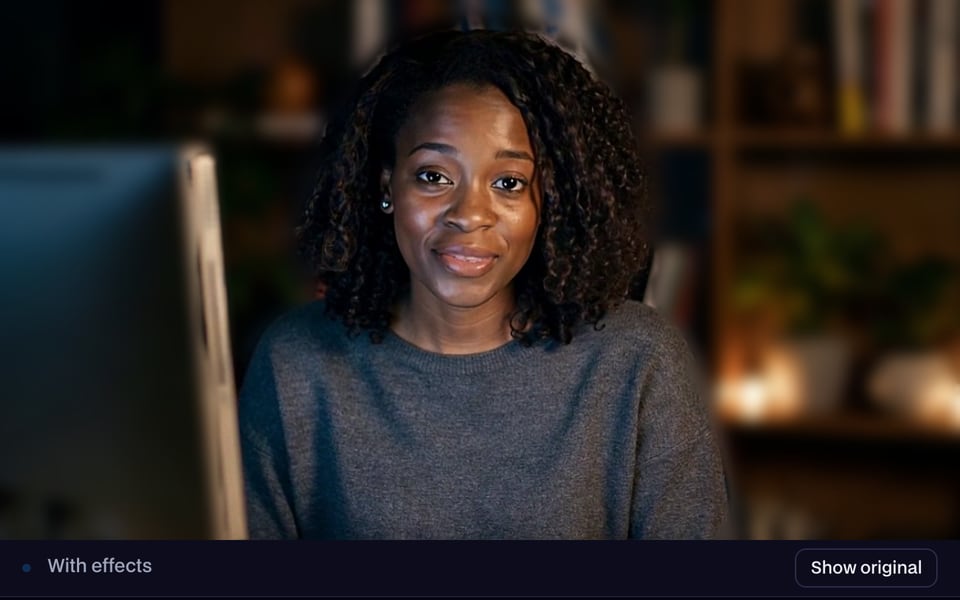
Start your camera
Click Start camera and allow camera access. Dog is already on.
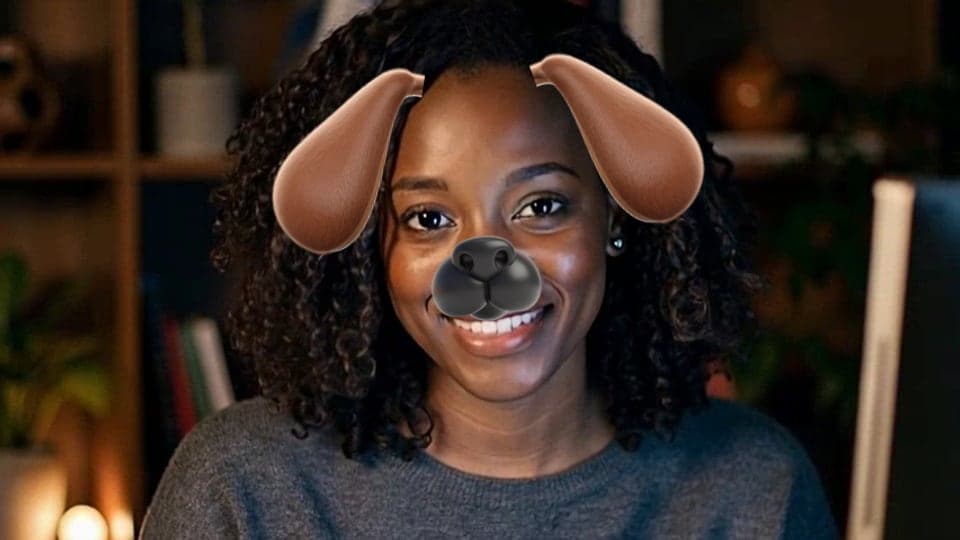
Try Dog
Open your mouth and the tongue drops out; close it and it's gone. Turn your head and the ears swing with you. To switch, tap Cat, Bunny or None under Face filters.

Wear it in your call
Click Use as my camera in calls, then pick “Facecam Virtual Camera” as your camera in the call.

What is a dog filter?
A dog filter is a camera effect that gives you dog ears and a dog nose, and a tongue that comes out when you open your mouth. Facecam's runs live on your computer's webcam and works as your camera in video calls.
Made with Facecam

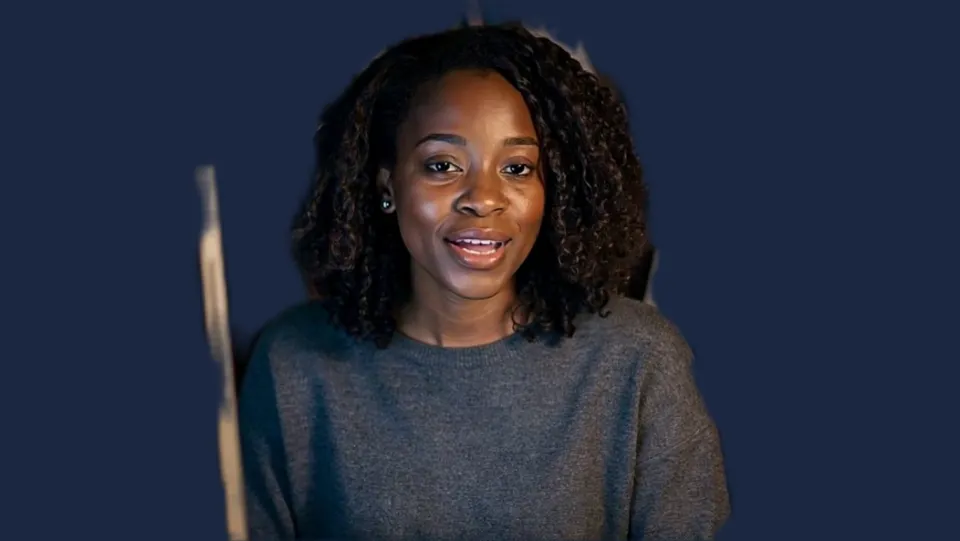
Mouth closed: ears and nose, no tongue. 
Mouth open: the tongue drops out.
What you can do with the Dog Filter
The first minute of the team call
Video calls with the kids or grandparents
Discord game nights
Cat, Bunny and 34 more

Wear the dog filter on Zoom, Google Meet and Discord
Add the Facecam Chrome extension
It adds “Facecam Virtual Camera” to the cameras your calls can use in Chrome.
Pick Dog
On this page, click Start camera (Dog is already on) and then Use as my camera in calls. Or pick Dog in Effects in the Facecam popup.
Choose the camera in your call
Google Meet: Settings, Video, Camera. Zoom in the browser: the arrow next to Stop Video. discord.com: User Settings, Voice & Video, Camera. Pick “Facecam Virtual Camera” in each.

More about the Dog Filter
The Dog filter is a live face filter in Facecam's Webcam Effects: brown ears, a black nose and a pink tongue drawn on your webcam picture, following your head and your mouth as you talk.
The Dog Filter: what you need and limits
| How it works | Right on this page. Nothing is uploaded. |
|---|---|
| You get | Camera in Chrome calls |
| You need | Any up-to-date browser, a webcam |
| Phones and tablets | Works on the page; calls and streams need a computer |
| Parts | Two floppy brown ears, a black nose, a pink tongue |
| Tongue | Out while your mouth is open, from inside your mouth |
| In calls | As “Facecam Virtual Camera” in Google Meet, Zoom and Discord in Chrome |
The Snapchat dog filter, on a laptop
The dog filter most people picture is Snapchat's: brown ears, a black nose and a long tongue when you open your mouth. It made the dog face a running joke on phones, but it lives in a phone app, so it stays out of the place you spend the most time on camera: a laptop call. Snap Camera, the desktop app that once brought lenses to calls, was shut down in January 2023.
Facecam's Dog filter does the same trick on your computer's webcam, in a browser tab, with no account and no phone. Then it goes one step further than a phone lens: it becomes your camera in Google Meet, Zoom and Discord, so everyone in the call sees you as the dog, live, while you talk.
What it does on your face
The ears sit high on your forehead and a little behind your head, so when you turn they shift against your face like real ears would, and they tilt when you tilt. The nose sits on the tip of your own nose. Every part is sized from the distance between the corners of your eyes, so the dog doesn't shrink or swell when you turn to the side.
The tongue is the part people remember. It shows only while your mouth is open and comes from inside your mouth, tucked under your upper lip instead of pasted over it, so a laugh, a yawn or a long “hellooo” all bring it out. In our frames above, the same woman has no tongue with her mouth closed and a pink one the moment she opens it.
Getting the tongue and ears right
- Open your mouth properly: a small gap keeps the tongue in. Laughing, saying “ah” or yawning brings it out every time.
- Leave a hand's width above your head so the ears aren't cut off by the top of the picture.
- Face a window or a lamp. The filter needs to see your face, and a bright light behind you makes that harder.
- Blur your room or pick a flat colour behind you in the same tool; the dog stays on.

The Dog Filter FAQ
How do I get the dog filter on my laptop?
Click Start camera on this page and allow your camera. Dog is already on: open your mouth and the tongue comes out. Nothing to install to try it.
Is this the Snapchat dog filter?
No, it's Facecam's own dog, made for computer webcams and calls. It looks and works the way people expect: ears, a nose, and a tongue when you open your mouth. You don't need Snapchat or a phone.
How do I use the dog filter on Zoom?
Add the Facecam Chrome extension, join the meeting in the Zoom web app, and pick “Facecam Virtual Camera” as your camera. Choose Dog on this page or in Effects in the Facecam popup.
Can I use the dog filter in Google Meet?
Yes. With the extension in Chrome, open Meet's video settings and pick “Facecam Virtual Camera” as your camera; everyone in the call sees the ears, the nose and the tongue.
Why doesn't the tongue come out?
It follows how far your mouth is open, so open wider or laugh. If the ears and nose disappear too, the filter has lost your face: face the camera and add light from the front.
Is the dog filter free?
Yes, it's free to try every day, and a plan makes it unlimited. It runs on your computer, and your video isn't uploaded.


Related
- Webcam Filters and Effects
- How to blur your background on Zoom
- How to blur your background in Teams
- How to blur your background in Google Meet
- Zoom Touch up my appearance
- How to look good on a video interview
- Webcam setup for online teaching
- How to Look Good on Webcam
- What Is a Virtual Camera?
- How to Change Your Face on Zoom






Try the Dog Filter for free
- Free, no sign-up
- Runs in your browser
- Nothing is uploaded