How to Face Swap Two Photos
Put one person's face into another photo in about half a minute, free and without an account. We swapped two photos both ways, then tried the photos that usually go wrong.
By Facecam team
Published · Updated · 5 min read

On this page
Short answer
Open a free face swap tool, upload the photo with the face you want as the face, upload the other photo as the target, and click Swap. The face moves into the target photo; the hair, clothes and background stay the target's. Facecam's Photo Face Swap does this in your browser, with 1 free swap a day without an account, and took 23 to 30 seconds per photo in our test.
Face swapping two photos sounds like one job, but the tool always works one direction at a time: it takes the face from one picture and puts it into the other. To trade faces, you run it twice. Here's how, and what to expect from each photo you pick.
How do you face swap two photos?
Open Photo Face Swap
Go to Photo Face Swap. Without an account you get 1 free swap a day; the page shows how many are left.
Upload the face
Under Face, click Upload a face and choose the photo of the person whose face you want to use. A clear, front-facing photo works best (more on that below).
Upload the target photo
Under Target photo, upload the picture you want the face to appear in, up to 10 MB. This photo keeps its hair, clothes, pose and background.
Click Swap face and wait
Ours took 23 to 29.5 seconds each. The result comes back at the same size as the target photo.
Download, or swap the other way
Click Download to save it. To trade faces, click Swap another and upload the two photos the other way round.
What does a two-way swap look like?

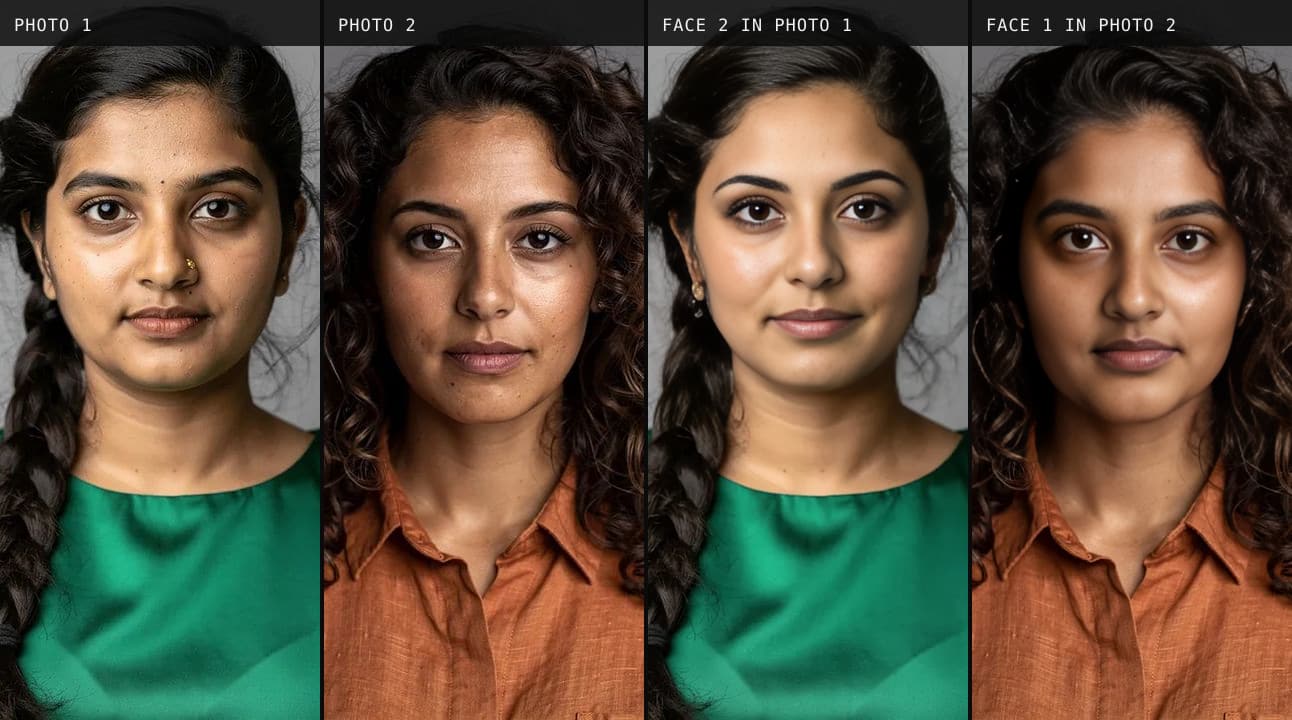
Look at what moved and what didn't. In each result the face (eyes, nose, mouth, face shape and skin) comes from the other photo, but the hair is still the target's: the park photo's face got the auburn curls, and the curly-haired woman's face got the straight dark bob. Clothes, background and even the lighting stay too, which is why the results look like real photos rather than cut-outs.
So pick the target photo for everything except the face. If you want someone to appear with long hair, choose a target photo where the person already has long hair.
Which photos don't work well?
We tried the two kinds of photo that most often cause trouble: a side profile with sunglasses, used once as the target and once as the face.

A side profile as the target barely changes. The swap needs to see a face to replace it. With one eye hidden behind sunglasses and the face turned away, it changed the skin and the nose slightly and left the rest. If the person in your target photo is turned more than about halfway, pick another photo.

A side profile as the face works, but it guesses. It still produced a natural-looking front-facing face, with a smile that came from the target photo. But the eyes were hidden in the original, so the tool had to fill them in. For a result that really looks like the person, use a face photo where both eyes are visible.
What makes a good face photo?
- Front-facing, both eyes visible. No sunglasses, no hand or hair across the face.
- Even light. Every face swap site we read says so too; we didn't test a half-shadowed face for this post.
- Big enough. Our face photos were 1024 pixels wide with the face filling about a third of it. A tiny face in a group photo gives the tool less to work with.
- One face in the target photo. With several people, the swap replaces the largest face; crop the photo first if you need someone else.
That's also the advice on the two face swap sites we read for this post (sources below). What they don't show is what happens when you ignore it: a turned target face barely changes, while a turned face photo still gives a result, just a less faithful one.
Is it really free?
Yes, 1 free swap a day per browser, with no account. Free results carry a small facecam.ai mark in the corner, which you can see in our pictures; plans remove it. More swaps, without the mark, need a plan. The face swap hub lists the other face tools, including GIF Face Swap for animated pictures.
Don't have a second photo?
Make one. Our Character Generator draws a new person from a description (“a woman in her thirties with curly auburn hair and freckles”), and that's where the portraits in this post came from. You can use the face it makes in a photo swap, or in Live Face Swap on a video call.
What didn't we test?
Four swaps on computer-made photos is a small test. We didn't try group photos, very low-resolution pictures, or photos of children, and we only timed swaps on one evening, so a busy hour may be slower. We also didn't run competitors' tools on the same photos.
Questions
Can I face swap two photos on my phone?
Yes. Photo Face Swap runs in the browser on phones and computers, so there's no app to install.
Do I need to sign up?
No. You get 1 free swap a day without an account. A plan gives you more swaps, without the small mark.
Why does the result still have the old hair?
A face swap replaces the face only. Hair, ears, clothes and background come from the target photo, so choose a target with the hair you want.
Can I swap faces in a video or GIF too?
Yes, with Video Face Swap (up to 60 seconds) and GIF Face Swap. Both need a plan.
Is the result the same size as my photo?
Yes. In our test both results came back at the target photo's exact size: 768 by 1024 and 1024 by 1024 pixels.
Keep reading
Face Swap
Remaker AI Face Swap: Is It Free?
Remaker AI face swap is free for photos, and it really needs no account. We ran nine swaps as a guest, timed them, and read the pricing, refund and privacy pages so you know the catch before you pay.
7 min read
Face Swap
How Does Real-Time Face Swap Work?
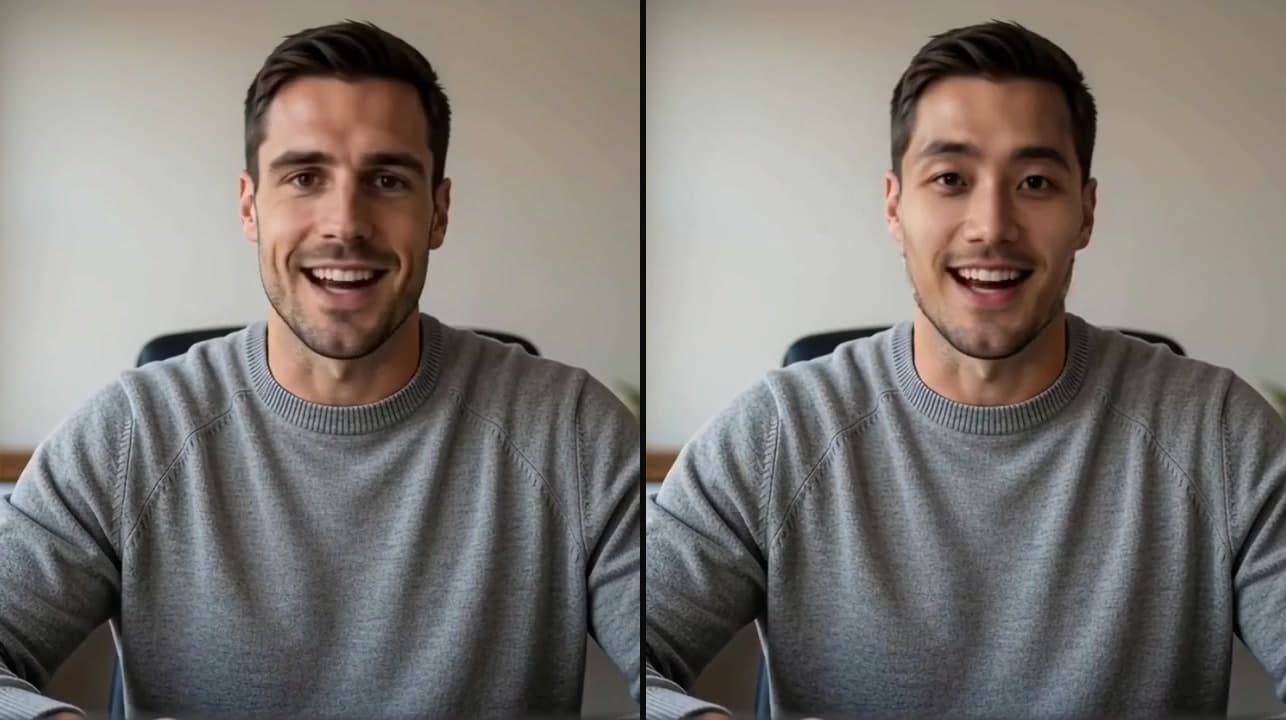
Real-time face swap redraws your face in every camera frame, many times a second. We followed one frame through Facecam's live face swap and measured what your browser sends.
7 min read
Face Swap
How to Change Your Face on Zoom
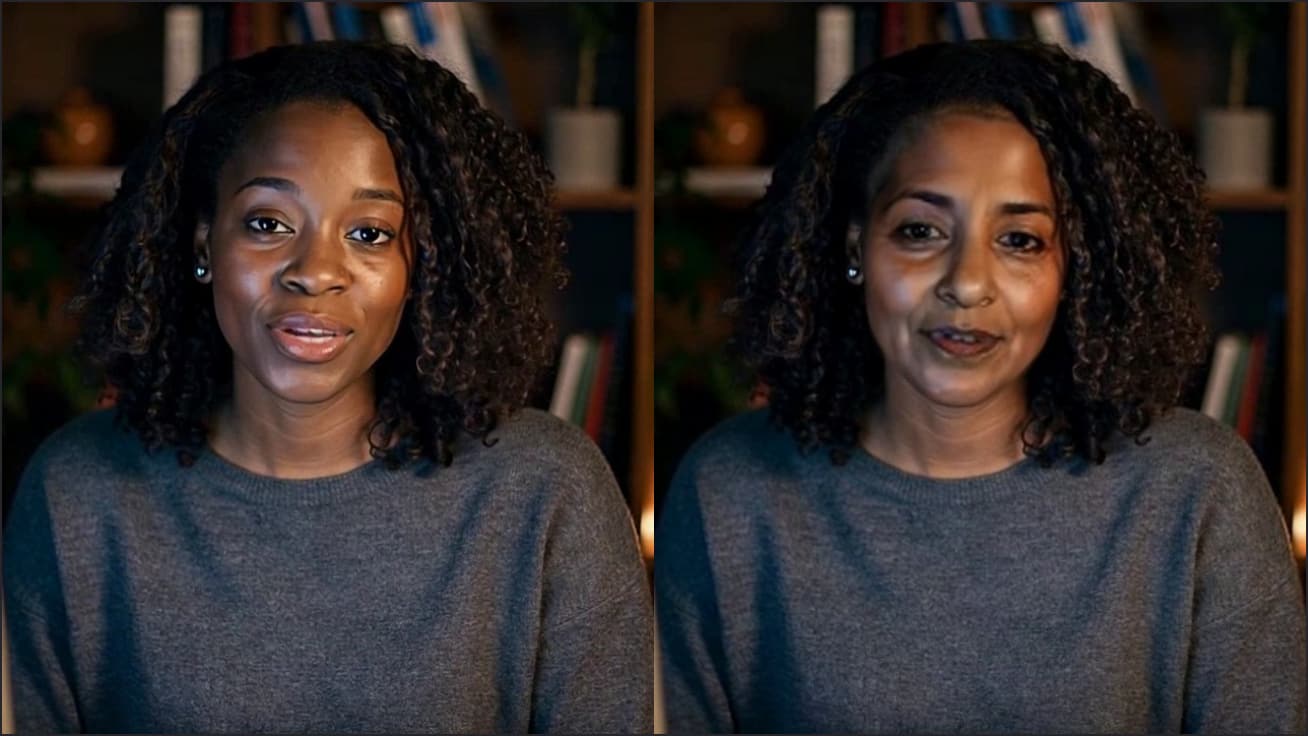
Zoom can touch up your face, give you a fake mustache or turn you into a cartoon. To look like a different person, you need a face swap. We tested what each one changes.
5 min read


Try it
Photo Face Swap
Photo Face Swap is a browser tool that swaps a face into a single photo, leaving the rest of the picture untouched; it also lets you check how a face looks before using it live.
Open Photo Face Swap


