Zombie Filter
Become a zombie on camera, live: rotting skin, sunken eyes and torn clothes, still talking.

Live AI Filter needs Chrome on a computer. Send yourself the link, or see the examples below.
Where it works
How to use the Zombie Filter
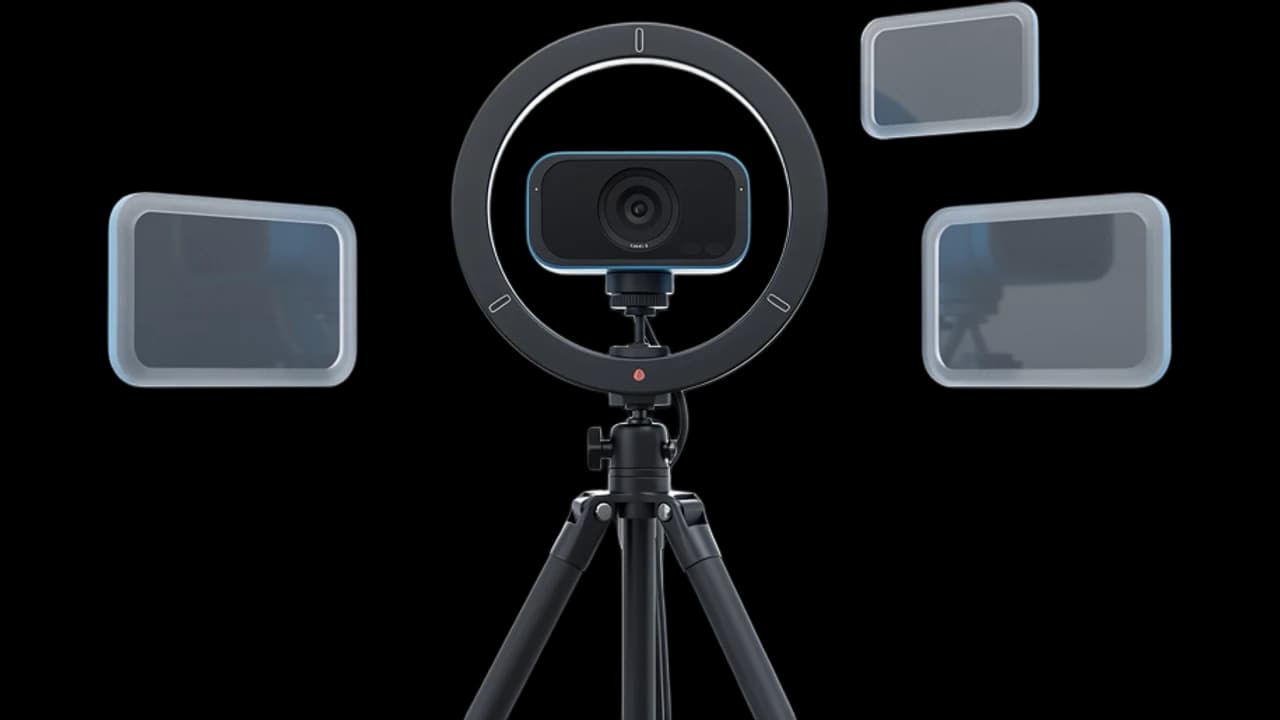
Start your camera
Click Start camera. You see yourself right away, and nothing leaves your device until the filter starts.
Keep Zombie picked
Zombie is already picked on this page. Describe your own zombie if you want it gorier or funnier.
Start the filter
Click Start filter. To use it in a call, add the Facecam extension and pick “Facecam Virtual Camera” as your camera.
What is a zombie filter?
A zombie filter is an effect that makes you look undead on camera: grey or green skin, hollow eyes and torn clothes. Facecam's changes your live video, not a photo, so you can hold a whole call as a zombie.
Made with Facecam
Before and after, on the same clip. His smile and haircut stay; the rest is undead.
What you can do with the Zombie Filter
Halloween calls
Show up to the Halloween team call or a costume party on Zoom as a zombie, with no makeup to wash off.
Horror streams
Play a horror game as a zombie on camera. Capture the Chrome window in OBS to put it on stream.
Scare a friend you know well
Start a video call normally, then switch to Zombie mid-sentence. Switching takes a moment and never drops the call.
The Zombie Filter features
Full zombie, not a mask
Skin, eyes, lips and clothes change, and the light turns a sickly green.
Your expressions
It grins when you grin and talks when you talk, which is what makes it creepy.
Switch live
Go from normal to zombie, or zombie to knight, without leaving the call.
Make your own monster
Describe a vampire, a skeleton or a ghost and the filter follows your words.




More about the Zombie Filter
The Zombie Filter is a live AI video filter that turns you into a zombie on your webcam, with pale grey-green skin, dark sunken eyes, cracked lips and torn clothes in green horror-movie light.
The Zombie Filter: what you need and limits
| How it works | Live, on any laptop. Needs a steady internet connection. |
|---|---|
| You get | Camera in Chrome calls |
| You need | A computer (for calls: Chrome and the Facecam extension), a webcam |
| Phones and tablets | Not supported |
| What changes | Your skin, eyes, mouth and clothes become a zombie's, and the light turns a dim horror green. Your haircut, your expressions and the room's layout stay. |
| Other looks | 11 more ready-made looks, any look you describe in words, or an image to look like. |
| Picture | Sharp and smooth, with about the delay of a normal video call. |
| Works in | This page, and Google Meet, Zoom, Teams and Discord in Chrome with the extension. |
| Price | Comes with every paid plan, by the minute while it's on: ≈ 11 min of Live AI Filter a month on Premium. |
| Recording | We don't record or keep your video. Each frame is changed and sent straight back. |
A zombie filter for video calls
Zombie filters on phone apps put a face mask over a selfie. This one changes the whole person in your live video: your skin turns grey-green, your eyes sink, your lips crack and your sweater tears, while the light in your room turns a dim horror-movie green. Because it follows your real face, every smile and word comes out as a zombie's.
It works on this page and, with the Facecam Chrome extension, as your camera in Zoom, Google Meet, Teams and Discord in the browser, so the whole call sees the zombie, not just you.
More Halloween looks to type
Zombie is one of the ready-made looks. For anything else, type it in Describe a look and click Apply. Say who you become and where you are; the filter follows plain words. A few to start with:
- “Substitute the character with a pale vampire in a high-collared black cape, in a candle-lit gothic castle”
- “Substitute the character with a grinning skeleton in a tattered suit, in a foggy graveyard at night”
- “Substitute the character with a witch in a pointed hat and a green cloak, in a cottage full of potions”
- “Change the style of the video to a black and white 1930s horror film with heavy film grain”

The Zombie Filter FAQ
How do I get a zombie filter on Zoom?
Join the meeting from Chrome with the Facecam extension, choose Live AI Filter and Zombie in its popup, and pick “Facecam Virtual Camera” as your camera in Zoom. It works in the Zoom web app, not the desktop app.
Is my video recorded?
No. We don't record or keep your video. Each frame is changed and sent straight back to you.
How much does the zombie filter cost?
It comes with every paid plan and counts by the minute only while the filter is on: ≈ 11 min of Live AI Filter a month on Premium, if you use nothing else. Trying the camera and picking looks costs nothing.
Can I make it scarier?
Yes. Type your own zombie in Describe a look, for example “a rotting zombie with exposed teeth and blood on its shirt”, and click Apply.
Does it work on my phone?
Yes, on this page in Safari or Chrome. Using it as your camera in calls needs Chrome on a computer.


Related
 Halloween sound effectsWitches, wolves, zombies, bats and a bell at midnight. Fifteen spooky sounds on one free board, ready for the 31st.
 Webcam TestA free webcam test with no sign-up: see your camera's real resolution, frame rate and lighting in seconds. Your video never leaves your device.


Try the Zombie Filter now
- Cancel any time
- Works in Meet, Zoom and Discord
- No gaming PC needed