How to Face Swap a Long Video
Most face swap tools stop at a minute or less; Facecam's Video Face Swap now takes up to 10 minutes in one go. Past any tool's limit, you split, swap and join. We did that to a 3-minute video, in 60-second parts, and checked every seam, the face and the sound so you know which steps matter.
By Facecam team
Published · Updated · 6 min read

On this page
Short answer
Cut the video into parts shorter than the tool's limit, swap the same face into each part, then join the parts with a stream copy and put the original sound back. On a 3-minute video, Facecam's Video Face Swap did three 60-second parts in 3 min 10 s of swapping, and the seams were invisible. The two traps we hit: a quick split can make a part longer than the limit, and joined swaps drift the sound by about 21 ms per part.
Browser face swap tools cap the clip length because every frame is a separate swap on a GPU, and a long upload ties one up for minutes. Facecam's Video Face Swap takes up to 10 minutes, HeyGen's direct clip swap 15 seconds. The way past any limit is the same: split, swap, join. Here is how we did it, with the numbers.
How do you face swap a video longer than the limit?
Cut the video into parts under the tool's limit
In a video editor, use the split tool at each cut and export each part as its own file. With ffmpeg, re-encode each part so it starts and ends on the exact frame (the command is below). Keep every part a few frames under the limit.
Swap the same face into every part
Open Video Face Swap, upload your face photo once, then each part in turn. Use the exact same face file every time. Each part comes back as an MP4 at its original size and frame rate.
Join the swapped parts
List the parts in order and join them with a stream copy (no re-encode), which takes under a second and loses nothing. Most editors can do the same if you drop the parts on one timeline back to back.
Put the original sound back
Replace the joined file's sound with the sound from your original video. This removes the 21 ms the sound slips at each seam (we measured it below).
ffmpeg: the commands we used
# 1. Cut exact 60-second parts (re-encoding, so each part starts on its own frame)
ffmpeg -ss 0   -i long.mp4 -t 60 -c:v libx264 -crf 18 -c:a aac part1.mp4
ffmpeg -ss 60  -i long.mp4 -t 60 -c:v libx264 -crf 18 -c:a aac part2.mp4
ffmpeg -ss 120 -i long.mp4 -t 60 -c:v libx264 -crf 18 -c:a aac part3.mp4

# 3. Join the swapped parts (list.txt has one line per part: file 'swapped1.mp4')
ffmpeg -f concat -safe 0 -i list.txt -c copy joined.mp4

# 4. Keep the swapped picture, take the sound from the original
ffmpeg -i joined.mp4 -i long.mp4 -map 0:v -map 1:a -c copy -shortest final.mp4
Why not split it the quick way?
Because the quick split doesn't cut where you ask. ffmpeg's segment command with -c copy (no re-encode) can only cut on a keyframe, so we asked for 60-second parts and the first one came out 66.9 seconds long. Video Face Swap refused it: its limit was 60 seconds then. Re-encoding each part, as in the commands above, takes a little longer and cuts on the exact frame.
Should you cut at scene changes or every minute?
The usual advice is to cut where the scene changes, so a seam never lands in the middle of a shot. We tried both on the same video: four parts at the scene changes, and three parts of exactly 60 seconds, which put two seams in the middle of a shot.


Mid-shot seams were invisible. The face is swapped frame by frame, so a new part doesn't start a new version of the face: the frames either side of each seam match. ArcFace, a face-recognition model, scored the swapped face at 0.84, 0.85, 0.84 for the three 60-second parts and 0.83, 0.83, 0.86, 0.84 for the four scene parts (1 means identical; the original man scored 0.26). Every part held the same face.
| At scene cuts | Every 60 s | |
|---|---|---|
| Parts | 4 (50, 30, 50, 50 s) | 3 (60, 60, 60 s) |
| Time swapping | 3 min 26 s | 3 min 10 s |
| Seconds of video used | 180 | 180 |
| Face match, mean (ArcFace) | 0.84 | 0.84 |
| Sound late at the end, joined as is | 93 ms | 72 ms |
| Sound late with the original sound put back | 8 ms | 8 ms |
So cut wherever is easiest, as long as each part is under the limit. Fewer parts means fewer uploads and fewer seams; the 60-second cuts were the quicker run here because there were three jobs instead of four. Cutting at scene changes is still worth it if your editor makes it easy, because a seam inside a cut is one less thing to check.
Why does the sound drift after joining?
Each swapped part's sound came back starting about 21 ms after its picture, which is normal for re-encoded AAC audio (the encoder adds a short silence at the start). One part on its own is fine. Joined back to back, the delays add up: our beeps ended 93 ms late after four parts and 72 ms after three. The broadcast guideline ITU-R BT.1359 puts the point where viewers notice late sound at about 125 ms, so a 3-minute video is just inside it and a 6-minute one is not.
The fix is the last command above: keep the joined picture and take the sound from the original file. Our beeps then landed within 8 ms of the second, the same as the original video. Re-encoding the joined sound doesn't help; we tried it, and the delay stayed.
How long does it take, and what does it cost?
Video Face Swap took about as long as the video itself: 3 min 10 s of swapping for 3 minutes of video, plus a few seconds to upload each part. Cutting and joining with ffmpeg took seconds. Swaps are priced by the second of video, so a long video costs the same whether you cut it in three parts or ten. Starter covers 12 minutes of video swap a month and Premium 40; each part can be up to 4.7 GB and 1080p.
Before you swap a whole video, try the face on one frame. Take a screenshot from the video and run it through Photo Face Swap, which is free once a day without an account. If the face looks right on that frame, it will look right across the parts.
What didn't we test?
One 3-minute, 720p video of one computer-made man, with the face turned to the camera most of the time. We didn't try 1080p parts for this post, videos with several people, or very fast cuts, and a face that turns away is harder in any part. Our swapped face scored as low as 0.42 on single frames where he looked down at the chopping board; that's a property of those frames, not of the seams. The face swap tools we compare against in other posts weren't run on this video.
Questions
Can I face swap a long video for free?
You can test the face for free on a still frame with Photo Face Swap (one free swap a day). Swapping the video itself needs a Video Face Swap plan, priced by the second of video, so a long video costs the same in three parts or ten.
What is the longest video Facecam can face swap?
Up to 10 minutes per clip, 1080p and 4.7 GB. For a longer video, cut it into parts, swap each and join them back; we did a 3-minute video this way, in 60-second parts.
Will the face look different between the parts?
Not if you use the same face photo for every part. The swap works frame by frame, so in our test the face matched across all parts and the seams didn't show.
How do I join the parts without losing quality?
Join them with a stream copy (ffmpeg's concat with -c copy), which doesn't re-encode. Then take the sound from the original video so it stays in sync.
Why is my swapped video's sound slightly out of sync?
Each swapped part's sound starts about 21 ms late, and joining parts adds those delays up. Put the original video's sound back on the joined picture to fix it.
Keep reading
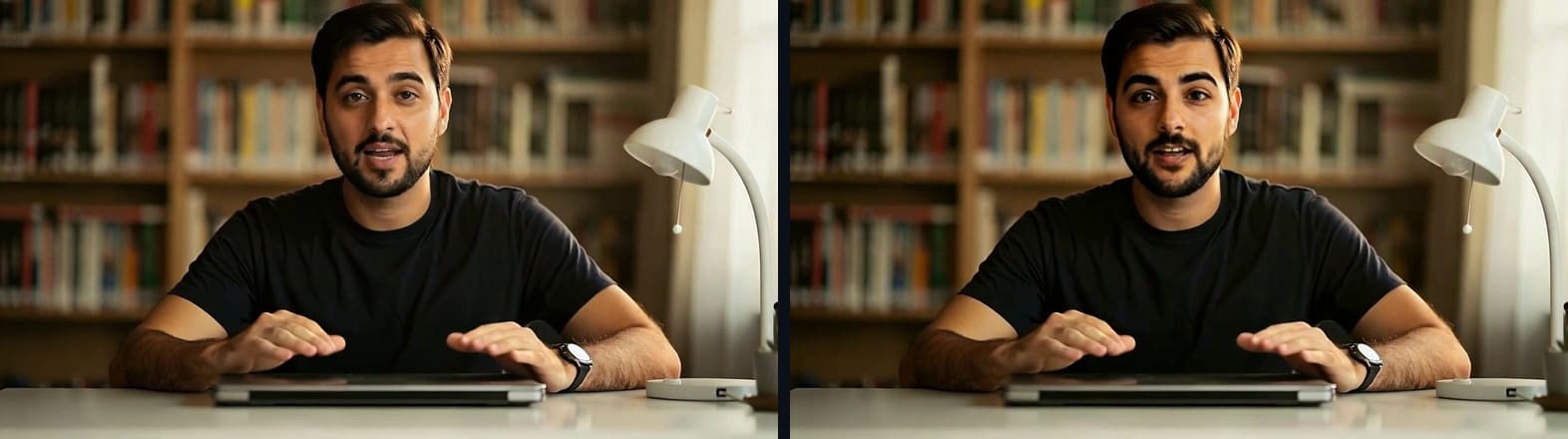
Face Swap
HeyGen Face Swap: Is It Free?
HeyGen face swap puts a face from one photo into a video or picture, inside HeyGen's avatar video app. We read its own pages to find what the free plan really covers, then timed the same kind of job on our tool.
6 min read
Face Swap
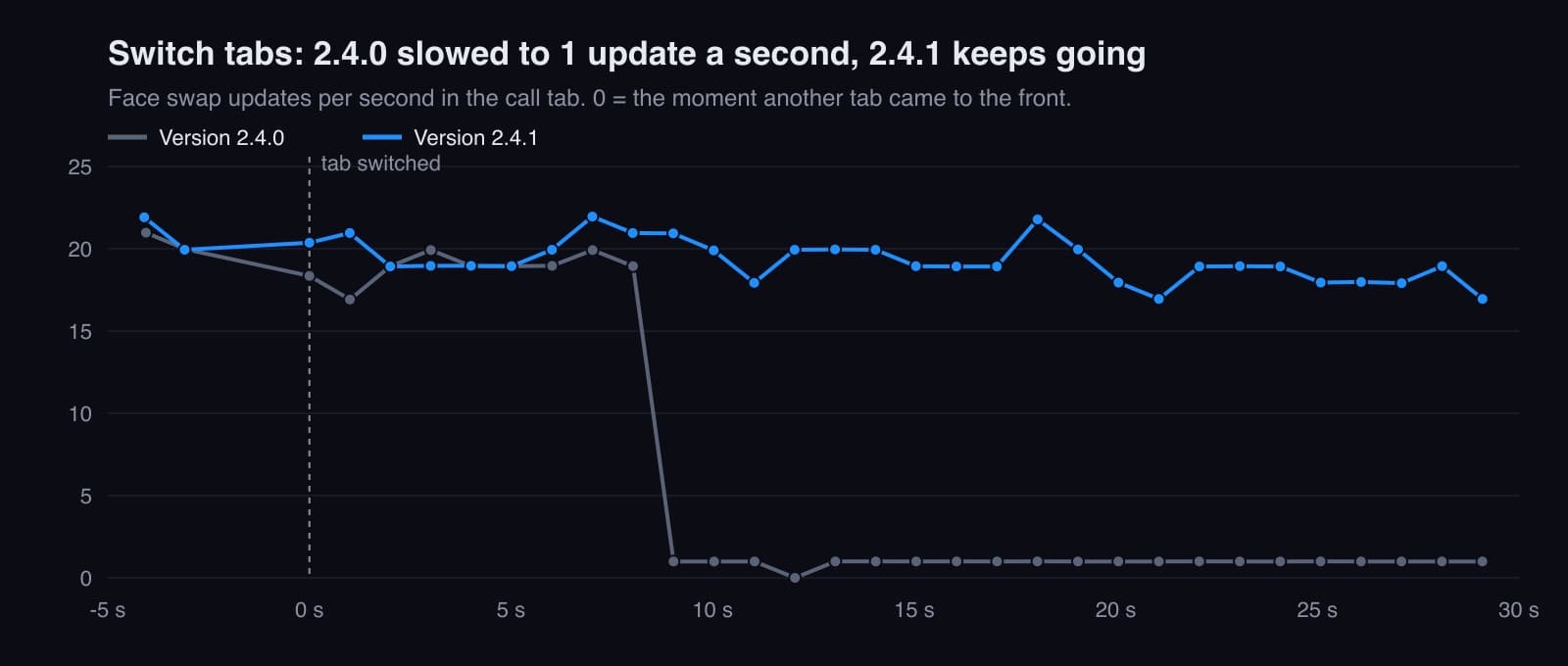
Does Face Swap Keep Working When You Switch Tabs or Share Your Screen?
What happens to a live face swap in a call when you switch tabs, minimise the window or share your screen. We measured every case with the Facecam extension, second by second, found a slowdown, fixed it and measured again.
6 min read
Face Swap
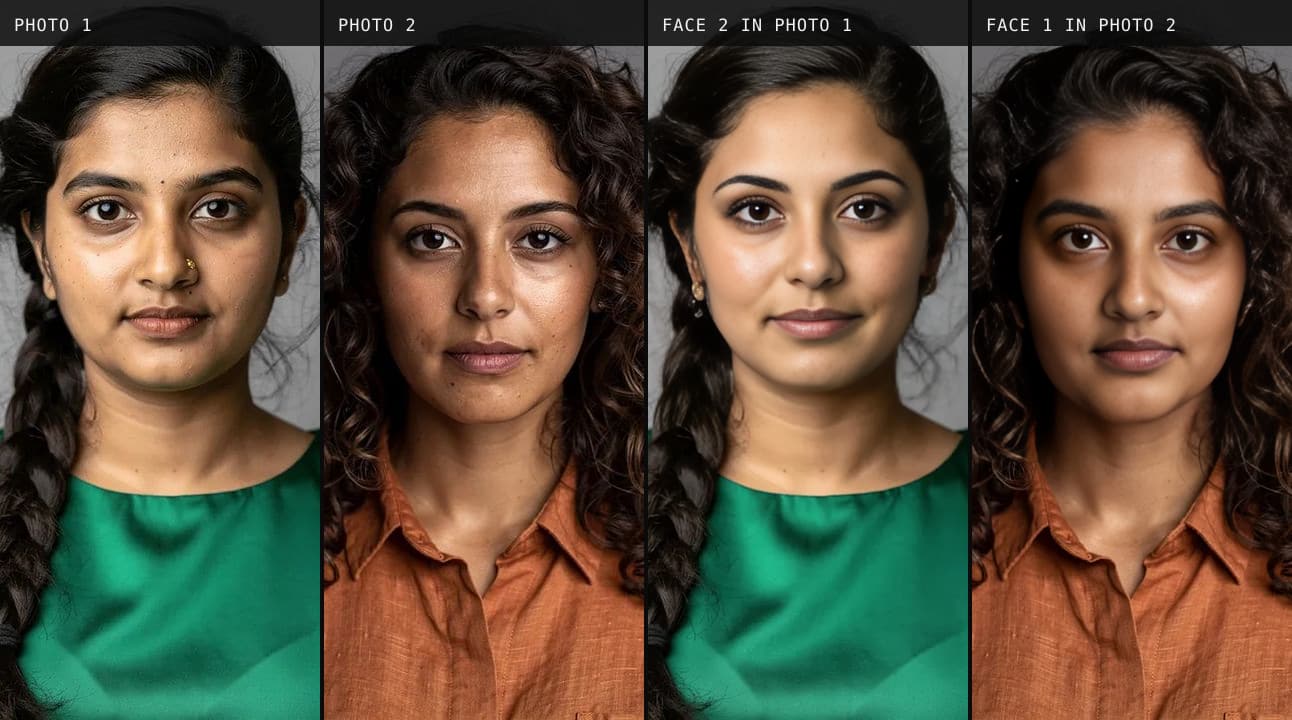
Remaker AI Face Swap: Is It Free?
Remaker AI face swap is free for photos, and it really needs no account. We ran nine swaps as a guest, timed them, and read the pricing, refund and privacy pages so you know the catch before you pay.
7 min read


Try it
Video Face Swap
Video Face Swap is a browser tool that swaps the face in every frame of a short video for the face you upload, keeps the sound, and gives you an MP4 back at the original size.
Open Video Face Swap


